

On Mac, iPad and iPhone Duo
Sun Terrain is one universal app across iPhone, iPad, Mac and iPhone Duo, sharing the same solar math, 3D terrain engine, saved places and private iCloud sync.
Split view on Mac, iPad and open iPhone Duo
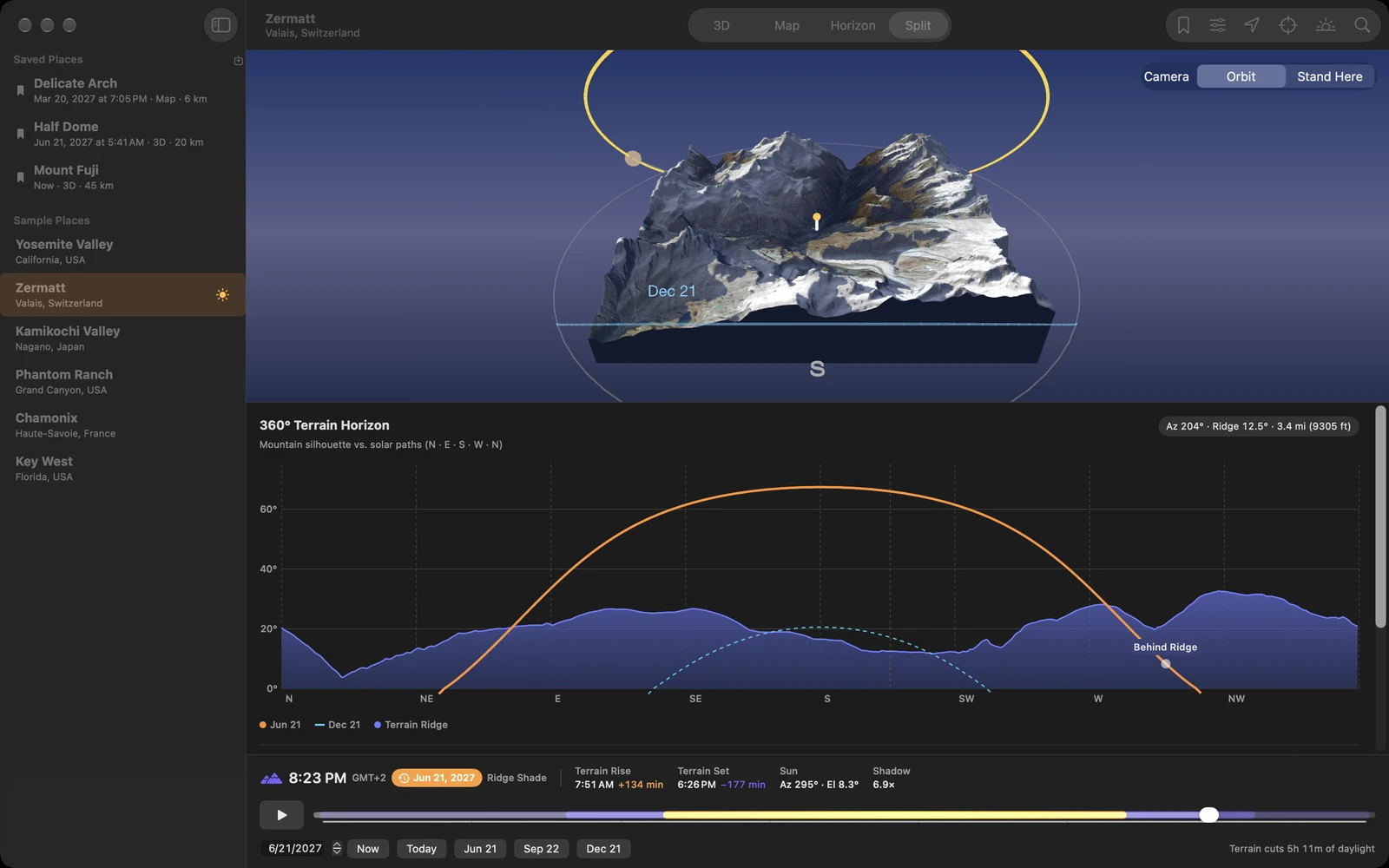
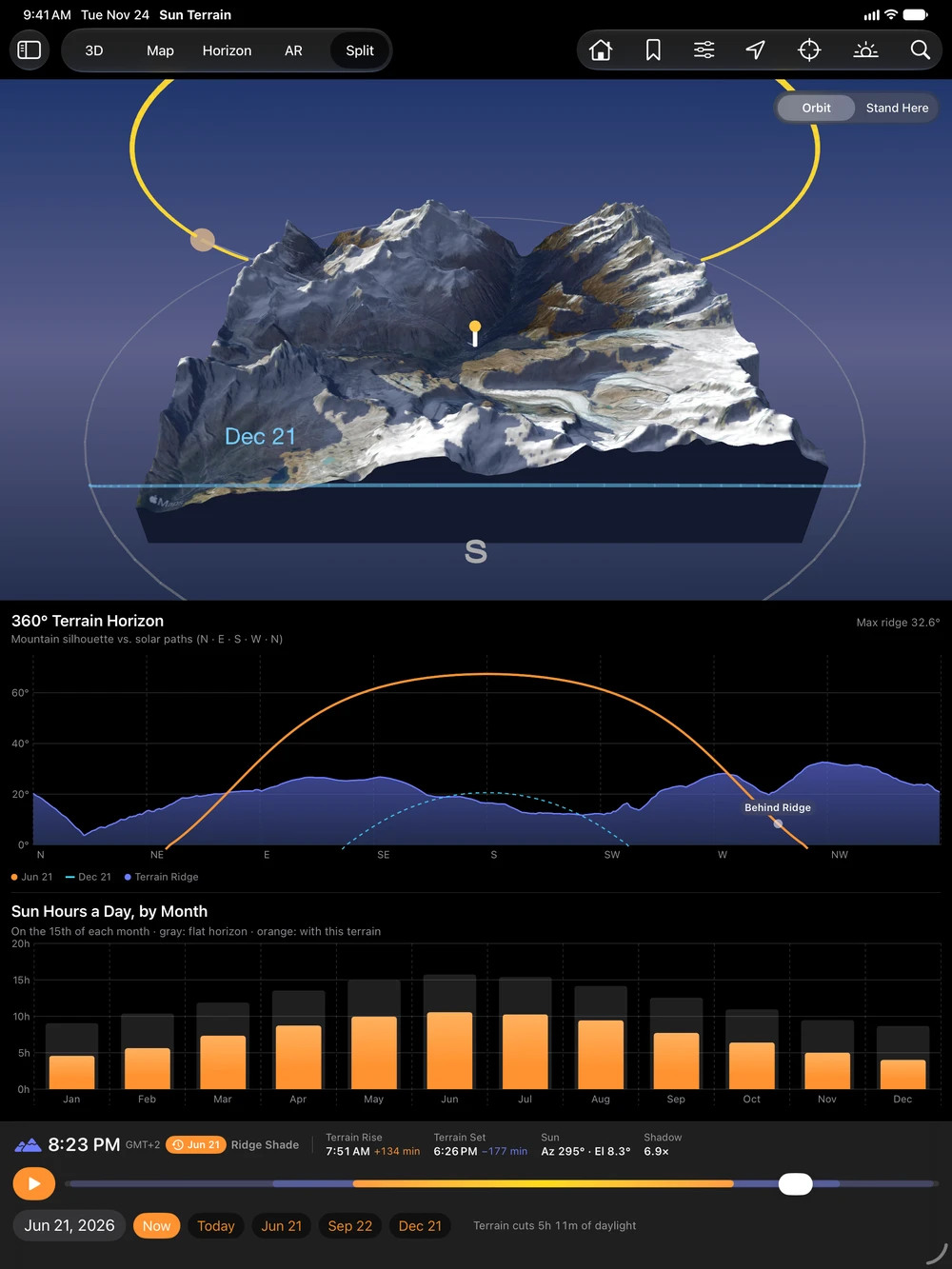
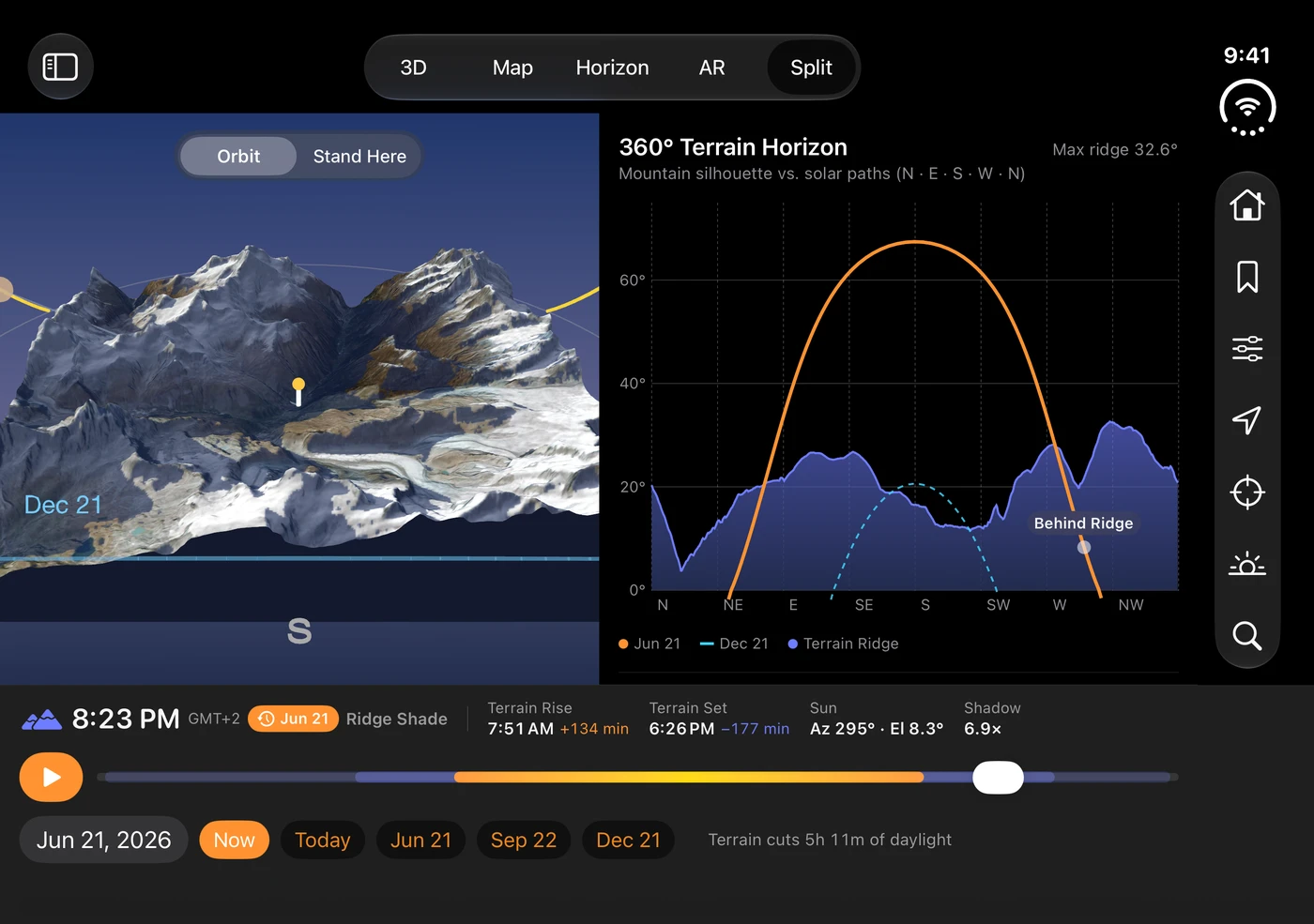
Section titled “Split view on Mac, iPad and open iPhone Duo”Where the screen has room, choose Split in the top view picker to run the 3D terrain block and the 360° Horizon chart together. Scrubbing time, switching dates or running Play Day moves both views in lockstep.
On iPhone Duo
Section titled “On iPhone Duo”- Open (inner display): Uses
ArrangementViewin Split mode to place the 3D terrain on one half of the display and the 360° Horizon on the other, with the places sidebar available beside it. - Closed (outer display): Adapts into a compact single-view workspace with the Home button and Settings tucked cleanly into the cover display’s side strip. Folding or unfolding keeps any open sheet intact.
On the Mac
Section titled “On the Mac”- Places sidebar: Lists Saved Places, Recent Places and Sample Places beside the workspace (toggle with the sidebar button). You can also open multiple windows at once to compare two locations side by side.
- View Options popover: Opens directly from the sliders button in the toolbar without covering the whole scene.
- Pin dragging: Click anywhere on the 2D Map to drop the pin (double-click still zooms), or drag the orange pin directly with the magnifying loupe.
- Stand Here keyboard controls:
W A S Dor arrow keys walk (Shiftruns),QandEturn, mouse scroll or trackpad pinch zooms (+/−/0), click the ground to move there, andEscreturns to Orbit. - Opening place files: Double-click any
.sunterrainfile in Finder to import and open it in Sun Terrain.
On iPhone and iPad
Section titled “On iPhone and iPad”- Start screen: Opens directly on Use My Location, Search a Place, Open a Place File…, your Your Places shelf (with 3D stills of your saved and recent places), and the six Sample Places. Tap the Home button in the top bar at any time to return to the start screen.
- Compact toolbar on iPhone: Shows icon tabs for 3D, Map, Horizon and AR, plus Search and a More (
…) menu holding Save Place, View Options…, Use My Location, Sun Alignment Finder and Sun & Twilight. - AR Sky: Available exclusively on iPhone and iPad using the live rear camera and CoreMotion sensors.