

Look around from the center
Look puts you on foot at a circle’s center: the ground at its true height and scale, seen from eye height and lowered for the Earth’s curve, with the land beyond the circle, out to 80 km, as the skyline.
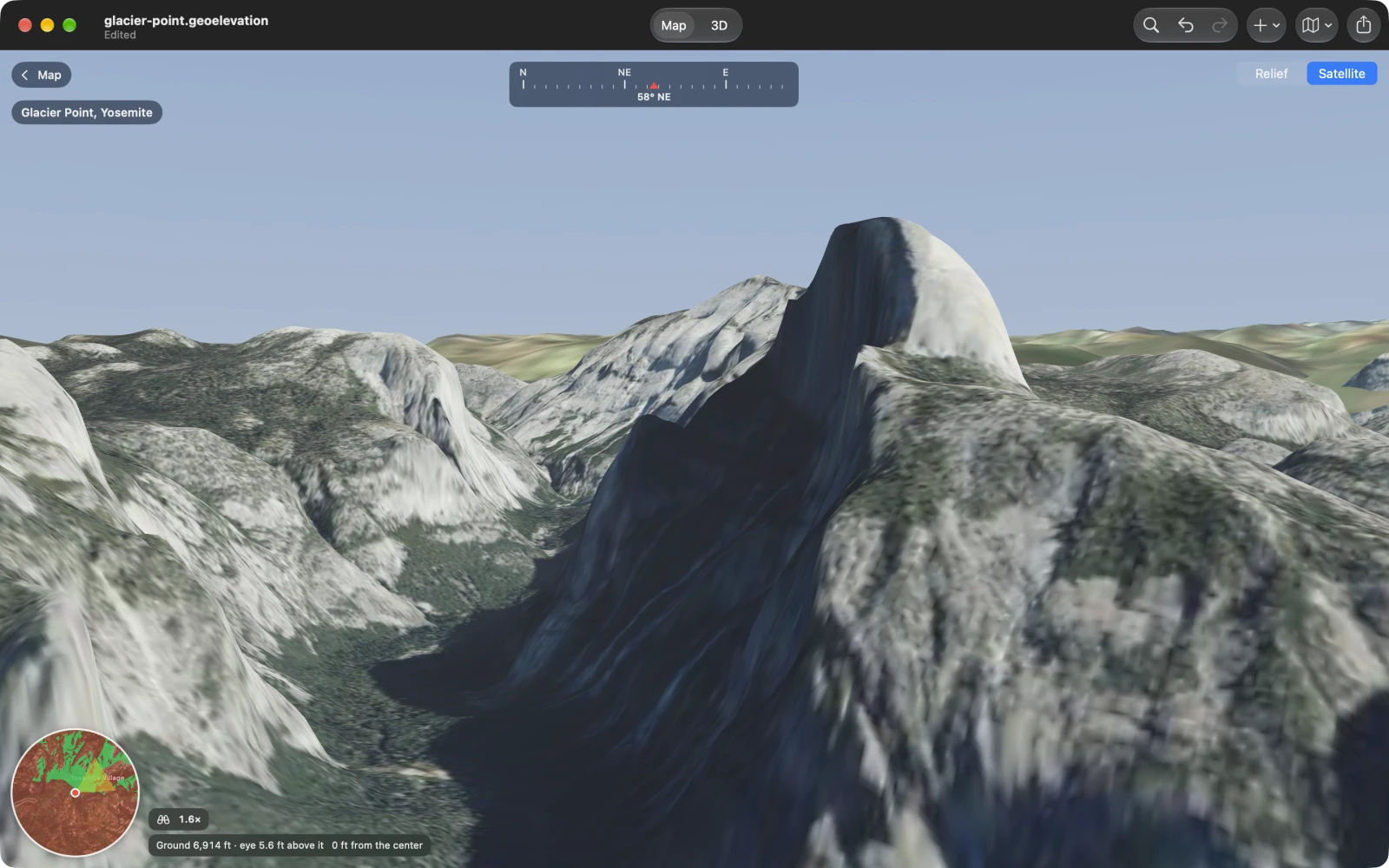
Select a circle and choose Look (the binoculars) beside View from Center, in the panel or the card, or View ▸ Look (⌥⌘L) on the Mac. Look takes the map’s place, from the map or from 3D; “Building the ground…” shows while the heights arrive.
- Your eye is the circle’s Eye above the center: 1.7 meters (5.6 feet) unless you set another height with View from Center on.
- With View from Center on, Look starts facing where the center sees the most, and the mini map carries the green and red. Otherwise it faces north.
- You can walk anywhere inside the circle, up to 25 km from its center. The Look button works on any circle, however small; View ▸ Look on the Mac needs one at least 100 meters in radius.
On the screen
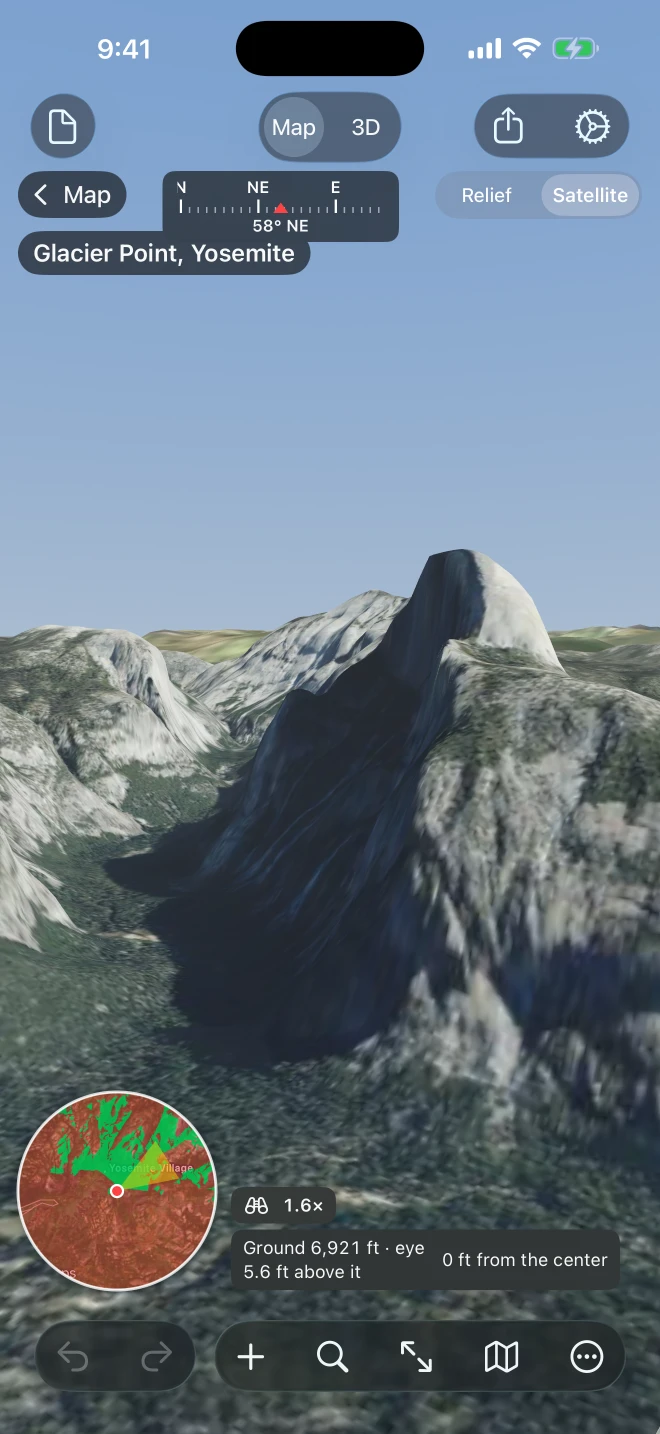
Section titled “On the screen”- Map, at the top left, goes back to the map. The circle’s name is under it.
- The compass along the top gives your heading in degrees.
- Relief | Satellite, at the top right: the ground shaded and tinted by height, or Apple Maps satellite imagery. Satellite is the first choice on the Mac, Relief on iPhone and iPad.
- The mini map, at the bottom left: the circle north up, its view in green and red when it is on, and you as a red dot with a cone for what you see. The cone narrows as you zoom.
- The readout: the height of the ground under you, your eye above it, and how far you are from the center.
- The zoom, with binoculars, once you zoom in; choose it to go back to 1×.
Moving
Section titled “Moving”| Mac | iPhone and iPad | |
|---|---|---|
| Look around | Drag | Drag |
| Go to a place | Click the ground | Tap the ground |
| Walk forward, back | W, S or ↑, ↓ | |
| Step sideways | A, D or ←, → | |
| Turn | Q, E | |
| Run | Hold Shift | |
| Zoom in and out | Scroll or pinch; + and − | Pinch |
| Back to 1× | 0 | The zoom chip |
| Leave | Esc, or Map | Map |
To leave, choose Map at the top left, or Map or 3D in the toolbar: 3D then shows the circle’s ground as a block. Find a Place, Fit, Zoom to Layer, New Rectangle and the commands that add a point or a spot where you stand or at coordinates also leave Look first, so they act on the map you can see.
A keyboard on iPad (or iPhone) brings the Mac’s keys. You walk at 15 meters a second, so a large circle stays within reach; Shift runs six times as fast. A click or tap glides you to the ground under it, inside the circle.
Zoom and sharper ground
Section titled “Zoom and sharper ground”Zoom from 1× to 12×, like binoculars. Hold still and the ground where you look comes again, sharper:
- at 1×, the ground around you, within 12 km;
- zoomed past 2.5×, the ground anywhere in view, near or far;
- in Satellite from 5×, the middle of the view with imagery about 1.4 meters a pixel.
“Loading sharper imagery…” (in Relief, “Loading sharper ground…”) shows beside the readout while it comes, and “Land beyond…” while the land outside the circle is still loading.
What you are looking at
Section titled “What you are looking at”The ground is the document’s elevation data, one height every 30 meters, sharper around you and coarser beyond the circle, under a haze. It is bare ground: no trees, no buildings. It is lowered for the Earth’s curve from wherever you stand, by the same curve the view’s green and red are worked out with, so from the center Look shows what the view says.
Look fetches its heights from our elevation server and its satellite imagery from Apple Maps; see Privacy.