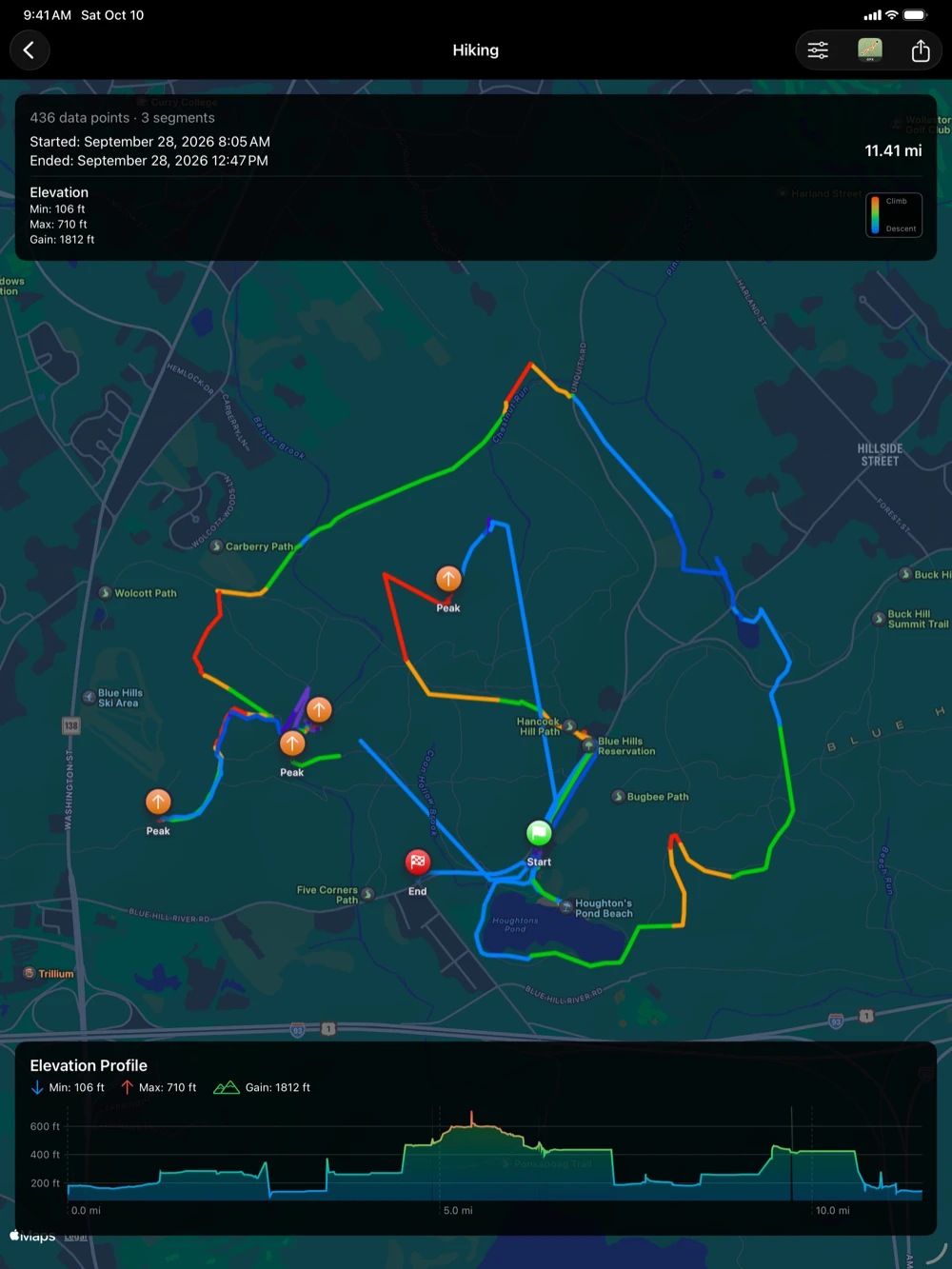

The route viewer
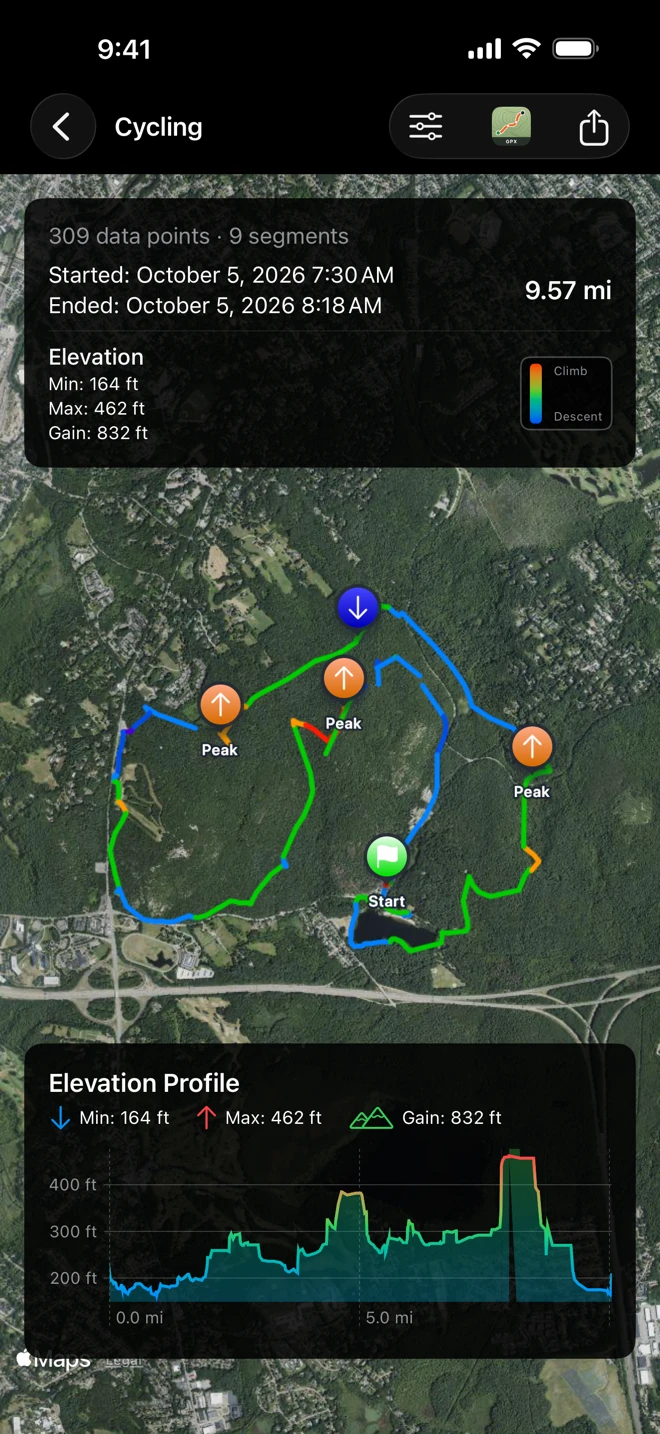
Tap a workout in the list to see what its file will hold: the route on an Apple map, a card with its numbers at the top, and its elevation profile at the bottom. The title is the kind of workout. A workout without a route opens to No route data available instead; it has nothing to show or export.
The colors
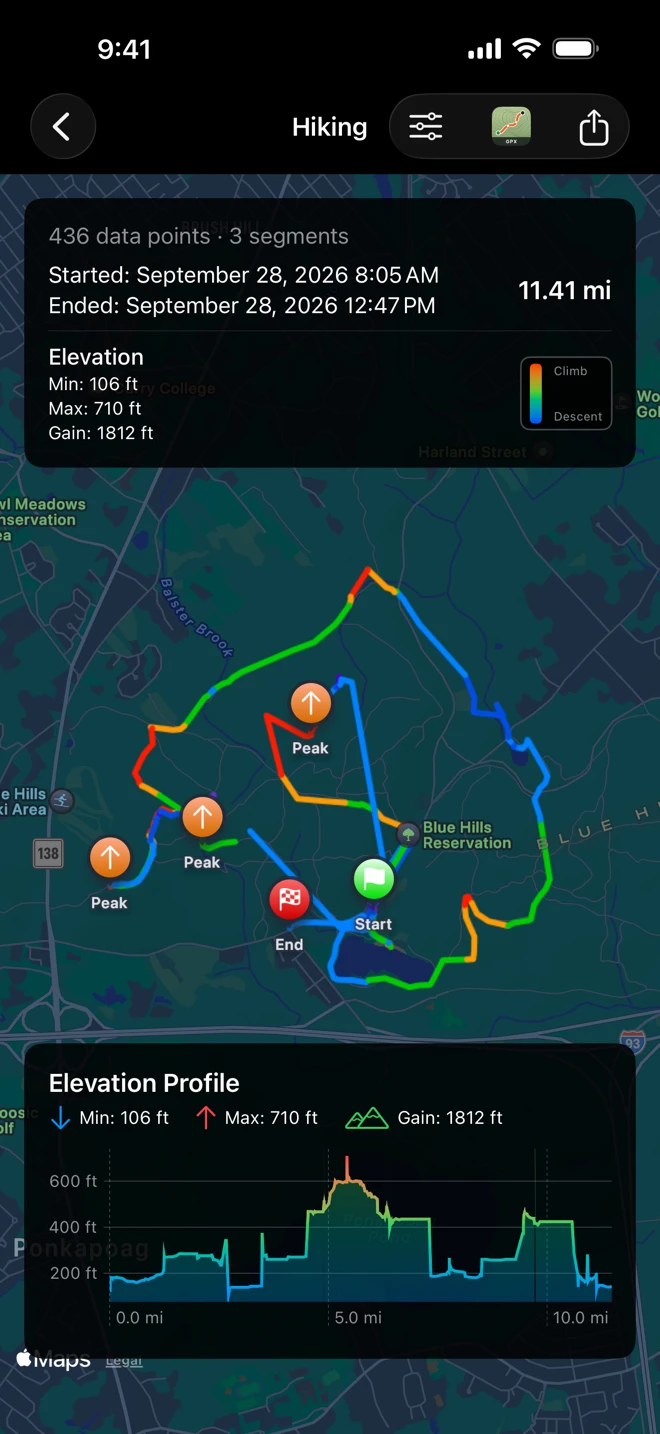
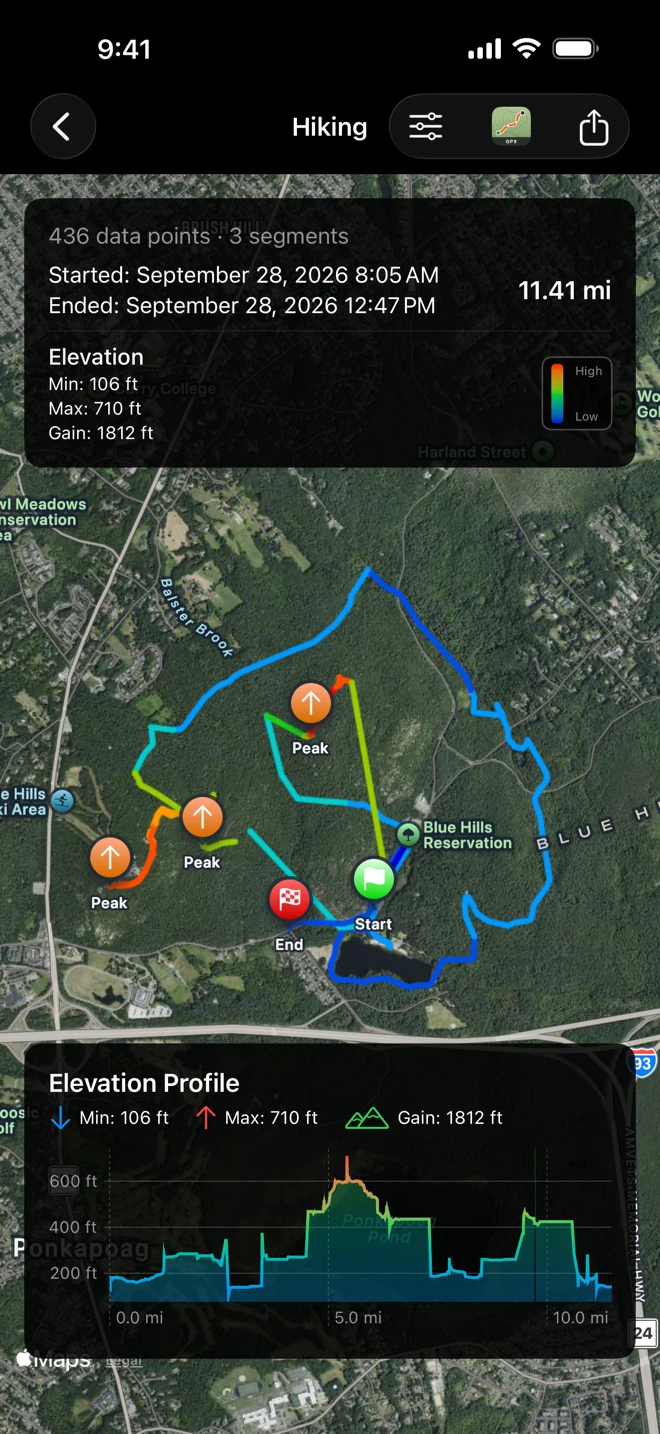
Section titled “The colors”Route Coloring colors the route by effort, which follows the grade, or by elevation. Choose it in the view options menu or in Settings:
- Effort (the default) follows the grade of each stretch. Climbing: green under 3 %, orange to 8 %, red steeper. Descending: light blue, blue, then purple on the steepest stretches.
- Gradient follows the elevation, from the route’s own lowest point in deep blue through cyan, green, yellow and orange to red at its highest.
The legend on the route card reads Climb and Descent for Effort, High and Low for Gradient.
The markers
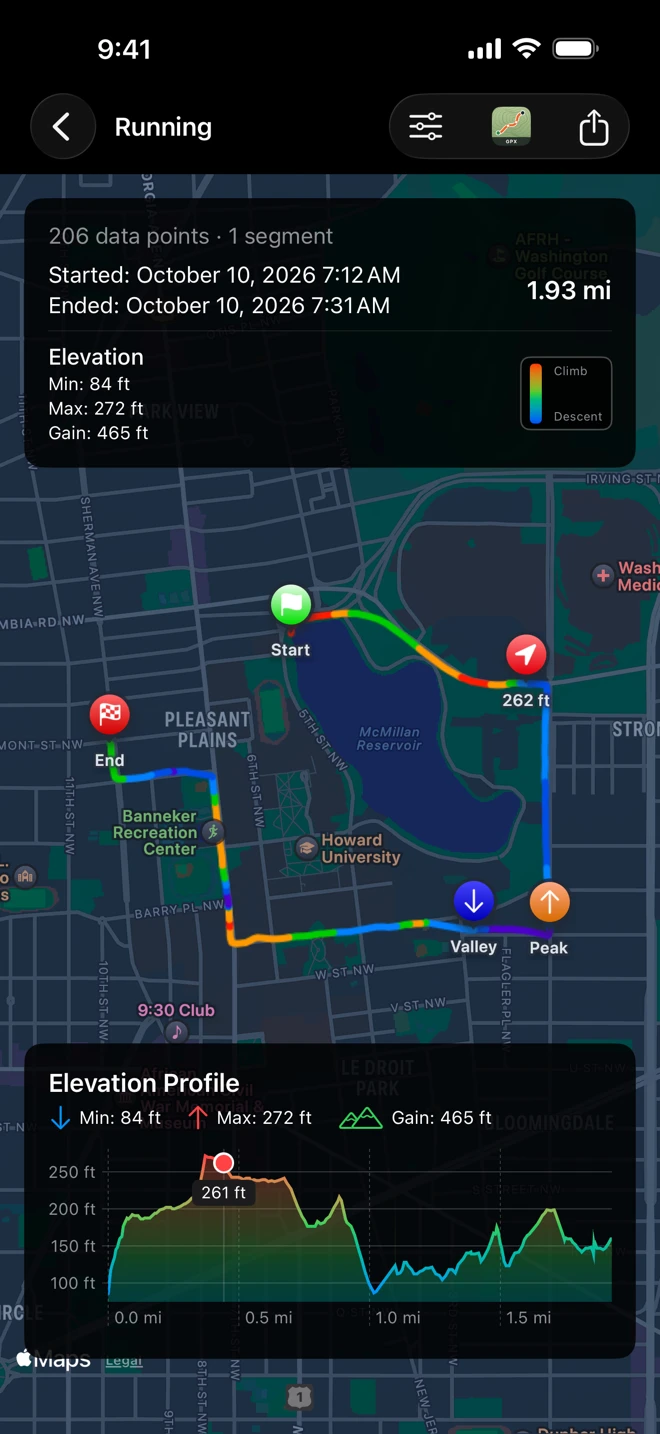
Section titled “The markers”A green flag marks the Start and a checkered red flag the End. Orange Peak and blue Valley markers sit on the route’s clear high and low points (up to five); tap one for its height. With Hide Start and End on, the flags move to where the file begins and ends and the hidden stretches are gray.
The route card
Section titled “The route card”The card at the top says what was recorded:
- “206 data points · 1 segment”: the GPS points Health holds for the workout, and the pieces it was recorded in.
- Started and Ended, with the date and time, and the distance.
- Elevation: Min, Max and Gain. Gain is the climb Apple recorded for the workout, the figure the Fitness app shows, when there is one; otherwise WorkoutGPX works it out from the route’s heights the way GPX Explore does, so the two apps agree.
The elevation profile
Section titled “The elevation profile”The Elevation Profile card at the bottom repeats the lowest, highest and climb above a chart of height over distance. Drag a finger along the chart: a marker on the chart gives the height at that point, and a red pin follows on the map.
On a very long workout, lower Chart Detail in Settings to draw fewer points and keep the chart quick.
The view options menu
Section titled “The view options menu”The button with the sliders at the top right holds:
| Item | What it does |
|---|---|
| Elevation Profile | Shows or hides the chart. |
| Route Info | Shows or hides the route card. |
| Fit to Route | Zooms the map back to the whole route. |
| Map Style | Standard, Satellite or Hybrid. |
| Route Coloring | Effort or Gradient. |
| Hide Start and End | Off or a distance, for this workout. See Hide your start and end. |
Map Style and Route Coloring are remembered for every workout. Whether the chart and the card are open when a workout opens is up to Show Elevation Chart by Default and Show Route Info by Default in Settings.
Beside the menu are the GPX Explore icon, which sends the workout to GPX Explore, and the Share button, which exports it.
On iPad
Section titled “On iPad”The iPad shows the same screen with a larger map; the menu and buttons are the same.