

See the ground in 3D
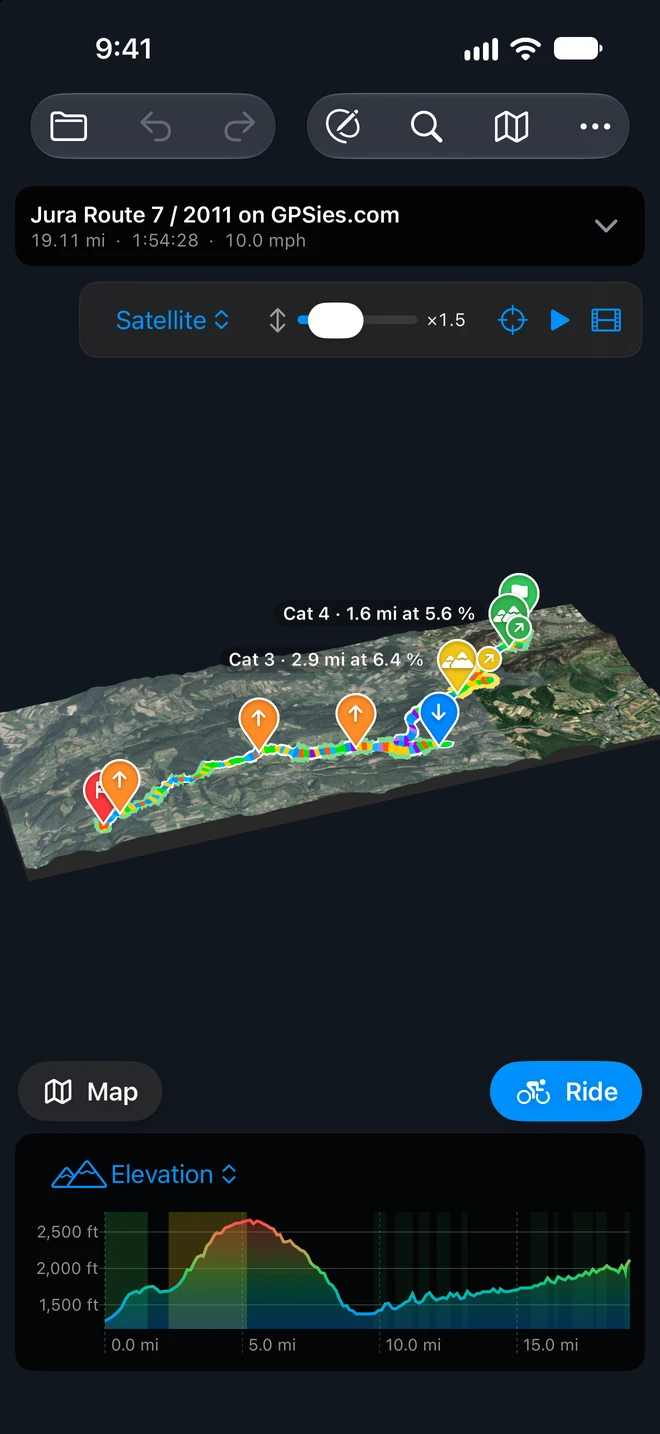
3D swaps the map for the ground under the visible tracks: the hills and valleys from our terrain model, the track draped on them in its colors, and the map’s markers on top.
- On iPhone: the 3D button at the bottom left of the map, above the chart, opposite Ride. In 3D it reads Map; tap it to go back to the map.
- On iPad: 3D in the toolbar (⇧⌘T with a keyboard). In a narrow window, as in Split View, the toolbar makes room and the button sits at the bottom left of the map, as on iPhone.
- On the Mac: 3D in the toolbar, or View ▸ 3D Terrain (⇧⌘T). Click it again to go back.
The 3D view needs GPX Explore Pro, since the ground comes from our server. It is not available while you edit. On iPhone and iPad, starting a ride, a walk or a recording goes back to the map.
What it shows
Section titled “What it shows”- The ground around the track: a block for a short ride, a corridor about 1.5 km either side for a long one. The first time it loads from our server (“Loading the terrain…”), a few seconds for most rides and longer for a tour of hundreds of kilometers; after that it is kept on the device and opens at once, offline too.
- The track in the map’s colors (Effort or Gradient) with a white casing, as wide on the screen as the map’s line at any zoom.
- The markers the map shows, by the same settings: each track’s Start and End, its peaks and valleys, and the file’s waypoints with their names.
- The climbs: along each climb the casing takes the color of its category, and each categorized climb has a disc where it starts and a balloon at its top, “Cat 2 · 6.2 km at 5.4 %”.
- The chart’s cursor as a red dot on the ground.
The controls
Section titled “The controls”At the top right (on iPhone, below the card’s strip):
- Relief, Satellite or Hybrid (a menu on iPhone): the ground drawn as shaded relief from our heights, or with Apple’s aerial imagery on it (Hybrid adds street and place names).
- Height: the slider stretches the heights, ×1 to ×4, so gentle climbs stand out; ×1.5 by default.
- Show the Whole Ride (the target): the camera back to the whole track.
- Fly the Route (the play button): below.
- Flyover Video (the film strip): make a video of the flight to post.
Look around
Section titled “Look around”- Turn the ground by dragging; zoom with a pinch, or the scroll wheel on the Mac. The horizon stays level.
- Point at the ground (on the Mac move the pointer over it; on iPhone and iPad touch and hold, then drag): the chart’s cursor follows to the nearest point of the track.
- Click or tap the track to pick its nearest point, as on the map; beside the track lets it go. A point picked in the Points table or on the chart is the dot on the ground, and the camera slides to it when it is off the screen.
- Pick a climb on the route card and the camera flies to it, seen from the side the way the chart draws it, start on the left. Let it go to see the whole ride again.
Fly the Route
Section titled “Fly the Route”The play button sends a camera along the track, behind and above the rider, its heading eased over the road ahead so a switchback does not swing it. The bar under the controls has:
- Play and Pause (Space). Paused, turn the camera around the rider as you like; play again and it glides back behind.
- The pace, 1×, 2×, 4× or 8×.
- The scrubber: drag it to go anywhere along the track.
- Camera Height: Low, Medium or High (click or tap to step through them).
- Stop Flying (Esc).
While it flies, the chart’s cursor rides with it, and on a climb a panel shows which one (“Climb 3 of 9”), how far to the top and the height and grade left. On iPhone and iPad, Preview in 3D in the sheet before you ride a route flies that ride’s track in the direction you chose.