

Ride a route, turn by turn
On iPhone and iPad, GPX Explore follows any GPX file with spoken directions: for riding, running, walking and hiking. It needs GPX Explore Pro.
-
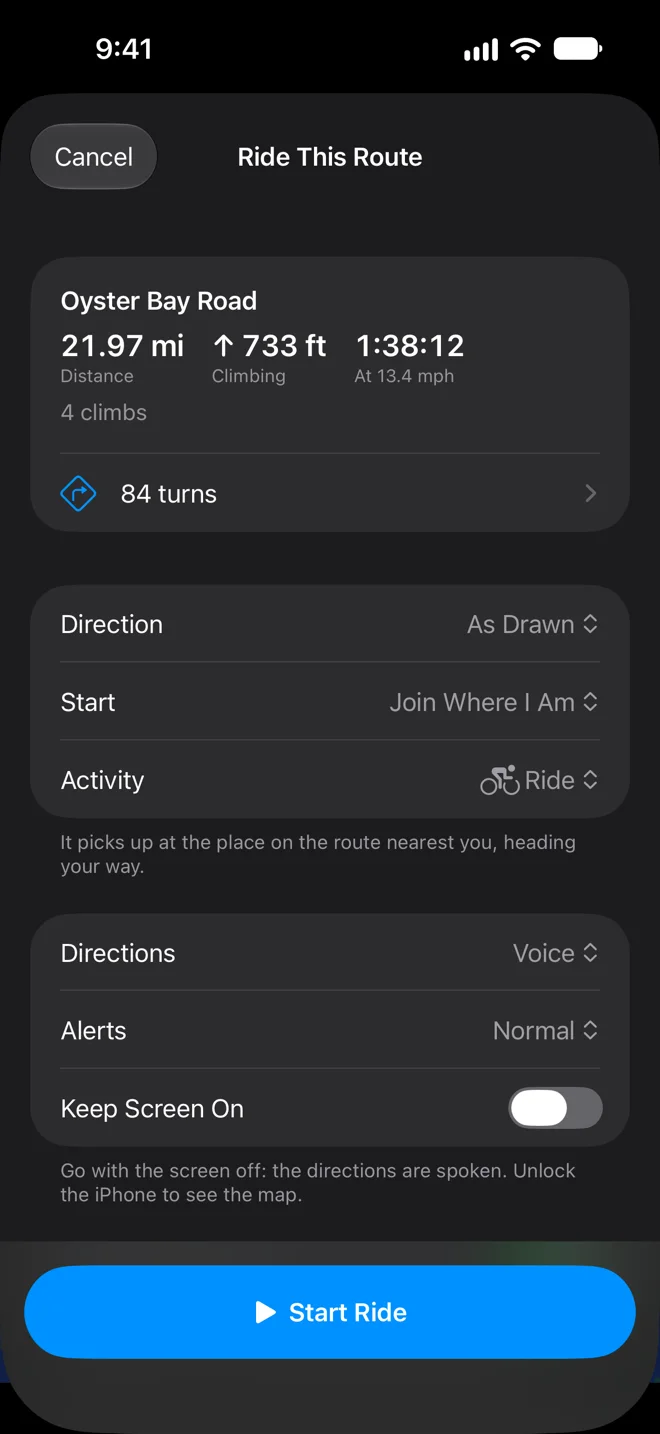
Open the file and tap Ride above the elevation chart. The button says Run, Walk or Hike when the track says it is one. With a track selected, the ride follows that track; with none, the whole file, track after track.
-
Check the sheet. It shows the route’s distance, climbing and the time at your usual pace, its climbs, and the number of turns: tap it for the list. Preview in 3D flies the route over the ground in 3D first, in the direction you chose.
-
Tap Start Ride (or Start Run, Walk, Hike).
| Setting | What it does |
|---|---|
| Direction | As Drawn, or Reversed: the line and its turns both flip. |
| Start | From the Start: away from the route, it first shows the way to its start; already on the route, it goes on from where you are. Join Where I Am: it picks up at the place on the route nearest you, heading your way. |
| Activity | Ride, Run, Walk or Hike: the words on the screen and in the voice, the pace for the arrival time, and how far off the route counts as off route. |
| Directions | Voice, Chimes Only or Silent. |
| Alerts | Early, Normal or Late: when the turns are announced. |
| Keep Screen On | Off, the screen can lock and the directions are spoken; unlock to see the map. On, it stays lit. |
| Record Your Track | On by default: the ride is recorded as you go. See Ending a ride. |
The first time, the sheet shows Apple’s route guidance notice. Your route, its turns and its climbs are on the iPhone and work without signal; the map loads as you go.
The riding screen
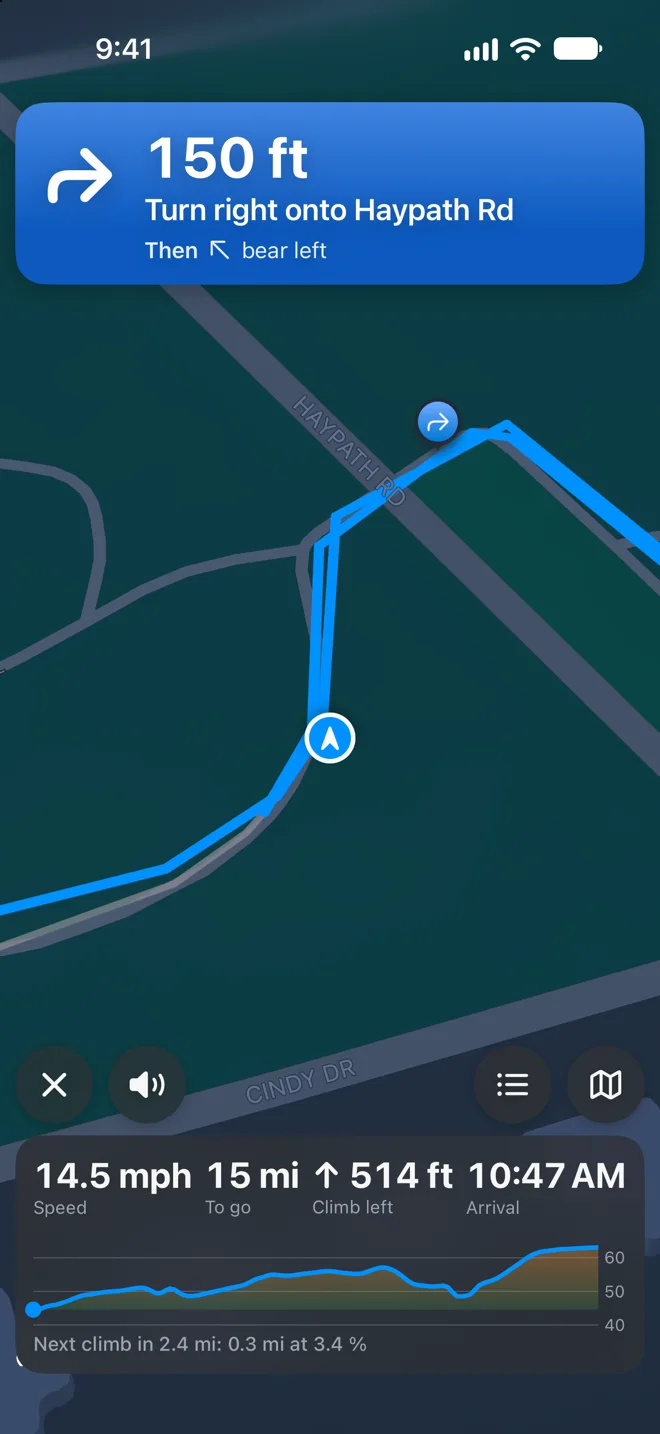
Section titled “The riding screen”- The banner: the distance to the next turn, the turn and its street (“Turn right onto Haypath Rd”), and Then with the turn after it when the two are close.
- The map turns to your direction of travel and follows you. It zooms in as a turn comes near and out on long straights. The route ahead is blue, what you have ridden gray. Drag the map to look around; Recenter brings it back, Overview shows the whole route.
- The panel: speed, distance to go, climbing left and the arrival time, over a profile of the next stretch. On a climb it becomes the climb panel: its category, “Climb 2 of 12”, the grade where you are, and the distance and height to the top.
- The buttons: × ends the ride, the speaker mutes the voice, Turns opens the list of turns, and the map button switches between Overview and Recenter.
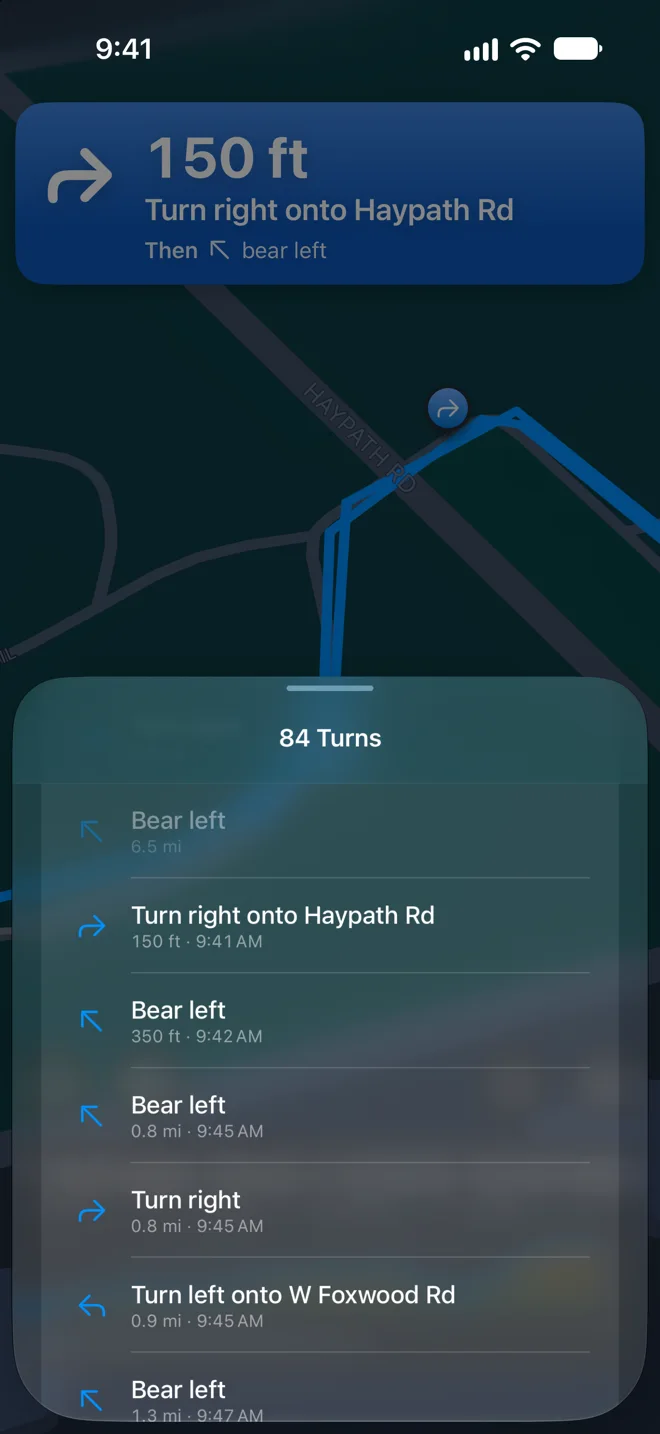
The Turns list opens at your place on the route. Each turn ahead shows how far it is and when you will reach it at your average speed; the ones behind are dimmed. When the file has waypoints near the route, a Waypoints tab lists them the same way.
What you hear
Section titled “What you hear”- Turns, twice: about 20 seconds before (“In 300 feet, turn left onto Main Street”) and as you reach it (“Turn left onto Main Street”). A turn more than a kilometer away is announced right after the one before it, and after a long stretch without turns you hear “Continue for 12 kilometers”. Two turns close together are said as one: “Turn left, then right”. Early and Late move every announcement earlier or later.
- Street names come from Apple Maps while you have signal, looked up a little ahead of you. Without signal the turns are said without them. A gentle bend that stays on the same street is left out.
- Waypoints within 100 m of the route, by their name: “Water in 1 kilometer”.
- A chime before each line and a tap on each turn. Music gets quieter and podcasts pause while it speaks, and come back right after.
Off the route
Section titled “Off the route”More than 50 m from the route for 10 seconds (35 m for 15 seconds on foot), the banner turns red. It shows the distance and an arrow to the route ahead, and you hear which side it is on: “Off route. The route is 80 meters to your right.” The warning is said again after a minute and once more after two.
Tap the directions button in the banner for Apple Maps directions back to the route. They lead to a point a little ahead of where you left it, so you never turn around onto it, and each step is spoken. On a ride they are cycling directions on iOS 26 and later; before that, and on foot, walking directions. Within 30 m of the route again (20 m on foot) you hear “Back on route”; if you joined further along, it says how much you skipped. Riding the route backwards, you hear “You are going the wrong way along the route.”
To the start
Section titled “To the start”With From the Start, away from the route, the banner is orange: To the start of the route, with the distance and an arrow. The directions button gives Apple Maps directions there. The ride begins as you reach the start, or anywhere else on the route once you have gone 50 m along it its way (25 m on foot), at any pace. Crossing the route on the way, stopping on it, or walking along it back toward the start does not start it.
With the screen off
Section titled “With the screen off”The directions keep coming with the screen locked or another app in front; the blue location indicator shows while a ride is on. On iOS 18 and later, the next turn is also on the Lock Screen and in the Dynamic Island, with the distance to go and, on a climb, how much of it is left. A turn, going off route and arriving light the Lock Screen, and reach your Apple Watch when the iPhone is locked. To turn this off, switch off Live Activities in Settings ▸ Apps ▸ GPX Explore.
If iOS closes GPX Explore during a ride, the ride carries on where it was when the app comes back, within half an hour, voice and recording included.
Ending a ride
Section titled “Ending a ride”Tap ×, then End Ride. At the end of the route you hear “You have arrived.”
With Record Your Track on, the screen turns into the summary: your ride drawn over the route, moving time, distance, gain and average speed (pace on foot).
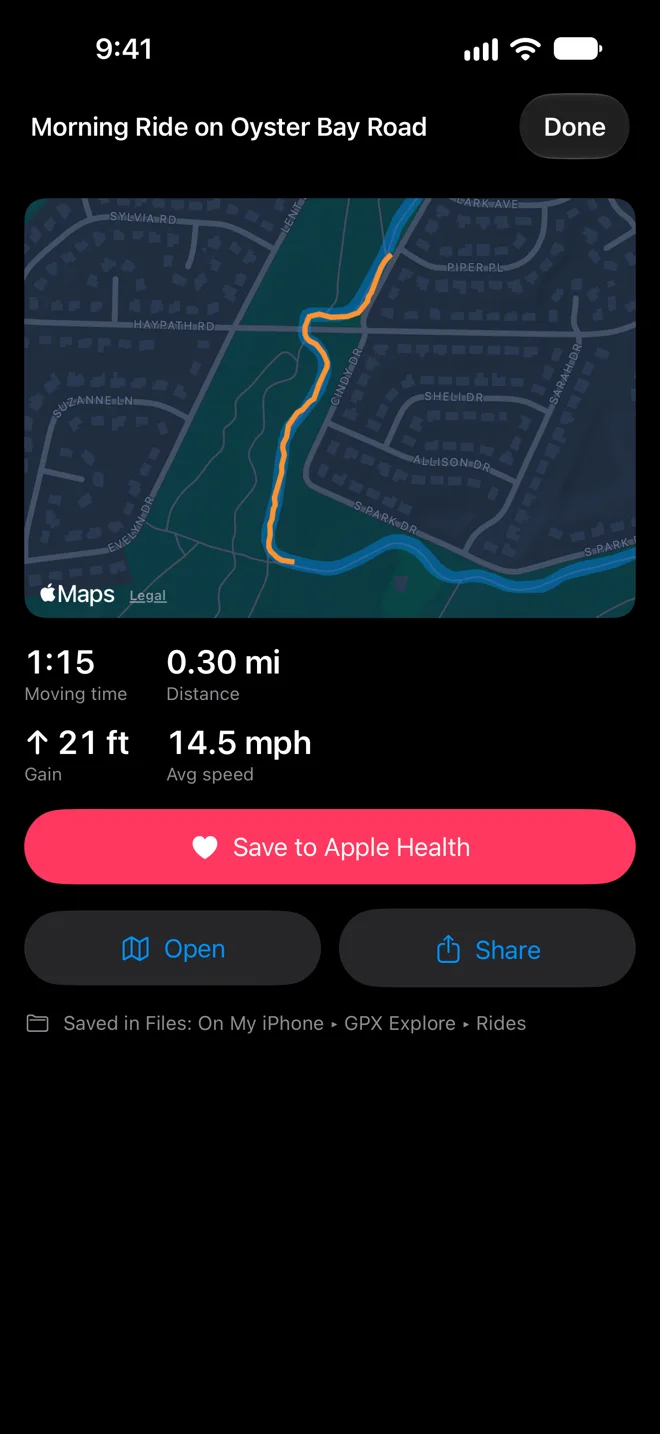
- Save to Apple Health adds the ride as a workout with its map. The first time, iOS asks for permission. A ride is saved once; the button then says Saved to Apple Health.
- Open shows the recorded file on the map; Share sends it.
- The file is in Rides in GPX Explore’s folder, named like “2026-10-08 Morning Ride on Oyster Bay Road.gpx”: On My iPhone ▸ GPX Explore ▸ Rides in Files, or iCloud Drive ▸ GPX Explore ▸ Rides if you keep GPX Explore’s files in iCloud Drive. The summary says which.
The recording is kept as you go, so closing the app, or iOS closing it, loses nothing. GPS fixes that jump off the road and straight back are left out, as when you record a track. If the file cannot be written (a full iPhone), you see Your track was not saved: Try Again, or Later, and GPX Explore saves it the next time it opens.