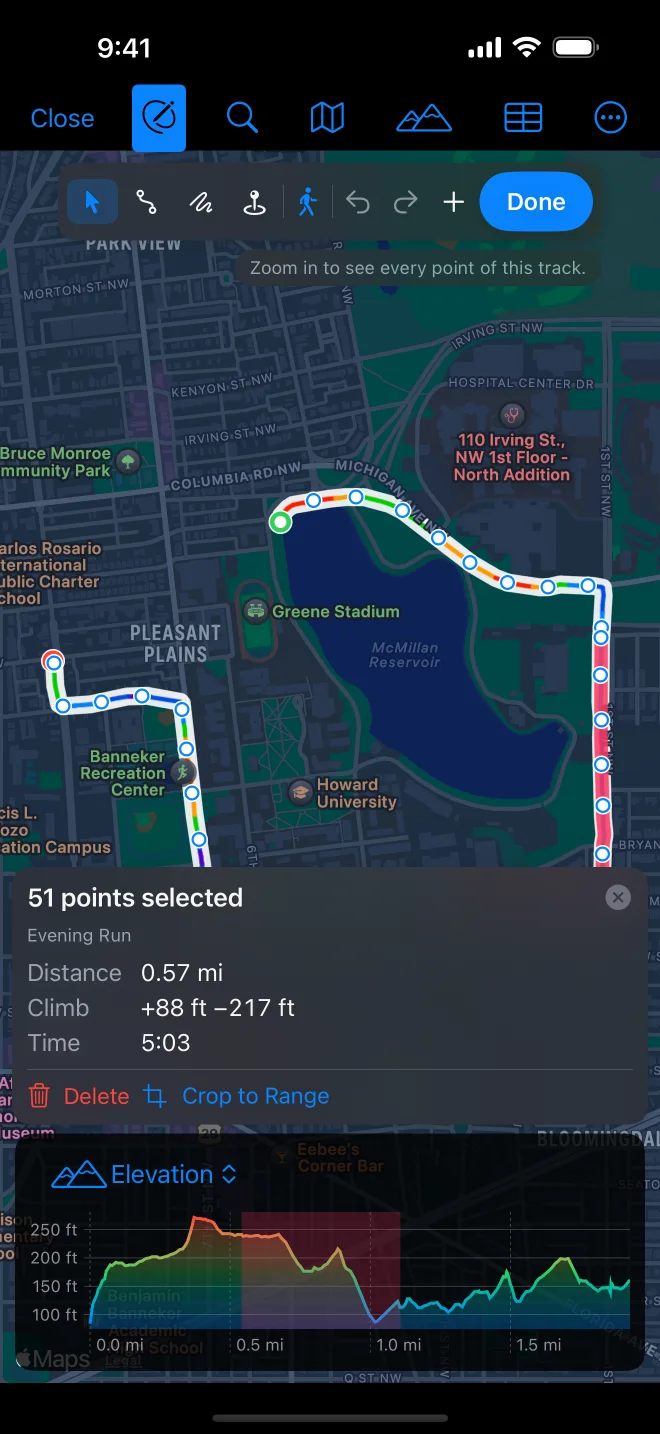

Fix a recording
Fixing needs GPX Explore Pro. Click Edit (⌥⌘E) and choose Select and Move.
Select a track and a point
Section titled “Select a track and a point”Click or tap a track to select it: it gets a halo, and its points in view show as dots. The panel at the right (at the bottom on iPhone) is about whatever is selected.
Click a dot to select that point. The panel shows Point n of total, and on the Mac and iPad its coordinates, elevation, time and sensor readings, which you can type over. Press Esc on the Mac to clear the selection.
Move, add and delete points
Section titled “Move, add and delete points”- Move: drag a dot. A loupe shows exactly where it lands. A point whose height came from the terrain model gets the height of its new place; a recorded point keeps what it measured.
- Add: click or tap the small + between two dots to put a point there. On the Mac, drag the + to add the point and place it in one move.
- Delete: select the point and press Delete (or ⌘⌫, Edit ▸ Delete Selection), or use Delete in the point’s panel.
Right-click a point on the Mac, or long-press it on iPhone and iPad, for Delete Point, Split Segment Here, Split into New Track Here and Select Range to Here. Anywhere on the map, the same menu has Add Waypoint Here, Start New Track Here and Copy Coordinates.
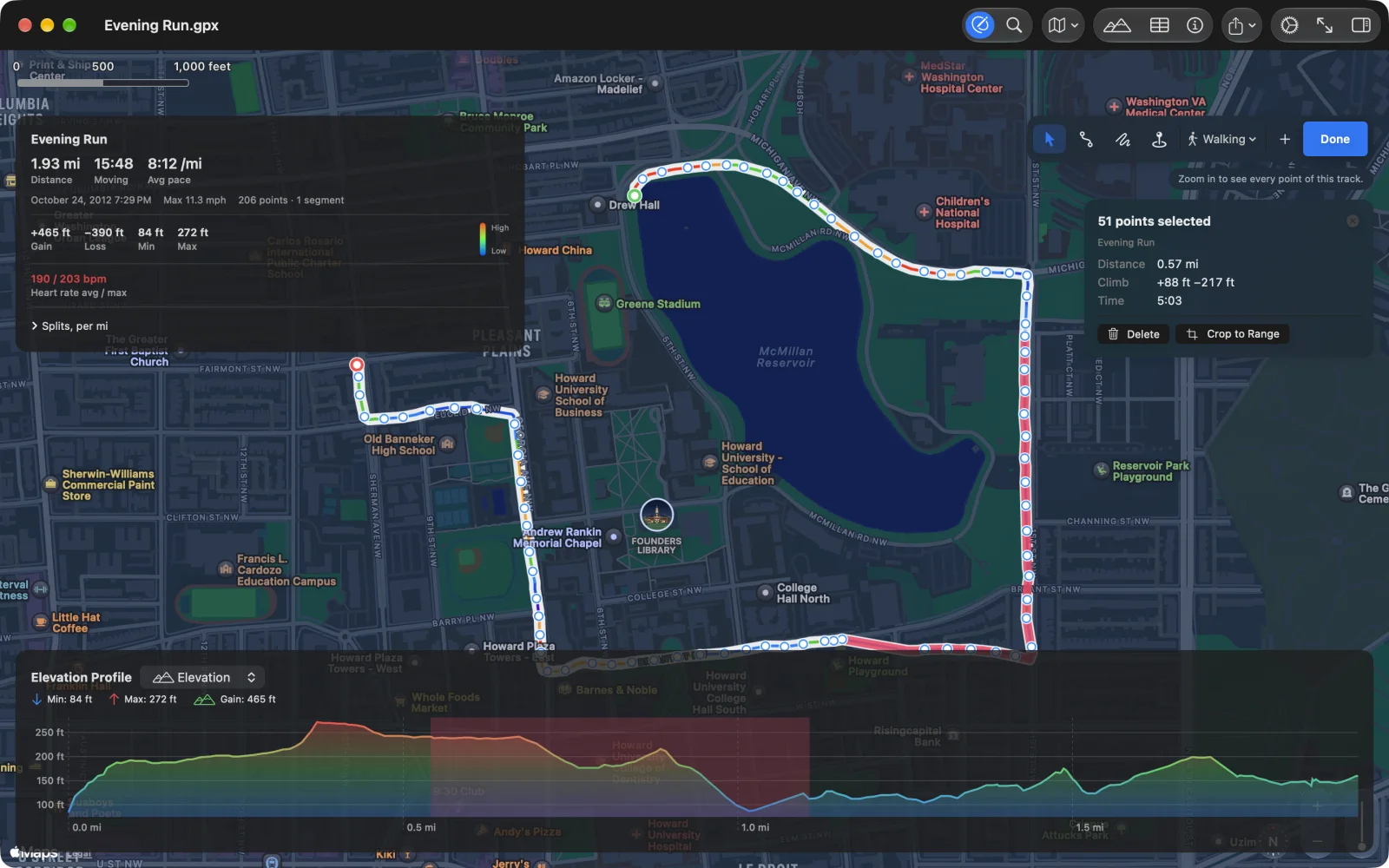
Ranges
Section titled “Ranges”A range is a run of points in one segment. Select one in any of these ways:
- On the map (Mac): select a point, then shift-click a second.
- From the point’s panel: Range…, then click or tap the point where the range ends.
- From the menu: select a point, then right-click or long-press another for Select Range to Here.
- On the chart (Mac): while editing, drag across the chart.
- In the Points table: select neighbouring rows.
The panel shows how many points are selected and their Distance, Climb and Time, with two buttons:
- Delete (⌘⌫): the points go, and the track joins across the gap.
- Crop to Range: only these points are kept. The way to cut the drive to the trailhead off both ends at once.
Select a point in the middle of a track and choose Split in its panel:
- Split Segment Here: the track keeps both halves as two segments.
- Split into New Track Here: the second half becomes a track of its own.
To put two tracks back together, use Join With in the track tools.