

Lock Screen, Watch and Shortcuts
Once a recording runs, the iPhone can stay in your pocket. Everything you need on the way is on the Lock Screen, on your wrist, or a word to Siri.
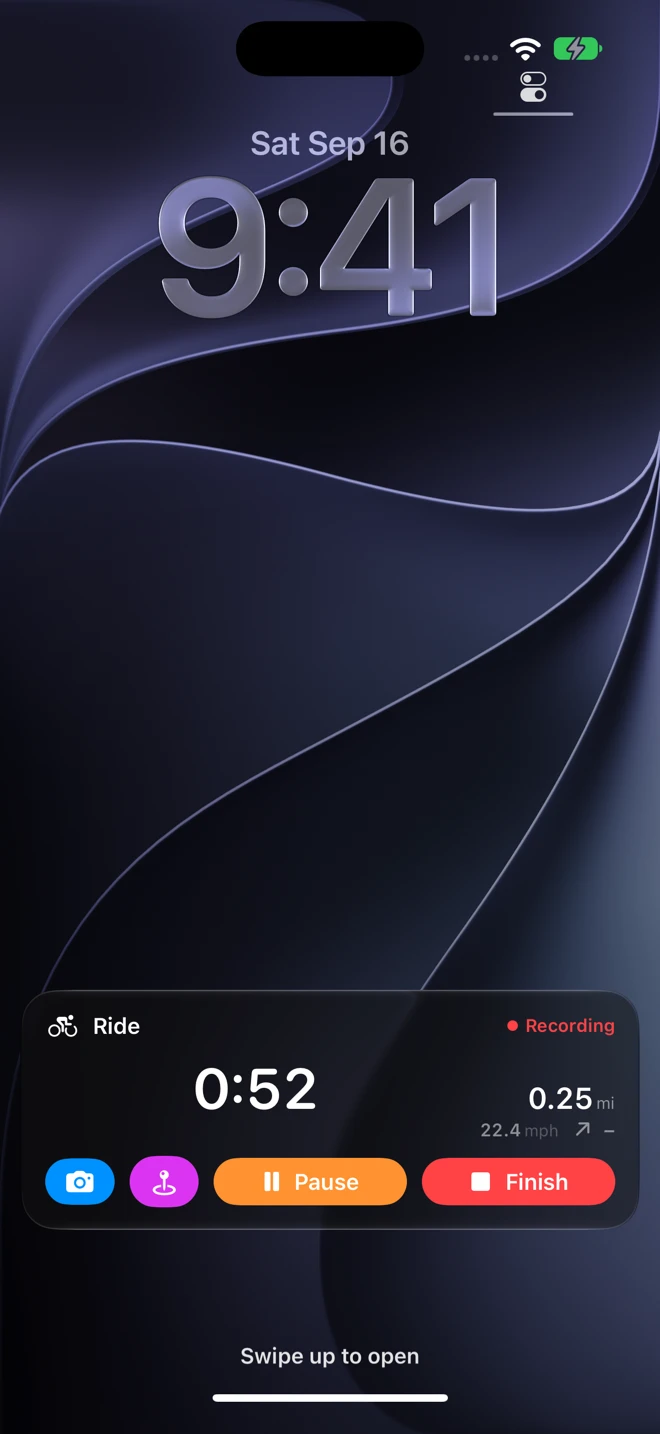
The card on the Lock Screen
Section titled “The card on the Lock Screen”While you record, a card on the Lock Screen shows the activity, Recording with a red dot (Paused or Auto-paused in orange), the clock, the distance, the pace or speed and the climb, and four buttons:
- The camera opens Geo Tracker’s camera (Face ID first): each photo becomes a waypoint where you are. See Waypoints and photos.
- The waypoint pin marks where you are now, named Waypoint 1, Waypoint 2 and so on.
- Pause, then Resume.
- Finish ends the recording and saves it at once under its default name (Morning Walk, Evening Ride), to Apple Health too when the summary’s switch was last left on. The card says Finished. Open Geo Tracker to see the track., and the app opens on that track the next time. Rename it there if you like. One tap is enough, so mind it: there is no way back from Finish on the card.
The card does not dim during a long stop: it stays bright for up to two hours standing still. It goes away the moment the recording is saved or discarded. To turn it off, switch off Live Activities in Settings ▸ Apps ▸ Geo Tracker.
The Dynamic Island
Section titled “The Dynamic Island”On an iPhone with a Dynamic Island the same recording lives there while another app is in front: the activity’s symbol and the clock when it is small, and, pressed, the distance, the pace or speed, the clock and the same four buttons. Finish there saves the same way.
Apple Watch and StandBy
Section titled “Apple Watch and StandBy”The card also appears in the Smart Stack of a paired Apple Watch, and on a charging iPhone in StandBy, in its small form: the clock, the distance, and Pause or Resume beside Stop & Save. The iPhone does the recording; the Watch gives you the buttons, and needs the iPhone within reach. There is no Watch app and no recording from the Watch alone: for routes from a Watch workout, see WorkoutGPX.
Control Center, the Action button and Siri
Section titled “Control Center, the Action button and Siri”Two controls can be added to Control Center, the Lock Screen and the Action button (Settings ▸ Action Button, or edit Control Center and search for Geo Tracker):
- Start Recording opens Geo Tracker and starts recording in the activity you used last.
- Geo Tracker Camera opens Geo Tracker’s camera, on a locked iPhone without unlocking it; on an iPhone with Camera Control it can be assigned there too. Photos become waypoints on the recording. See Waypoints and photos.
Siri takes these, with the app’s name in the phrase:
| Say | What happens |
|---|---|
| “Start recording in Geo Tracker”, “Record my route with Geo Tracker” | Opens the app and starts recording. |
| “Pause Geo Tracker”, “Pause my Geo Tracker recording” | Pauses. |
| “Resume Geo Tracker” | Resumes. |
| “Add a waypoint in Geo Tracker”, “Mark this spot in Geo Tracker” | A waypoint where you are. |
| “Finish my Geo Tracker recording”, “Stop Geo Tracker and save” | Finishes and saves under the default name. |
Shortcuts
Section titled “Shortcuts”The Shortcuts app has the same actions for your own automations: Start Recording (with an Activity: Last Used, Walk, Hike, Run, Ride or Other), Pause Recording, Resume Recording, Finish and Save Recording, Add Waypoint (with a Name) and Take a Photo Waypoint. Starting opens the app, because iOS lets a background recording begin only from the foreground; the others run without showing it.