

Record a track
Geo Tracker records a track from scratch: no route to follow, no form to fill in. One tap starts it, the screen can go dark, and when you finish the outing is a GPX file on your device.
-
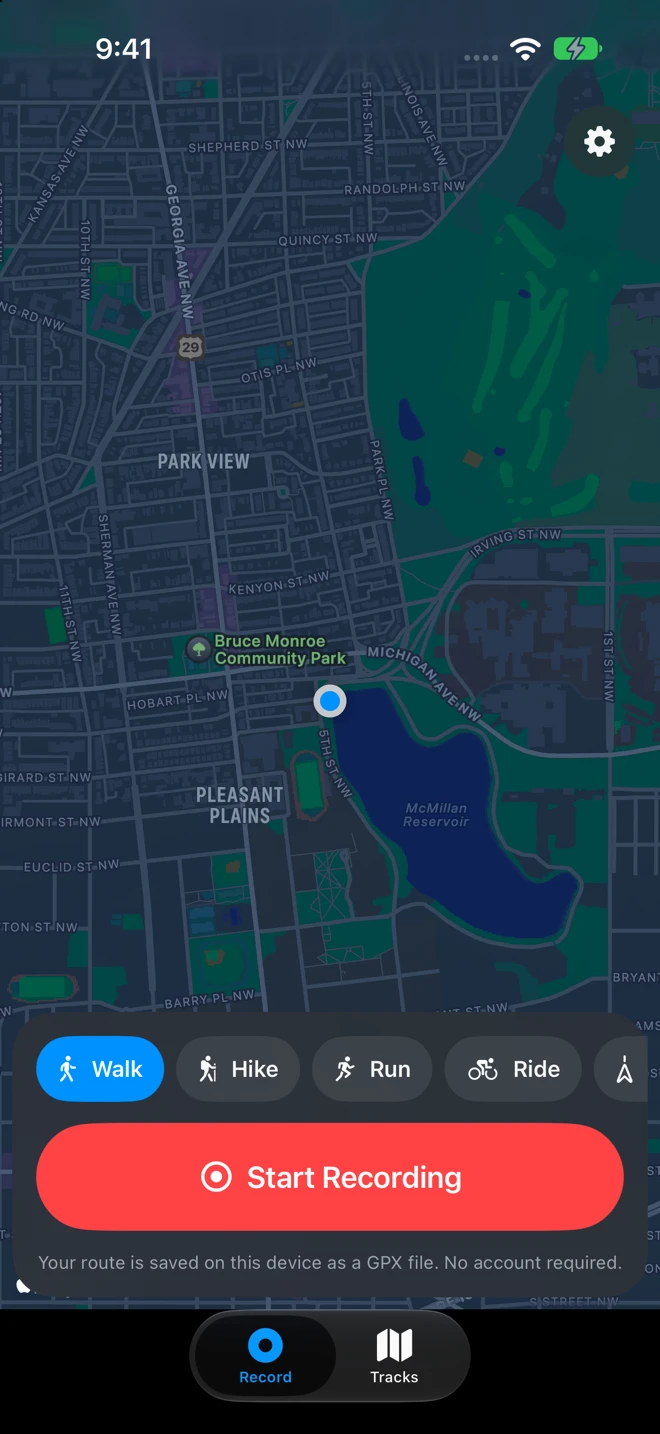
On the Record tab, tap the activity: Walk, Hike, Run, Ride or Other. The map shows where you are; the gear at the top right opens Settings.
-
Tap Start Recording. The first time, iOS asks for your location (Allow While Using App), then whether Geo Tracker may send notifications (the reminder) and read Motion & Fitness (the barometer, for the climb).
-
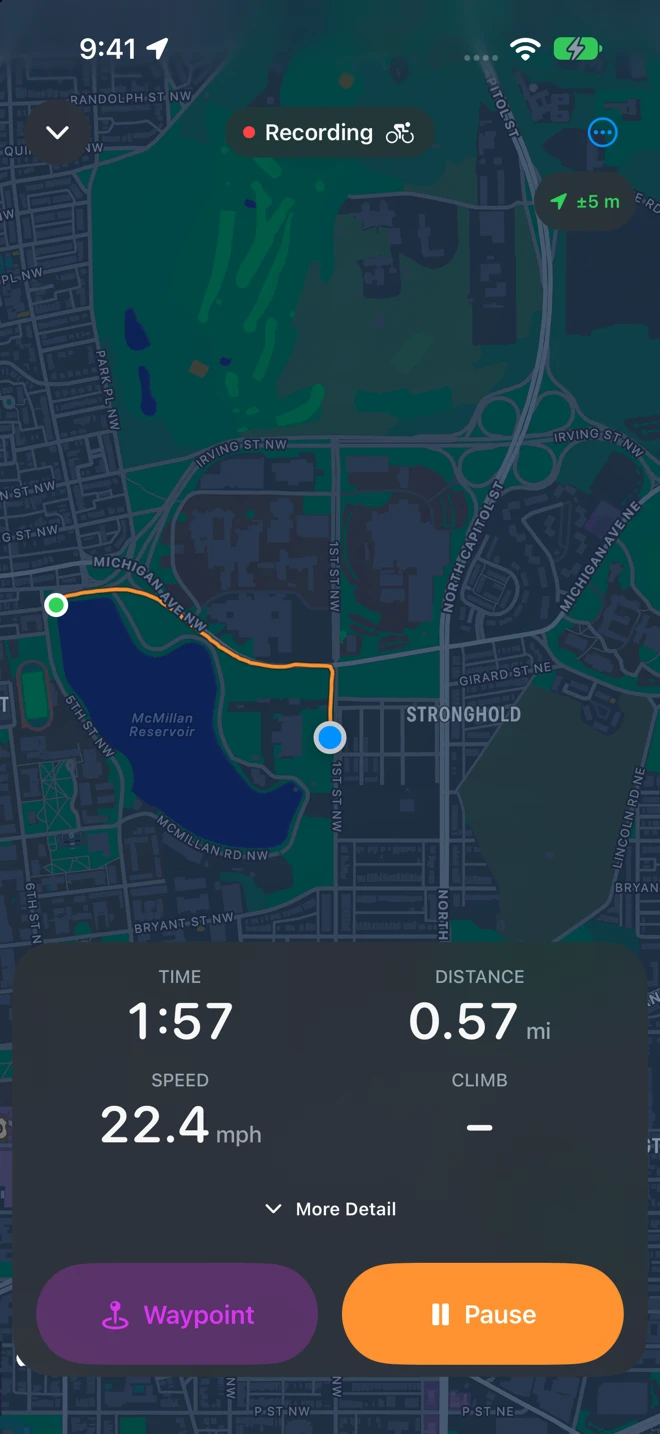
The recording screen fills the display. Nothing is written until the GPS is good: the badge at the top right is gray while it searches and turns green with the accuracy, ±5 m, when it is. Outdoors with a view of the sky that takes a few seconds.
The activity decides the name of the file, whether you see pace or speed, and how fast the GPS may say you moved before a point is thrown out (see Accuracy). Other is for a car, a train or a boat. Your choice is remembered for next time, and the summary lets you change it afterwards.
The recording screen
Section titled “The recording screen”- At the top: the chevron (Minimize), the status pill (Recording with a red dot, Paused or Auto-paused in orange) with the activity’s symbol, and the … menu with Photo Waypoint and Retrace Route. Under it, the GPS badge: green within 20 m, orange beyond, red with no signal or no permission, gray while searching.
- The map follows you, with your route as an orange line from the green dot where you started to the blue dot where you are. Drag to look around; the arrow button that appears brings the map back to you.
- The numbers: Time (it stops while paused), Distance, Pace on foot or Speed on a ride, and Climb, a dash until the iPhone has a height it can trust. Pace shows a dash while you stand still. More Detail adds Moving time, the Average pace or speed, Descent, your Elevation, the number of Points, and the time of the Last km or Last mile.
- The buttons: Waypoint and Pause while recording; Resume and Finish while paused. A recording never ends with one accidental tap.
With larger accessibility text sizes the screen becomes one scrolling column with the controls first.
A banner over the map says when something needs you:
| Banner | What to do |
|---|---|
| Location access is off, so nothing is being recorded. | Tap Settings and allow Location while using the app. |
| Precise Location is off. The route will be points kilometres apart. | Tap Settings and turn on Precise Location. |
| Waiting for GPS. The recording continues as soon as it returns. | Nothing. In a tunnel or a building the phone has no position; the line goes on when it does. |
| Recording picked up where it left off after the app was closed. | Nothing: see Nothing is lost. The × closes it. |
Pause and resume
Section titled “Pause and resume”Pause stops the clock and the line; Resume goes on. Each stretch between pauses is a segment of its own in the file, so the map draws no straight line across the café, the car or the train. A paused recording keeps its place on the Lock Screen and can be resumed or finished from there.
Auto-pause
Section titled “Auto-pause”Turn on Auto-Pause for an activity in Settings and Geo Tracker pauses by itself after ten seconds without moving (slower than about 1.4 km/h walking or hiking, 2.9 km/h running, 4.3 km/h on a ride, or whenever the iPhone reports that it is standing still). The pill reads Auto-paused. It resumes on its own as soon as you move again at twice that speed or get more than about 15 m from where it paused, and each stop starts a new segment in the file. It is off by default: on a walk with many crossings you may prefer to pause yourself.
Use the iPhone while you record
Section titled “Use the iPhone while you record”The chevron at the top left puts the recording away. The Record tab then shows a bar with the clock and the distance and Open Recording; tap it to come back. The rest of the app is yours meanwhile: open a track in Tracks, change a setting. The recording also stays on the Lock Screen and in the Dynamic Island.
A reminder when you stop moving
Section titled “A reminder when you stop moving”If you have not moved for 30 minutes, Geo Tracker sends a notification, Still recording?: “You haven’t moved in 30 minutes. Stop and save the recording, or keep it going.” Touch and hold it for Stop and Save, which finishes the recording and saves the file under its default name, or Keep Recording, which asks again after the same time. While paused the notification reads Recording paused. Moving more than 50 m resets the clock. Change the time, or turn it off, with Remind Me in Settings. Recordings never stop by themselves.
Finish
Section titled “Finish”Tap Pause, then Finish. (On the Lock Screen card, in the Dynamic Island, on the Watch and on the reminder, Finish saves at once under the default name, with no summary; see Lock Screen, Watch and Shortcuts.) The summary, Recording Finished, shows:
- The route on a map.
- The name: type one, or keep the suggestion, Morning Walk, Afternoon Hike, Evening Ride, Night Run (or Track for Other), after the hour you started. The Activity, which you can still change. Notes, written into the file’s description.
- The numbers: Distance, Time, Moving Time, Average Pace or Average Speed, Top Speed, Climb, Descent, the Elevation range, Points, Waypoints and Segments when there were pauses.
- Add Photos from This Walk: photos you took with the Camera app during the recording become waypoints where you were when you took them. See Waypoints and photos.
- Save to Apple Health, a switch Geo Tracker remembers. See Apple Health.
- Resume Recording, if you finished too early. Discard Recording asks first: “The route will not be saved. This cannot be undone.”
- Save, at the top right. It is grayed out when nothing was recorded; a notice says to check that Location is allowed.
After Save the track opens in Tracks, where you can share it, send it to GPX Explore or rename it.
The file
Section titled “The file”The file is named like 2026-10-25 0830 Hike.gpx: the date, the time you started, and the activity, so two walks a day never collide and Files sorts them by date. It goes into the Tracks folder of Geo Tracker’s folder in the Files app, On My iPhone ▸ Geo Tracker ▸ Tracks (On My iPad on an iPad), and, when iCloud Drive is on for Geo Tracker, a copy goes to iCloud Drive ▸ Geo Tracker where a Mac can open it. Photos of its waypoints sit in a folder beside it, 2026-10-25 0830 Hike Photos.
It is plain GPX 1.1, which any app that reads GPX opens:
- The name you typed, your notes as the description, the start time, the activity as a keyword and the bounds.
- One track, with its type set to walking, hiking, running, cycling or other, the words Strava, Komoot and Garmin Connect read.
- A segment for each stretch between pauses; every point with its time, its height when the iPhone put that height within 8 m (see Accuracy), and its speed and course.
- Your waypoints with their names, notes and symbols, and a link to each photo.
Nothing is lost
Section titled “Nothing is lost”Geo Tracker writes the recording down as it goes, point by point. It keeps recording with the screen locked or another app in front, and the arrow in the status bar shows while it does.
If iOS closes Geo Tracker during a recording, the next position relaunches it in the background and the recording carries on; if you close it yourself, it carries on when you open it again. Either way the recording screen shows Recording picked up where it left off after the app was closed. The time it was away is a break between two segments of the track, not a straight line across the map. A recording you finished but had not yet saved is still there too, on the summary, the next time the app opens.