

Open a track
Tap a track in Tracks to open it. The viewer is the one GPX Explore uses, so a file looks the same in both apps.
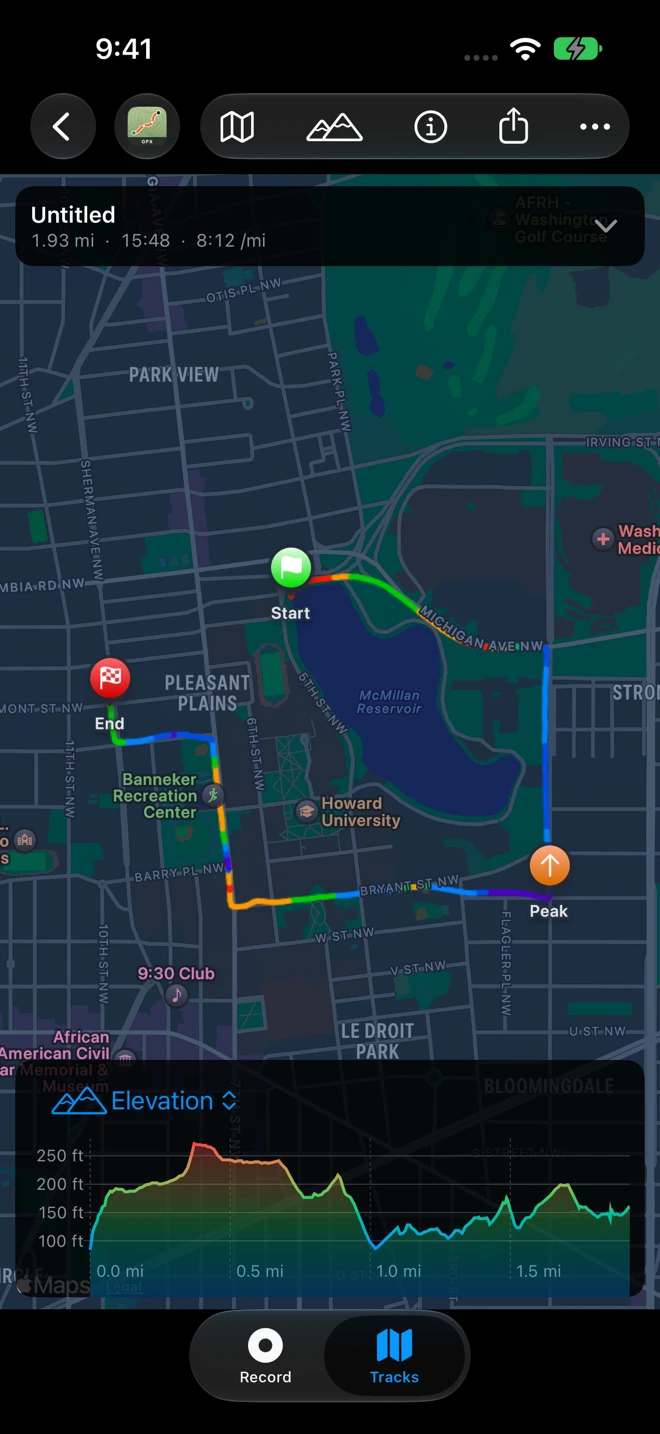
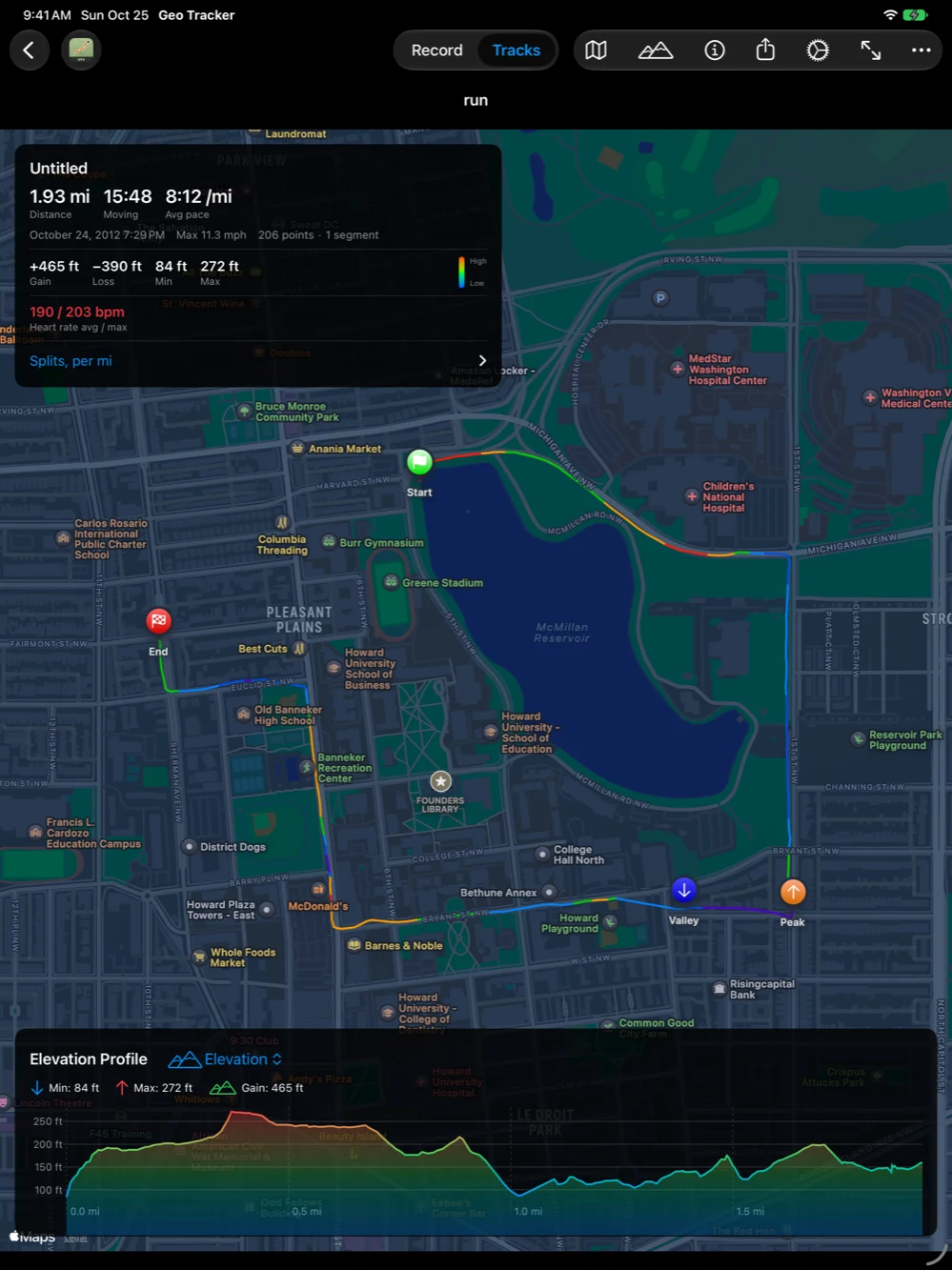
The map
Section titled “The map”The route is drawn in color: with Effort (the default) steep climbs are red and descents blue; with Gradient low ground is blue and high ground red. Change it, and the line width, in Settings ▸ Viewer. Start and End are flagged, the highest point is Peak, and the waypoints show with their symbols; tap one for its name, its note and its photo.
Map Style at the top switches between Standard, Satellite and Hybrid. Fit to View brings the whole track back on screen.
The route card
Section titled “The route card”The card at the top carries the name, the distance, the time and the average pace or speed. Tap it for more: when it started, the elapsed time, the top speed, the number of points and segments, heart rate and power when the file has them, and the Splits per kilometer or mile with each one’s time and height change, the slowest and fastest marked High and Low. Route Info in the toolbar hides and shows the card.
The elevation profile
Section titled “The elevation profile”The chart at the bottom draws the height along the distance. Touch it, or drag along it, and a marker on the map shows where that point is. Pinch to zoom into a stretch; Reset zoom comes back. The title of the chart is a menu: Elevation, and, when the file carries them (a file from an Apple Watch or a bike computer), Heart rate, Power, Cadence, Speed and Temperature. Elevation in the toolbar hides and shows the chart. A file without heights says This file has no elevation data.
Segments and waypoints
Section titled “Segments and waypoints”The Tracks button (the panel icon at the end of the toolbar) opens Tracks & Waypoints: every segment of the file with its number of points, each with a switch to hide it from the map and the numbers, and the list of Waypoints with their heights; tap one to center the map on it.
The toolbar
Section titled “The toolbar”On the left, Back and the GPX Explore button, which hands the file to GPX Explore to edit (see Share, export and edit). Then Map Style, Elevation, Route Info, Share (Edit in GPX Explore, Share GPX File, Share Track with Photos, Export Map Image…), Settings, Fit to View and Tracks. On an iPhone the last few sit behind …; on an iPad they are all in the bar and the Tracks panel opens at the side.
On iPad
Section titled “On iPad”The viewer uses the width: the track’s name sits in the title bar, the Tracks panel opens beside the map rather than over it, and the chart stretches across the bottom.