
Share, export and edit
Everything Geo Tracker makes is a file you can hand to any other app. Nothing is uploaded unless you share it.
Share the GPX file
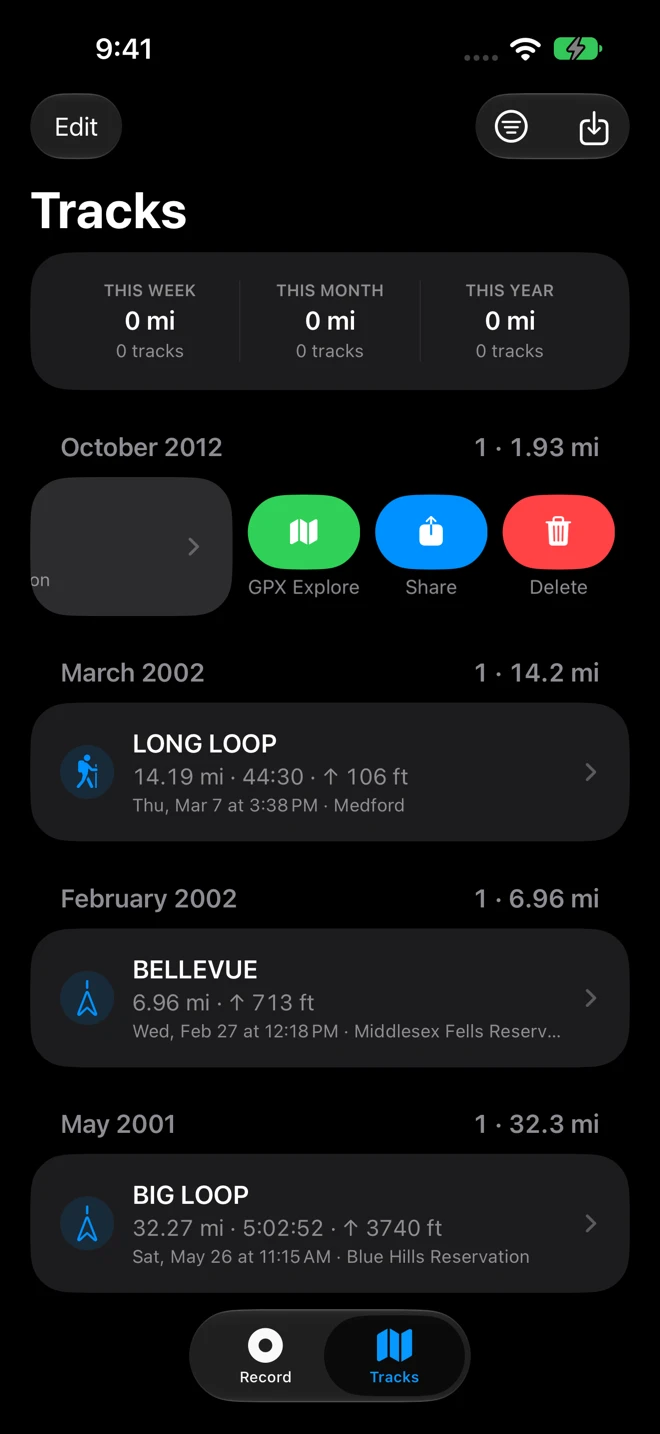
Section titled “Share the GPX file”- In Tracks, swipe the track to the left and tap Share, or touch and hold it and choose Share GPX.
- With the track open, tap Share in the toolbar and choose Share GPX File.
The share sheet offers AirDrop, Messages, Mail, Save to Files and the apps that take GPX files (Strava, Komoot, Garmin Connect, Google Earth). To upload to a service from its website, save the file to Files or iCloud Drive first. The file is the one described in Record a track.
Share the track with its photos
Section titled “Share the track with its photos”Share Track with Photos, in the track’s menu and in the viewer’s Share menu, makes a ZIP that holds the GPX file and a Photos folder with every waypoint photo, the links inside the file pointing at them. Whoever receives it unzips the folder and opens the GPX from inside it, with the photos beside it, and the waypoints show their pictures. Keep the two together: a GPX file moved away from its Photos folder still has its waypoints, but their pictures are gone.
KML for Google Earth
Section titled “KML for Google Earth”Share as KML in the track’s menu writes a KML file: one line per segment of the track, one placemark per waypoint. Google Earth and Google My Maps open it.
A map image
Section titled “A map image”With the track open, Share ▸ Export Map Image… renders a picture of the route on the map in the current style and colors, with the name, the distance, the moving time, the climb and the date, and the elevation profile under it. The share sheet opens with the image.
Several tracks at once
Section titled “Several tracks at once”In Tracks, tap Edit, tick the tracks and tap Share in the bar at the bottom. One share sheet carries every file.
Edit in GPX Explore
Section titled “Edit in GPX Explore”Geo Tracker records; GPX Explore edits. To trim the ends of a track, cut out a stretch, fix a point that jumped or join two recordings into one, hand it over:
- In Tracks, swipe the track to the left and tap GPX Explore (green), or touch and hold it and choose Edit in GPX Explore.
- With the track open, tap the GPX Explore button beside Back, or Share ▸ Edit in GPX Explore.
With GPX Explore 2.2 or later on the iPhone, the track opens there at once, in a Geo Tracker folder of GPX Explore’s files. An older GPX Explore gets the file through the system’s Open In list. Without GPX Explore, its App Store page opens over Geo Tracker; Done comes back.
GPX Explore works on its own copy: the track in Geo Tracker stays as it was. Editing there is part of GPX Explore Pro; viewing, the climbs and the splits are free. To bring the edited file back, share it from GPX Explore to Geo Tracker, and it joins the library as a new track. See Fix a recording and Track tools in the GPX Explore guide.