

Draw shapes
The three tools
Section titled “The three tools”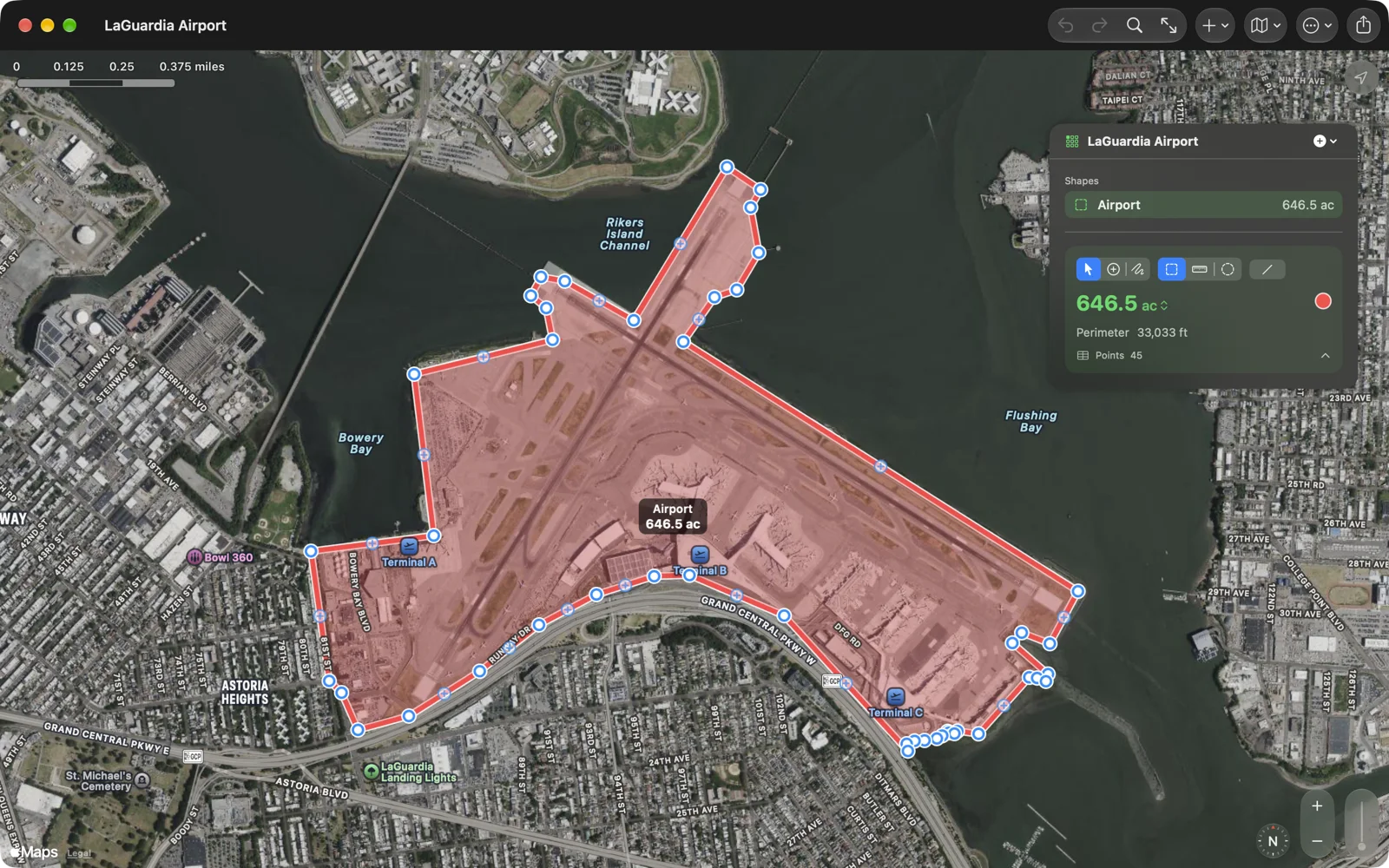
What a tap or a click on the empty map does depends on the tool:
- Select picks shapes and points and lets you move them. The map never adds a point. Tap empty map to clear the selection.
- Add Points adds a point to the selected shape. With nothing selected, the first tap starts a new shape of the kind set in Settings › First Shape (an area unless you change it). A tap on a different shape selects that shape instead.
- Freehand turns one drag into a traced line, then goes back to Add Points.
The tools sit next to the kind picker in the panel, above the card on iPhone, and in the Mac’s Measure menu.
Shape kinds
Section titled “Shape kinds”- Area: tap the corners. The outline closes itself, and the area appears after the third point.
- Distance: tap along the way. The length appears after the second point.
- Circle: the first tap sets the centre, the second the radius. Drag the small square handle on the rim to change the radius, or the centre pin to move the circle.
Start a new shape from the + menu (New Area, New Distance, New Circle), or with ⌘1, ⌘2 or ⌘3 on the Mac. The kind picker beside the tools changes the selected shape’s kind: an area and a distance swap with the same points; a shape that becomes a circle keeps its first point as the centre.
Moving, adding and deleting points
Section titled “Moving, adding and deleting points”The selected shape shows its points as white dots ringed in blue.
- Move a point: press and drag it. A loupe shows exactly where it will land.
- Add a point on an edge: tap the hollow dot with a + in the middle of an edge, then drag the new point to bend the edge around a curve. These midpoints appear only where an edge is long enough on screen to press safely; zoom in if you do not see one.
- Delete a point: tap it to open its callout (the point’s number and coordinates), then tap the trash button. On the Mac you can also press Delete. To delete several, use the points table.
Every change can be undone with Undo and Redo in the toolbar, or ⌘Z and ⇧⌘Z. A whole drag is one step.
Freehand
Section titled “Freehand”Choose Freehand and draw on the map with a finger, Apple Pencil or the mouse; on the Mac, ⌥-drag in Add Points does the same. A short slip does not count.
The trace is simplified to the points that matter at the current zoom and added after the selected shape’s last point (or starts a new area when nothing, or a circle, is selected). Traced points are ordinary points.