

Quick Look and file icons
With KML Explore installed, KML and KMZ files show what is in them before you open them.
Quick Look
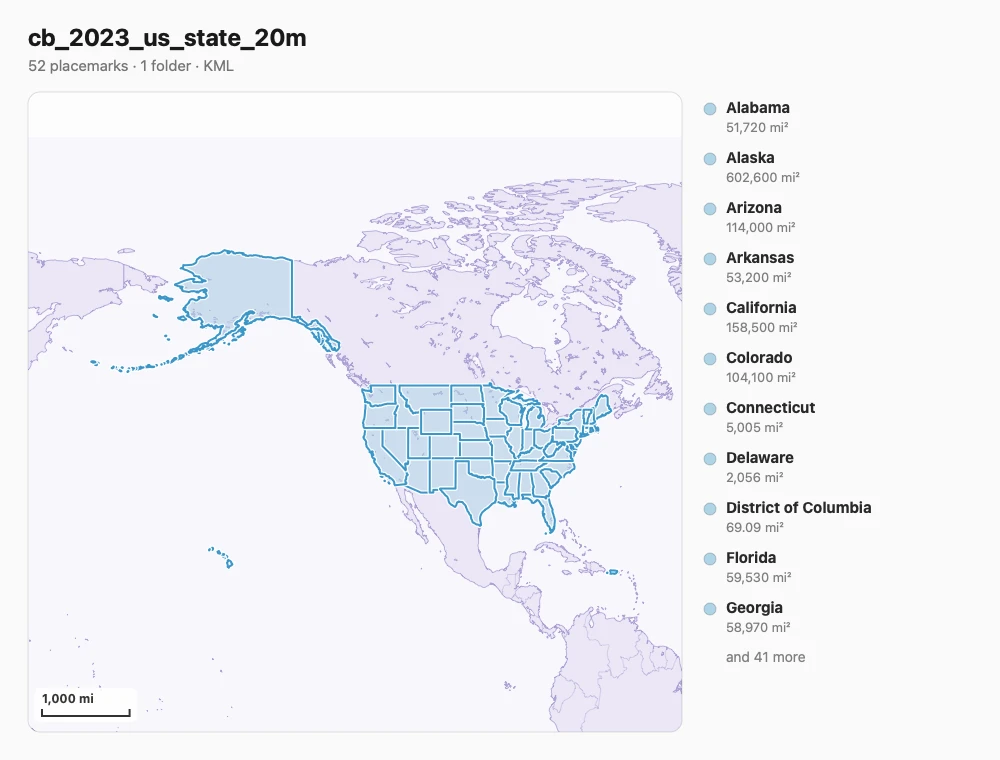
Section titled “Quick Look”Select a .kml or .kmz in Finder and press Space, or tap one in Files, Mail or Messages on iPhone and iPad. The
preview has the file’s name and a line on what it holds (how many placemarks, folders and overlays, and KML or
KMZ; 1 of 20 placemarks shown when the file hides the rest), the map of its areas, paths and places in their own colors with a scale
bar, and beside it the placemarks with their measures, as many as fit, then “and N more”.
File icons
Section titled “File icons”Finder and Files give each KML and KMZ an icon of its own: a page with the file’s areas, paths and places drawn thick enough to read at icon size, and KML or KMZ at its foot, below a light gray line.
What the pictures show
Section titled “What the pictures show”- Exactly what the file shows. Layers the file hides stay hidden; KML Explore doesn’t choose for you. A file that shows nothing gets the ground of its place with nothing on it.
- A small world, drawn locally. A file spanning more than a few degrees is drawn on a world map of land, lakes and borders (Natural Earth, built into the app) in KML Explore’s violet. A small place (a campus, a trail, a single point) is drawn on plain paper.
- Nothing from the web, and no Apple map. The pictures are drawn on your device from the file alone, so a preview never contacts a server.
Files that need repairs are read the same way the app reads them, so they get pictures too.