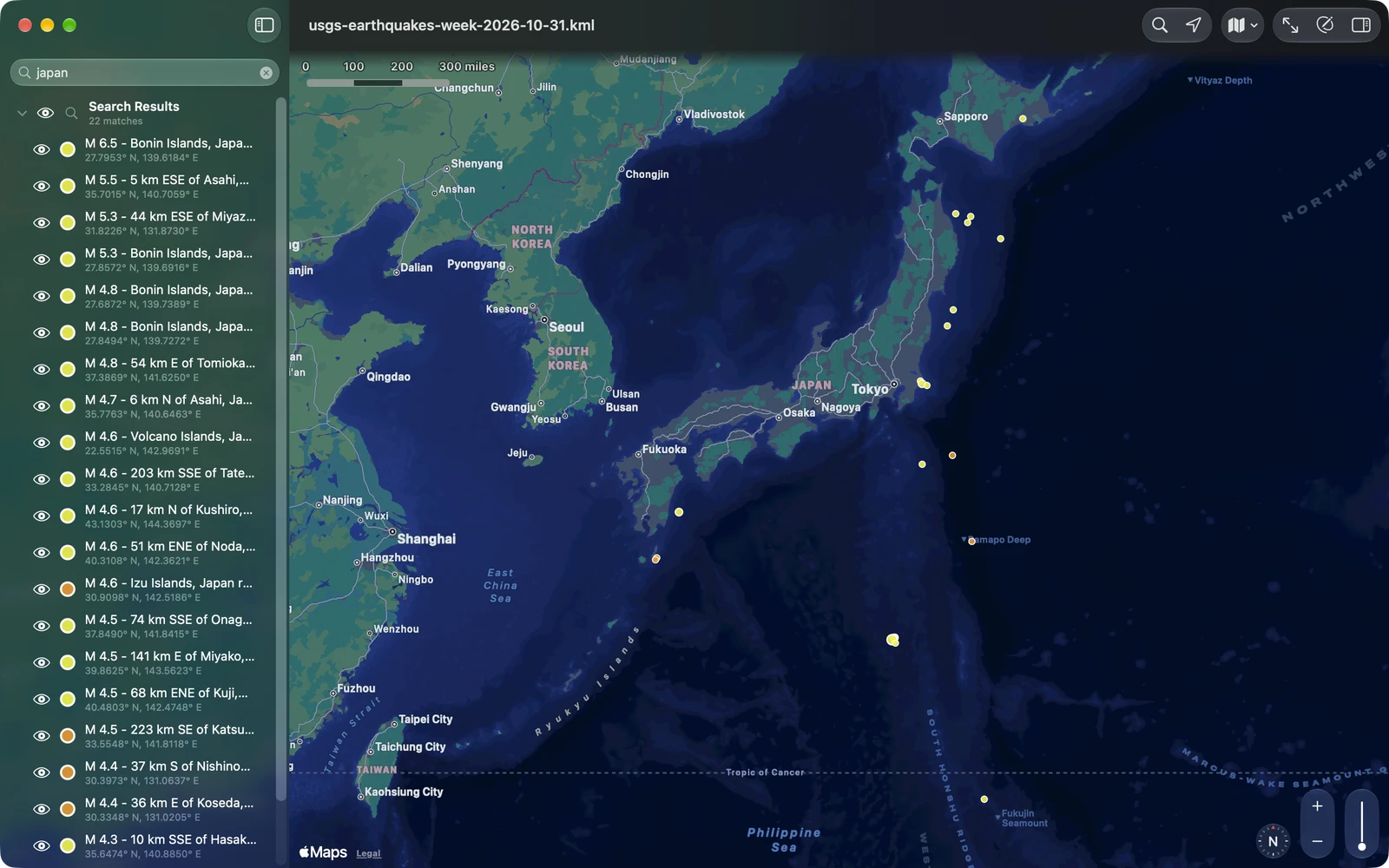

The layer list
The layer list is the file’s folders and placemarks, in the file’s order, on the left of the window. On iPhone the map comes first: tap the back button at the top left of the map for the list.
Each row has an eye, the placemark’s own look (its pin, a stroke of its line, a patch of its fill), its name and a second line saying how much: an area, a length, a position, or for a folder how many placemarks and overlays it holds and their total area or length. A line the file writes as a placemark’s snippet takes that place. Hidden rows are dimmed.
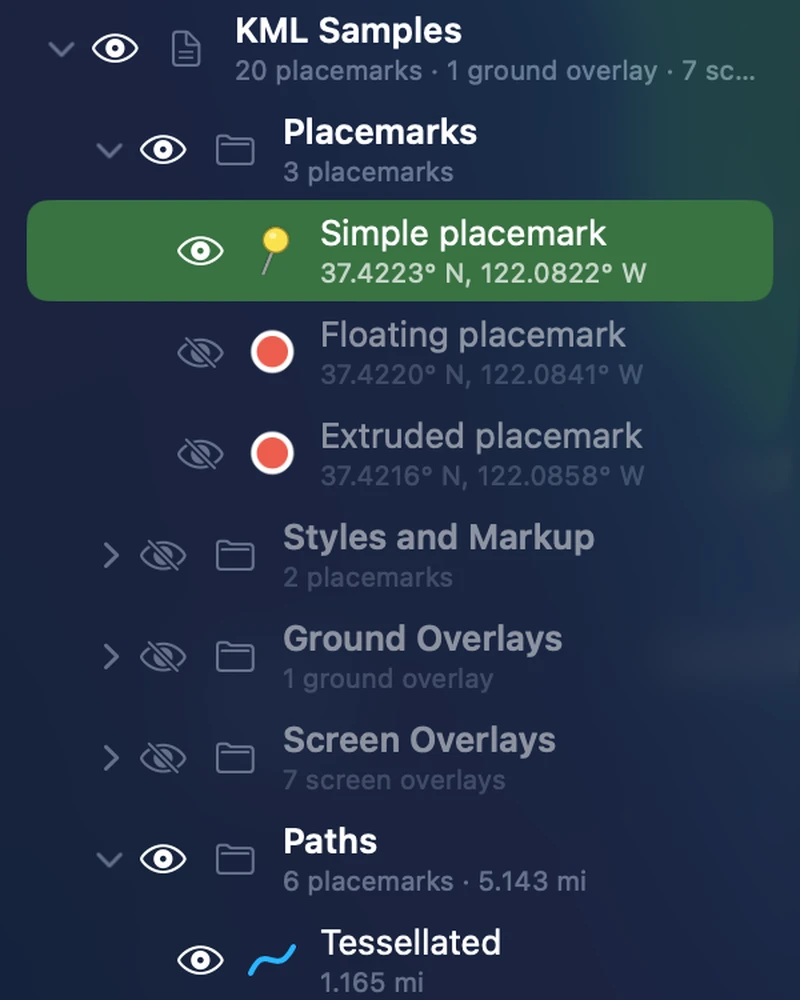
Click a row to select it: the map brings it into view (moving only as far as it must) and the inspector opens. On the Mac, ↑ and ↓ move through the rows, and a double click frames the feature. The folder’s arrow opens and closes it; folders start open or closed as the file says.
The eyes
Section titled “The eyes”The eyes work as Google Earth’s checkboxes:
- A placemark’s eye shows or hides it.
- A folder’s eye follows what is in it: open when something inside is shown, a dimmer eye when only some of it is, closed when nothing is. Clicking it hides everything inside, or, when nothing is shown, shows everything.
- Showing one placemark in a hidden folder shows that placemark alone, and its folders light up with it.
- A radio folder (a folder the file marks so) shows one of its items at a time: showing another hides the one before.
- A folder whose style hides its contents has no arrow; its eye switches everything in it.
A file opens with its layers as the file sets them (an item shows when it and every folder above it are visible), unless you have opened it on this device before: then it opens as you left it.
Right-click a row
Section titled “Right-click a row”Touch and hold on iPhone and iPad.
| Item | What it does |
|---|---|
| Show on Map | Frames the feature on the map. |
| Show Only This | Hides everything else in the file and shows this, and everything in it. |
| Show Everything Inside | For a folder that is not all shown: shows all of it. |
| Copy Name | The name, as text. |
| Copy Coordinates | For a point: its latitude and longitude, in decimal degrees. |
| Edit Points… | Opens the Points table for this placemark and turns on editing (Pro). |
| Edit… | Turns on editing with this feature selected (Pro). |
While editing, the menu has Rename…, New Folder, Duplicate and Delete instead of Edit…. See Folders and the layer list.
Your switches and the file
Section titled “Your switches and the file”Looking at a file never changes it. The eyes are your view of the file, kept on this device for each file (for up to 300 files): open it again and the layers are as you left them. If the file has changed elsewhere since, it opens with its own layers. Turn this off, or forget it, in Settings under Opening Files (Remember Shown Layers for Each File, Forget Shown Layers for … Files).
The Map menu (the toolbar’s Map button, and on the Mac the Map menu in the menu bar) has the two ways your switches meet the file:
- Show the File’s Layers: back to the layers as the file sets them.
- Save Shown Layers to the File: writes which layers are shown into the file, so whoever opens it next, in Google Earth or anywhere else, sees the same. Only the features whose visibility changes are touched, and the change can be undone like any edit. It needs Pro.
Both are dimmed while your switches match the file.
Search
Section titled “Search”The search field at the top of the list finds placemarks by their name, snippet and attribute values (a county by its FIPS code, an earthquake by its magnitude text). While you type, the list becomes one group, Search Results, with how many matches, and the map shows only those: your switches are left alone and come back when you clear the search. The map frames the results when you stop typing; Return frames them again.
- Every match starts shown, including ones the file hides. Each has its own eye, and the group’s eye hides or shows them all.
- Right-click (touch and hold) Search Results for Show on Map, or Keep Only These Shown, which makes the shown matches your switches (everything else hidden) and keeps them after the search.
- The list shows the first 500 matches; type more to narrow it.
To search the world rather than the file, use Find a Place.