

Open KML and KMZ files
KML Explore opens .kml files and .kmz files (a KML zipped with its icons and pictures), from Google
Earth and Google Earth Pro, Google My Maps, GIS software and portals, GPS and survey apps, and the agencies
that publish KML feeds. KML 2.0, 2.1, 2.2 and 2.3 read the same, and so do files that write kml: in front
of every element.
What it reads
Section titled “What it reads”- Folders and documents, as a layer list, open or closed as the file says, with Google Earth’s radio folders and folders that hide their contents.
- Placemarks: points with their icons, paths, areas with their holes, and placemarks of several parts. Google’s gx:Track and gx:MultiTrack show as paths, and a 3D model as a pin at its place.
- Styles as Google Earth applies them: shared styles and style maps, then a placemark’s own style on top. Where a file sets no color, KML Explore draws its own blue.
- Descriptions and balloons, rendered as HTML, and attributes, with a schema’s display names. See Balloons and the inspector.
- Ground overlays (an image laid on the map) and screen overlays (legends and logos fixed to the screen), placed where the file says.
- Time stamps and spans, shown on the card and in the inspector.
- Network links and tours are listed in the layer list but not fetched or played.
A KMZ’s own pictures (icons, overlays, pictures in balloons) show at once. Pictures a file links to on the web wait until you load them: see Images from the web.
A file that isn’t valid KML is repaired to open when that can be done safely, and a file that can’t be opened says why. See Files that need repairs. KML Explore does not open GPX or GeoJSON; it says so if one arrives with a .kml name.
On the Mac
Section titled “On the Mac”- Double-click a .kml or .kmz file in Finder, or drop it on KML Explore’s icon in the Dock.
- File ▸ Open… (⌘O), or File ▸ Open Recent.
- File ▸ New (⌘N) opens an empty map to draw on. Drawing needs Pro.
Each file is a window. Several can be open at once; the Draw menu and File ▸ Export… act on the front one. A file you only look at is never rewritten. With Pro, edits save themselves, as KML or KMZ, whichever the file is.
The welcome window
Section titled “The welcome window”KML Explore opens with a welcome window instead of an empty document, and shows it again when the last window closes:
- Open a File…: the Open panel.
- Samples: a page of six sample files, each with a picture of it in the app. Click one to open it.
- New Map: a new map, ready to draw (marked PRO until you have Pro).
- Recent Files, on the right: click one to select it, then Open, double-click, or press Return. Right-click for Open and Show in Finder.
Drop a KML or KMZ anywhere on the window to open it. Turn off Show this window when KML Explore launches to skip it (the same setting as Show the Welcome Window at Launch in Settings). Window ▸ Welcome to KML Explore (⇧⌘0) brings it back.
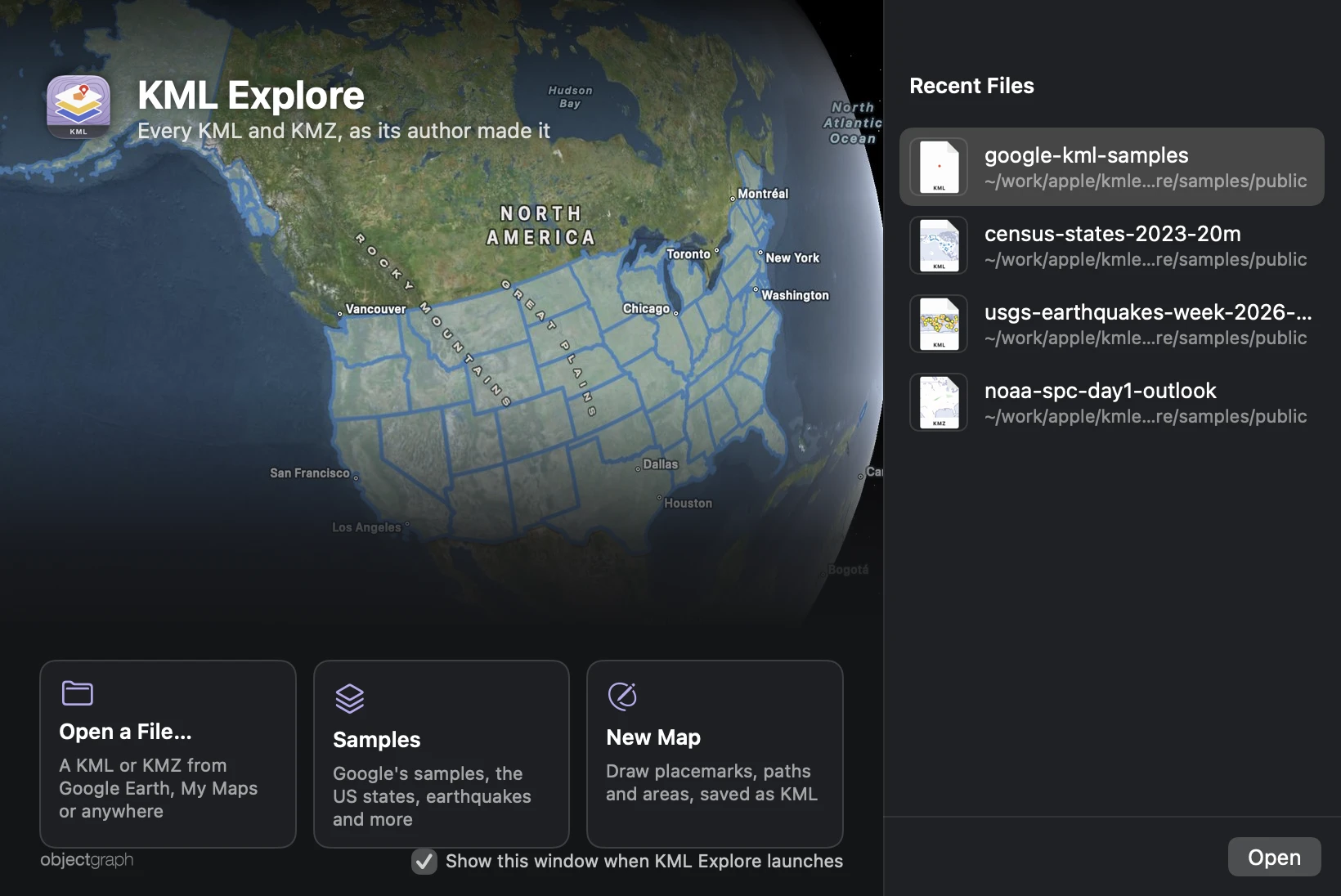
A sample opens as a new, unsaved document named after it, so trying the editor on it never changes the one inside the app. File ▸ Save… asks where to keep a copy; a KMZ sample saves as KMZ.
On iPhone and iPad
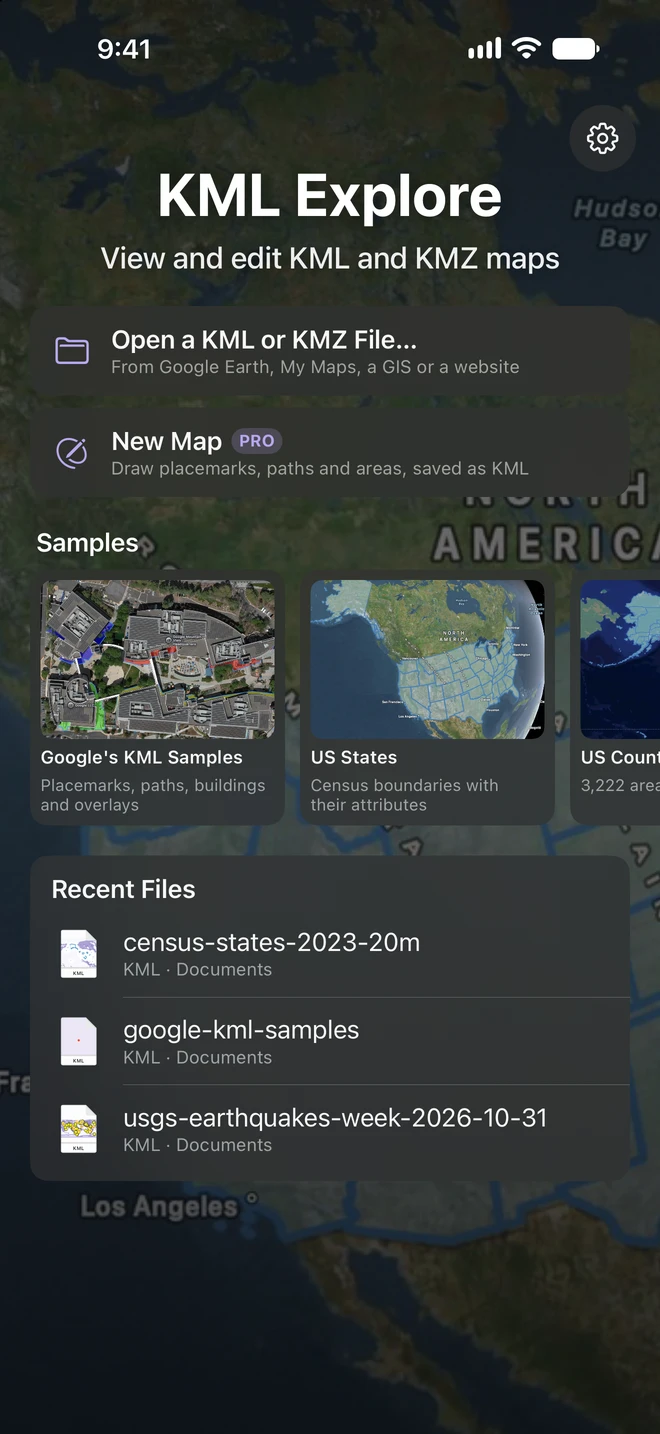
Section titled “On iPhone and iPad”KML Explore opens to its start screen:
- Open a KML or KMZ File…: any folder in Files, iCloud Drive included.
- New Map: a new map to draw on (marked PRO until you have Pro).
- Samples: the same six sample files as cards; swipe the row for more.
- Recent Files: the files you opened lately, with their pictures and the folder each is in. Touch and hold one for Remove from Recent Files.
The gear at the top right opens Settings; on an iPhone Duo that is closed, it sits in the side strip.

On the map, the File button at the top left has Home (back to the start screen), New Map, Open…, Save… (for a new map or a sample, which have no file yet), Share… (for a file), Export… (marked (Pro) until you have it) and Settings….
Files from other apps
Section titled “Files from other apps”- Files and iCloud Drive: a file opens where it is. With Pro, your edits are saved back into it a moment after the last one, and when you leave the app; a file you only look at is never rewritten. If the file changes on another device while it is open, the map shows the new version (unless you have edits not yet saved).
- Mail, Messages and AirDrop hand over a copy. KML Explore keeps it in its own folder, On My iPhone ▸ KML Explore (On My iPad) in the Files app (“name 2.kml” if the name is taken; the same file sent again opens the copy already there).
A large file shows Opening “name”… while it is read; the US counties sample takes a few seconds.
New maps and samples
Section titled “New maps and samples”A new map or a sample has no file until you choose File ▸ Save… and pick a place. If you go Home, open another file or start another map with changes not saved, KML Explore asks Keep this map?: Save…, Don’t Save or Cancel.