

The Tracks library
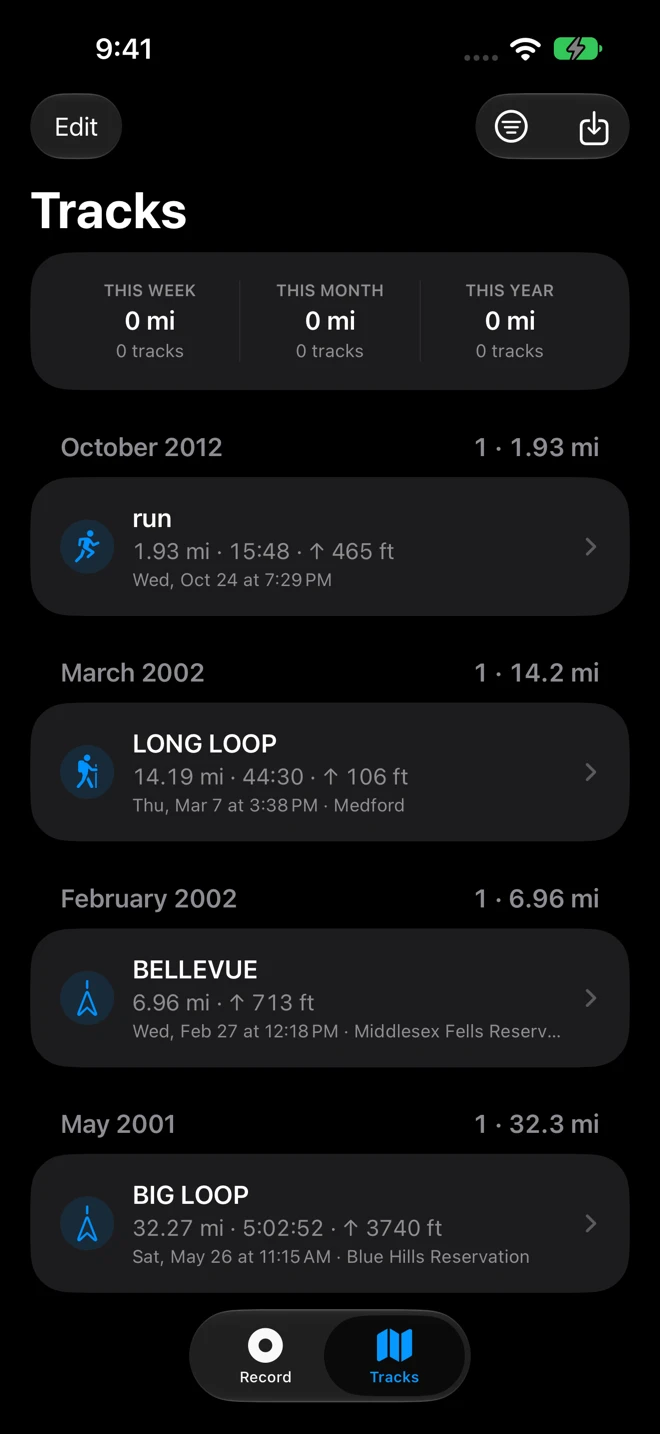
The Tracks tab is the library: your recordings together with the GPX files you open from Files, Mail, AirDrop or Safari, newest first, grouped by the month they were recorded. Each one is a file in Geo Tracker’s folder in the Files app; the list only remembers what it read from them.
The list
Section titled “The list”- The totals at the top: distance and number of tracks This Week, This Month and This Year.
- A section per month, its header with the number of tracks and their distance.
- A row per track: the activity’s symbol, the name, a pink heart when the track is in Apple Health, the distance, the time and the climb, then the day and time it started and the place. The place is the park, the town or the area where it began, never a street address.
Pull down to search by Name or place. The filter button at the top right narrows the list to one activity (All Activities brings everything back). Pull the list down to rescan the folder, for files you added in the Files app.
One track
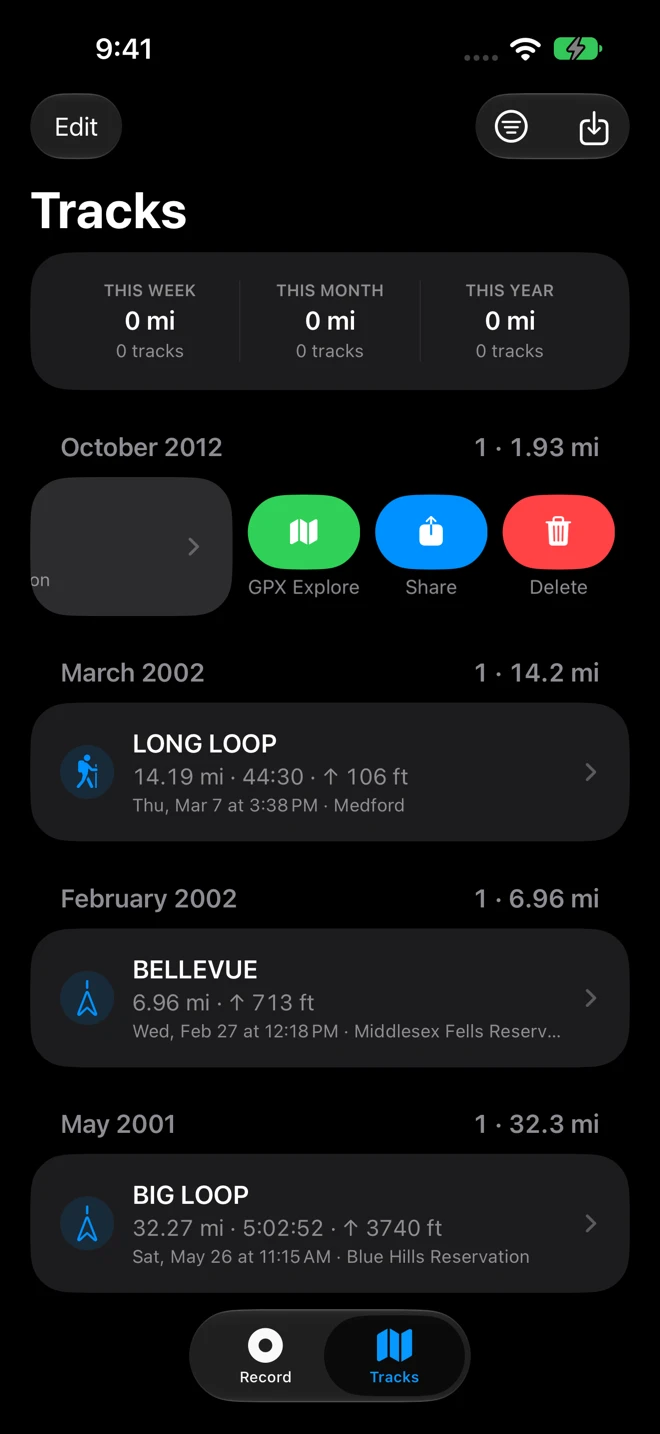
Section titled “One track”Tap a track to open it. Swipe it to the left for GPX Explore (green), Share (blue) and Delete (red). Touch and hold it for the full menu:
| Edit in GPX Explore | Opens the track in GPX Explore, to trim, fix or join it. |
| Share GPX | The file itself, through the share sheet. |
| Share Track with Photos | A ZIP of the file with its photos. See Share, export and edit. |
| Share as KML | For Google Earth and Google My Maps. |
| Rename | Renames the file, the name inside it and its photo folder together. |
| Add Photos from This Walk | Photos from your library placed on the track by the time they were taken. See Waypoints and photos. Not for a track without times. |
| Save to Apple Health / Remove from Apple Health | See Apple Health. |
| Delete | See below. |
Import GPX files
Section titled “Import GPX files”- From Files, Mail, AirDrop or Safari: open the file with Geo Tracker (the share sheet, or Open in). It is copied into the library and opens at once.
- From inside Geo Tracker: the import button at the top right of the list (the arrow into a tray) opens the file browser; choose one or several GPX files.
- In the Files app: a GPX file dropped into On My iPhone ▸ Geo Tracker or its Tracks folder appears in the list the next time Geo Tracker is in front, or when you pull the list down.
A file whose content is already in the library is skipped, and the list says so: “1 file was already in your library.” A file that is not GPX is reported too. A name already taken gets a number.
Rename
Section titled “Rename”Rename in the track’s menu asks for the new name. The file is renamed, the name inside it is rewritten (so other apps show the new one), and its photo folder moves with it. The name you give a recording on the summary is this name.
Delete and undo
Section titled “Delete and undo”Delete on one track, by swipe or menu, deletes it at once and a bar at the bottom reads Track deleted with Undo for a few seconds. Deleting several tracks asks first. A deleted track’s photos go with it, and so does its copy in iCloud Drive. A workout saved to Apple Health stays there; remove it from the track’s menu first if you do not want it.
Several at once
Section titled “Several at once”Tap Edit at the top left, tick the tracks, and use Share or Delete in the bar at the bottom. Share puts every chosen file into one share sheet. Done leaves selection.