

Export workouts
Every export makes a GPX file of the workout’s route as Settings describe it: your units, the sensor data when Include Sensor Data is on, and the start and end left out when Hide Start and End is set. Only workouts with a GPS route can be exported; the others have nothing to put in a file.
One workout
Section titled “One workout”From the list, without opening the workout:
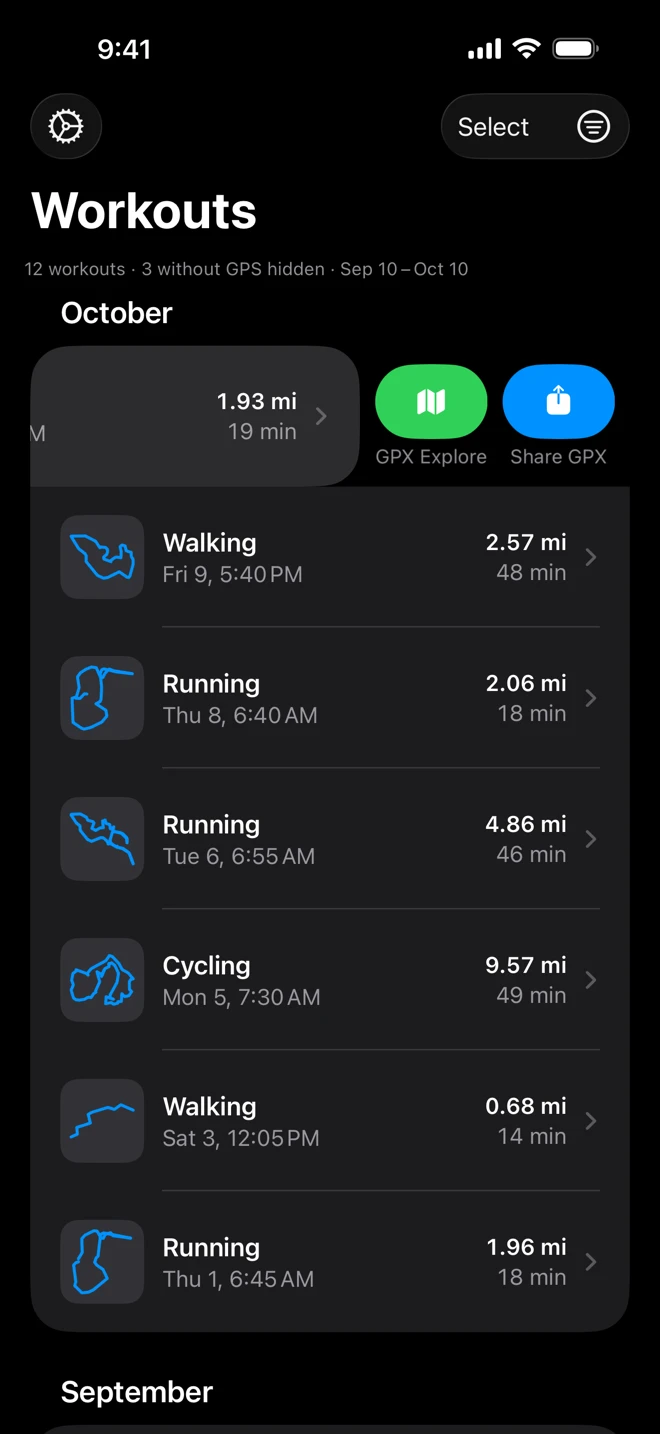
- Swipe a row to the left for Share GPX (blue) and GPX Explore (green).
- Touch and hold a row for Share GPX and Open in GPX Explore. With a trackpad or mouse on iPad, click with two fingers or right-click.
A card reading Making the GPX File shows while the file is made; Cancel stops it. Then the share sheet opens.
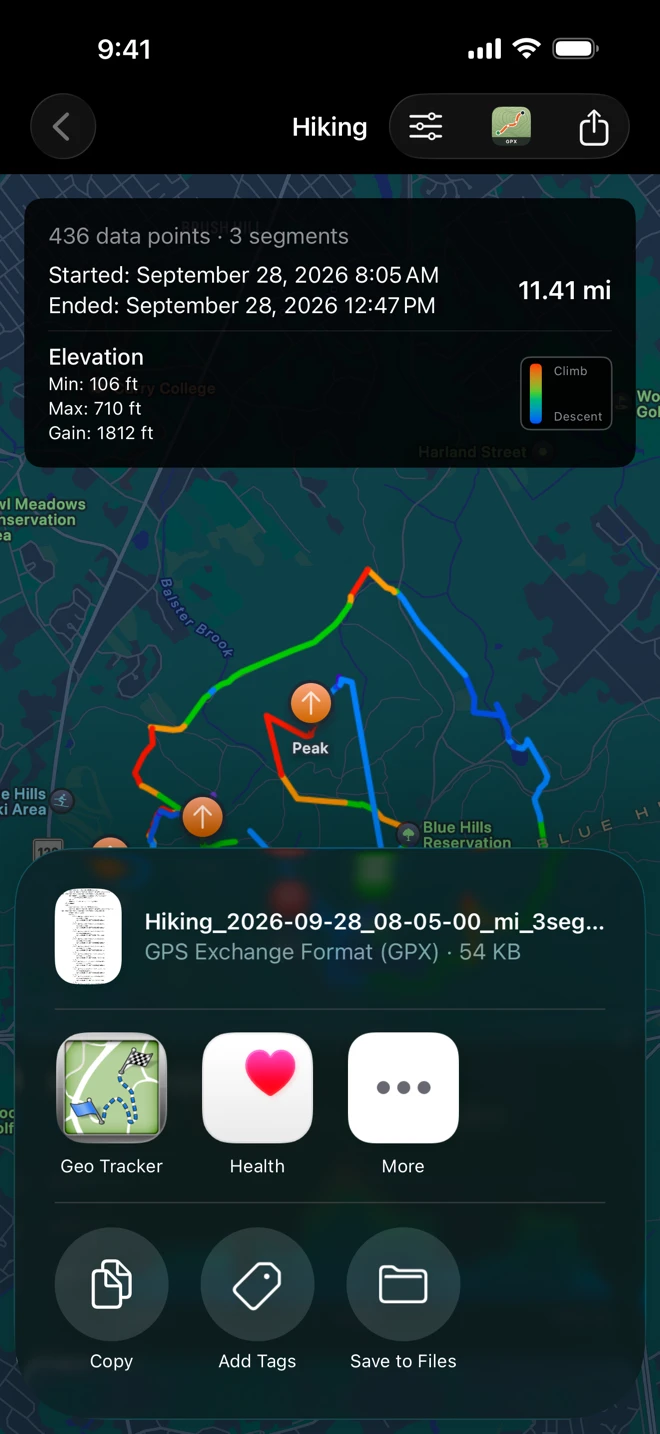
From the workout’s map, tap the Share button (the square with an arrow) at the top right. The button beside it with GPX Explore’s icon sends the workout there. The file made here uses this screen’s choice of Hide Start and End, which may differ from Settings.
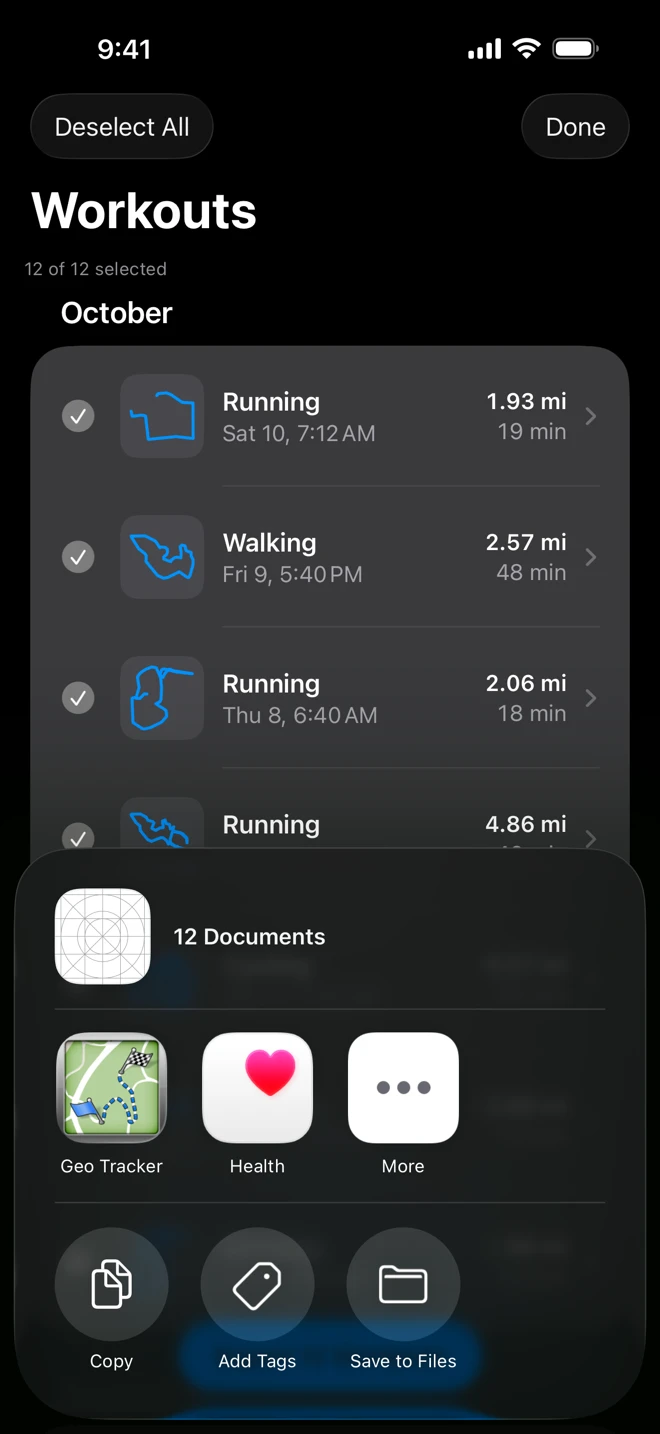
The share sheet offers AirDrop, Messages, Mail, Save to Files and the apps that take GPX files. To upload to a service such as Strava or Garmin Connect from its website, save the file to Files or iCloud Drive first.
Many workouts at once
Section titled “Many workouts at once”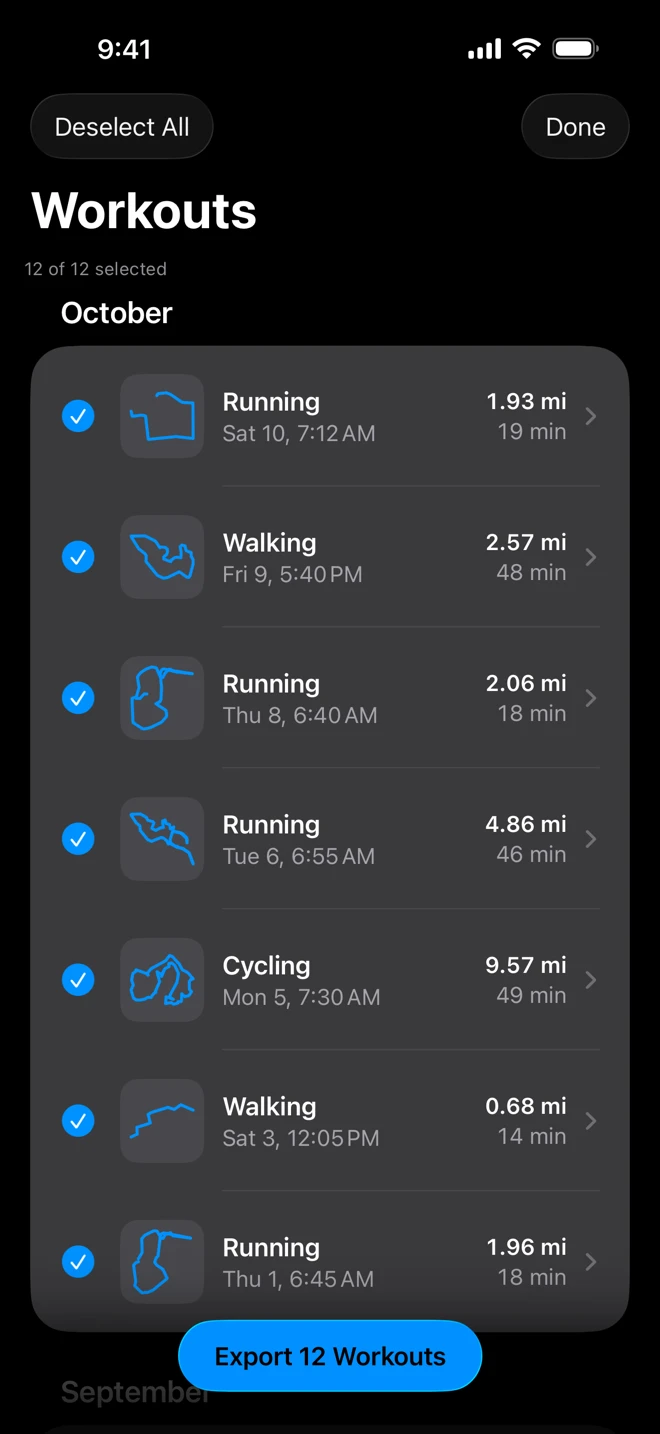
- Set the filters to the days and kinds you want, and tap Apply Filters if you changed the dates.
- Tap Select at the top right.
- Tap the workouts to tick them, or Select All at the top left for every workout in the list (it then reads Deselect All). The line under the filters counts them: “3 of 12 selected”.
- Tap Export 3 Workouts at the bottom.
A card counts through the workouts (“Exporting 2 of 3”, with each one’s type and date); Cancel stops it. Then one share sheet carries every file. Once the files have gone somewhere, the list leaves Select mode; close the sheet without sending and the selection stays, ready to try again. Done leaves Select mode without exporting.
Workouts without a GPS route are never dropped silently. If some of the selected workouts have no route, Some Workouts Were Skipped lists up to five of them with the reason and offers Share 9 Files for the rest; if none has a route, it reads Nothing to Export.
Where the files are kept
Section titled “Where the files are kept”Every export, from any of these buttons and from Shortcuts, is also written to WorkoutGPX’s own folder. Open the Files app, tap Browse, then On My iPhone (On My iPad on iPad) and WorkoutGPX.
Each file is named after the workout’s type, its start date and time, and the units in use:
Running_2026-10-10_07-12-00_mi.gpx. A workout recorded in several pieces ends in the number of
pieces: Hiking_2026-09-28_08-05-00_mi_3segments.gpx. Exporting the same workout again replaces its
file. Delete old exports in Files whenever you like; Health still has the workouts.
Open in GPX Explore
Section titled “Open in GPX Explore”GPX Explore, our GPX viewer and editor, opens what WorkoutGPX exports: every climb found and rated, the splits, the heart-rate chart, and editing. GPX Explore in a row’s swipe, Open in GPX Explore in its menu, and the GPX Explore icon on a workout’s map all make the file and open it there. An older GPX Explore may show the list of apps that open GPX files first; choose GPX Explore in it.
If GPX Explore is not installed, its App Store page opens over WorkoutGPX instead, so you can look and come straight back.