
Filters
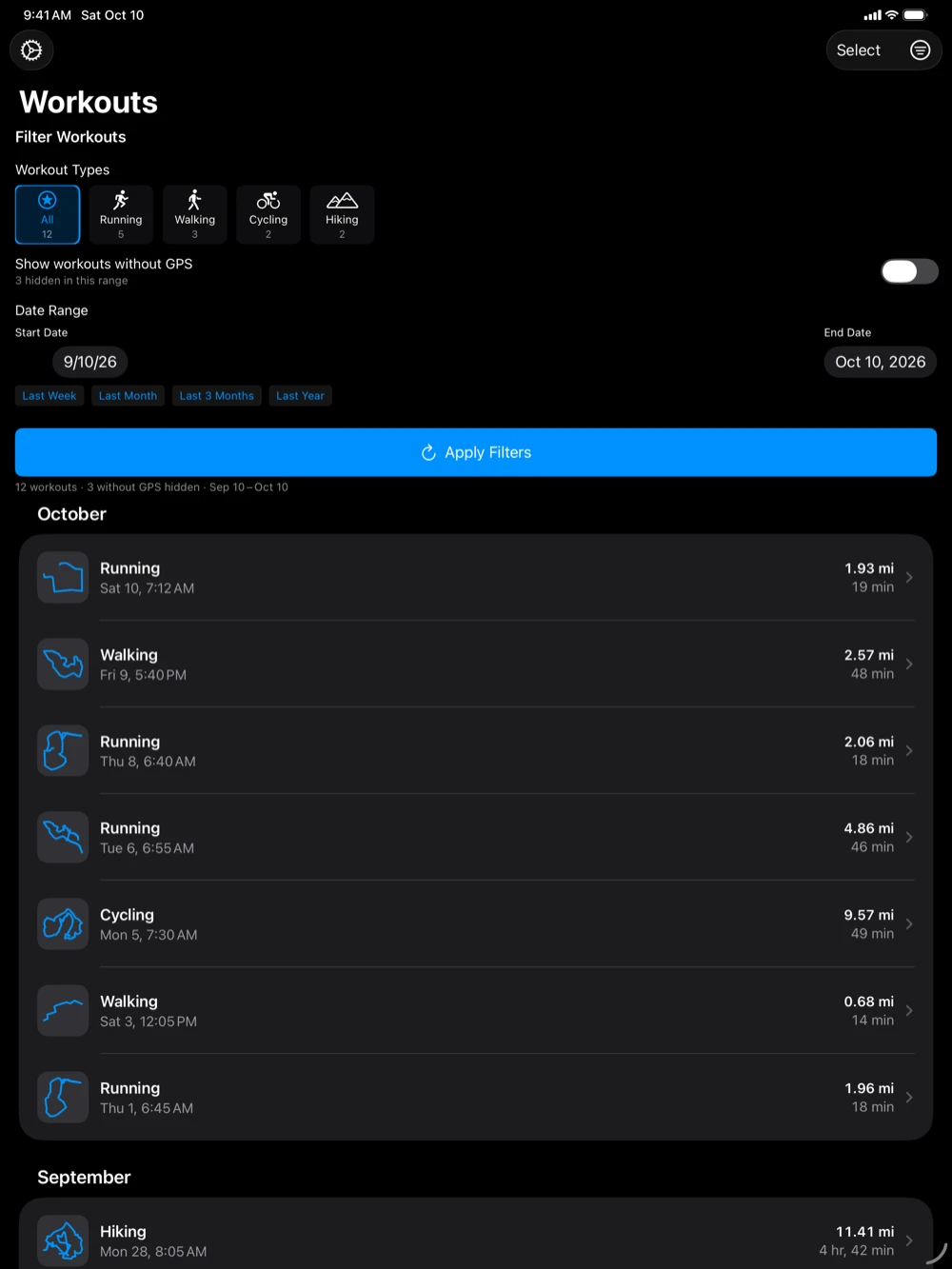
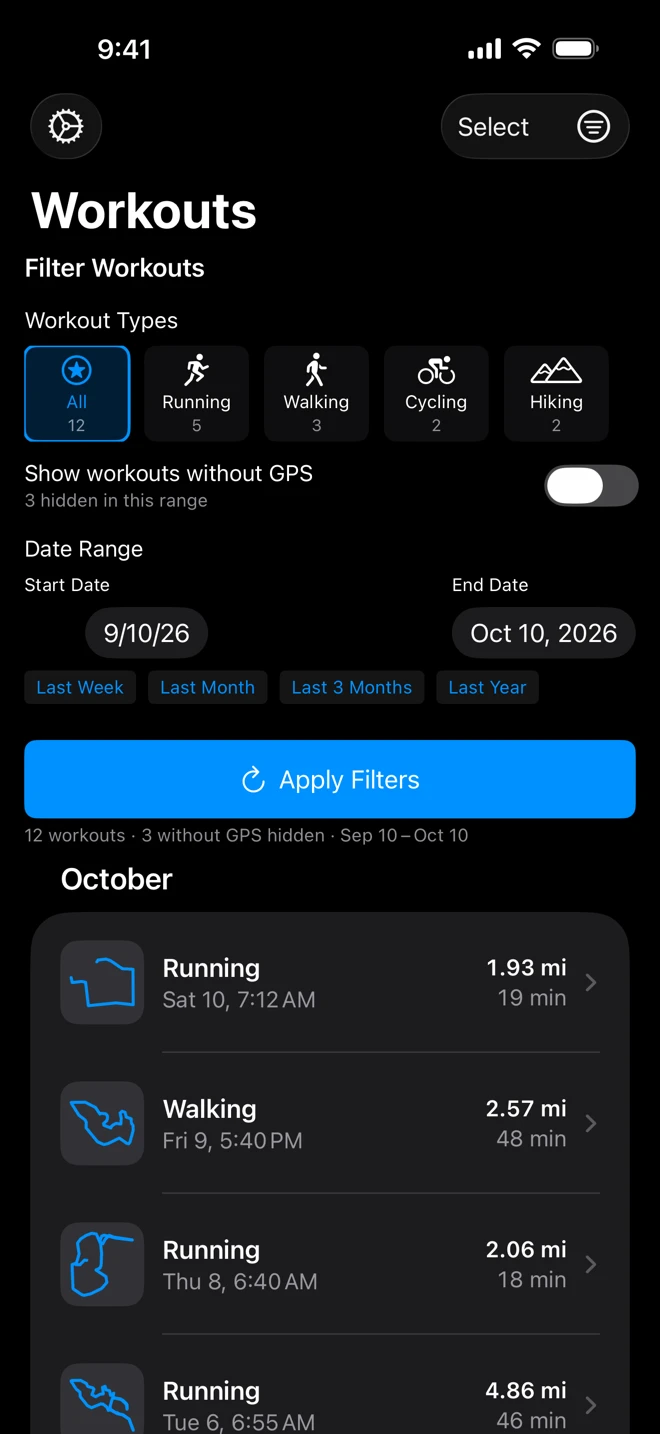
The filter button at the top right of the Workouts list (three lines in a circle) opens the filters above the list; tap it again to close them. The button is filled in while the list shows something other than a new install would: chosen types, workouts without GPS, or dates other than the last month.
Workout types
Section titled “Workout types”Workout Types has a chip for each kind of workout in the date range, the most common first, each with its count. Tap one to list only that kind; tap more to combine them (Running and Walking, say). All clears the choice. A type you chose that has no workouts in the new range keeps its chip, with 0, so you can still clear it.
Workouts without GPS
Section titled “Workouts without GPS”Indoor runs, strength training, yoga and pool swims have no route, so there is nothing to export and the list leaves them out. The line under the filters says how many: “12 workouts · 3 without GPS hidden”. Turn on Show workouts without GPS to list them anyway; they are slimmer and gray, with a crossed-out location symbol, and the switch counts them (“3 hidden in this range”).
Date range
Section titled “Date range”Choose a Start Date and an End Date, or tap a quick range: Last Week, Last Month, Last 3 Months or Last Year, each ending today. Both days are included: a workout late in the evening of the end date is listed.
Then tap Apply Filters. The list reads the workouts for those dates from Health, so a range that reaches further back than before needs this tap to fill in. Types and the GPS switch change the list at once.
The line under the filters always names the days listed: “12 workouts · Sep 9 – Oct 9”, with the year when the range starts in another year.
On iPad
Section titled “On iPad”The filters are the same on iPad, above the list at full width.