

Open GPX files
GPX Explore opens GPX files, version 1.1 and the older 1.0: tracks with any number of segments, routes and waypoints, with or without elevation, times or sensor data, in any combination. It reads the file’s metadata and the extensions other apps add (heart rate, cadence, power, temperature, Garmin’s track colors) and keeps them when it saves. It does not open other formats such as KML, FIT or TCX; export GPX from the app or service that made them.
A file with nothing on the map (no tracks, routes or waypoints) opens with Nothing on the map yet and, if you have Pro, a Draw a Track button.
On the Mac
Section titled “On the Mac”- Double-click a .gpx file in Finder, or drop it on the app’s icon in the Dock.
- File ▸ Open… (⌘O). With iCloud Drive on, the Open panel starts in iCloud Drive ▸ GPX Explore, where the workouts, recordings and rides your iPhone and iPad keep in iCloud Drive are.
- File ▸ New (⌘N) starts an empty document to draw on.
Each document is a window. Several can be open at once; the Track menu acts on the front one.
The welcome window
Section titled “The welcome window”On macOS 15 and later, GPX Explore opens with a welcome window instead of a bare Open panel:
- Draw a New Track: a new document on a blank map, ready to draw (marked Pro until you have it).
- Open a GPX File…: the Open panel.
- Open the Sample Run: a 3 km run with heart rate, to try things on. It opens as a copy, so editing it never changes the one inside the app.
- Recent Files: the files you opened lately; double-click one, or right-click for Show in Finder.
Turn off Show this window when GPX Explore opens to skip it. Window ▸ Welcome to GPX Explore (⇧⌘1) brings it back.
Quick Look and icons in Finder
Section titled “Quick Look and icons in Finder”Select a GPX file in Finder and press Space: Quick Look draws the tracks, colored by grade, with the start, the end and the waypoints, and lists the tracks, segments and waypoints with the distance, duration and elevation gain. The preview draws on ground in the app’s green: a map of the region, with its coastlines, lakes and borders, for a track that crosses one, and plain ground for a shorter track. The map is built into GPX Explore, because Quick Look gives previews no map tiles. Quick Look needs macOS 15.4 or later.
Finder’s icons for GPX files show the file’s own tracks on the same ground, and need no network.
On iPhone and iPad
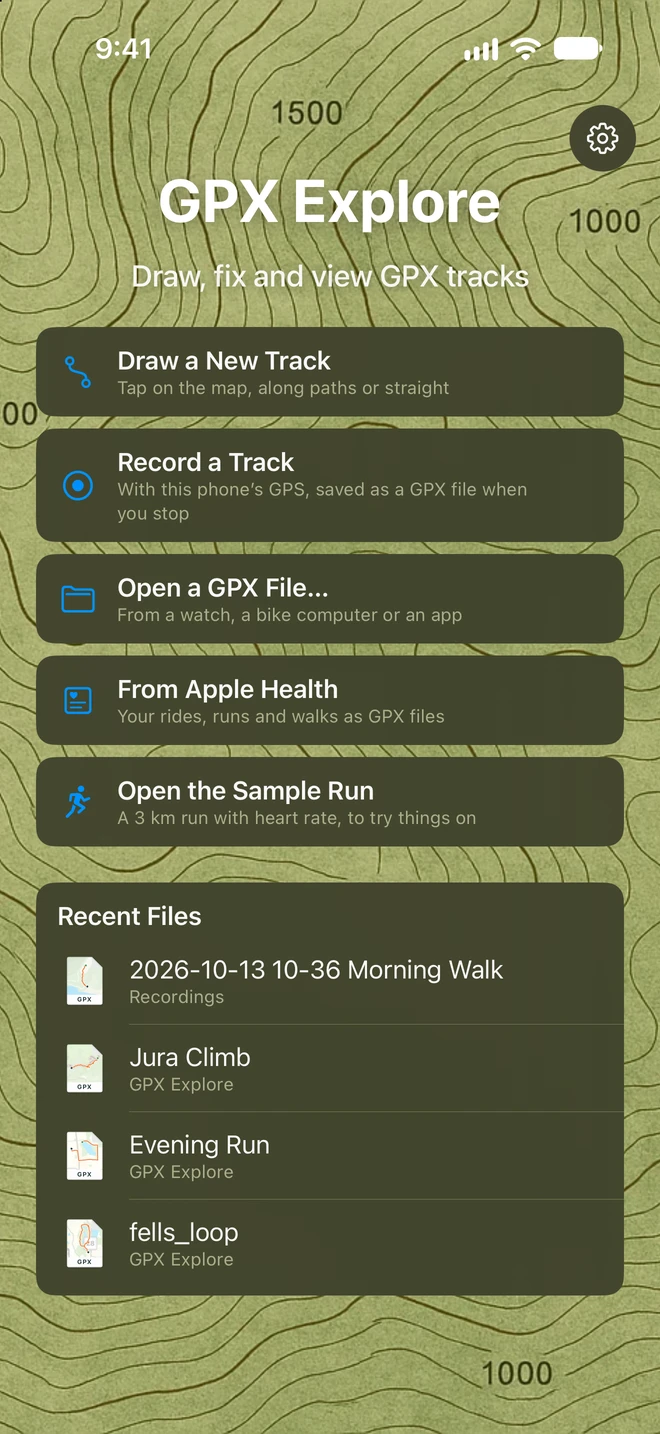
Section titled “On iPhone and iPad”- From the app: GPX Explore opens to its start screen: Draw a New Track, Record a Track, Open a GPX File… (any folder in Files, including iCloud Drive), From Apple Health, Open the Sample Run, and your Recent Files, each with the folder it is in (touch and hold one for Remove from Recent Files). The gear at the top right opens Settings. On the map, the folder button at the top left (Files) has Home (back to the start screen), New Track, Open…, Record a Track, From Apple Health… and, for a new track, Save….
- From another app: tap a GPX file in Files and choose GPX Explore, and it opens straight onto the map. A file in Files or iCloud Drive is edited where it is, and your changes are saved back to it a moment later; a file you only look at is never rewritten. A file from Mail, Messages or AirDrop arrives as a copy, which GPX Explore keeps in its own folder (“name 2.gpx” if the name is taken; the same file sent again opens the copy already there).
If the file changes on another device while it is open, the map shows the new version.
In Files, GPX files get icons with their own tracks on a map of the region, with its coastlines and borders, for a long trip, and on plain green ground for a local one. The map is built into GPX Explore, so the icons need no network.
From WorkoutGPX
Section titled “From WorkoutGPX”WorkoutGPX turns Apple Health workouts into GPX files. Its GPX Explore button (in a workout’s swipe, Open in GPX Explore in its menu, or the GPX Explore icon on a workout’s map) opens the workout in GPX Explore in one tap, straight onto the map, with no list of apps to choose from. See Open in GPX Explore in WorkoutGPX’s guide.
GPX Explore keeps the file in its folder, under Workouts, so it is in Files afterwards and your edits (with Pro) are saved into it. The same workout sent again opens the copy already there. The first time, if iCloud Drive is on for GPX Explore, it asks Keep Workouts in iCloud Drive? first.
GPX Explore’s folder
Section titled “GPX Explore’s folder”GPX Explore saves some files by itself, in a folder of its own:
| In the folder | What it holds |
|---|---|
| GPX Explore | Files from Mail, Messages and AirDrop |
| Workouts | Workouts sent from WorkoutGPX |
| Recordings | The tracks you record |
| Rides | The rides recorded while you follow a route |
The folder is On My iPhone ▸ GPX Explore (On My iPad) in the Files app, unless you keep it in iCloud Drive: then it is iCloud Drive ▸ GPX Explore, the same folder on your Mac, iPhone and iPad. GPX Explore asks once, at the first workout from WorkoutGPX or the first recording, when iCloud Drive is on for it: Use iCloud Drive or Keep on iPhone. It never puts these files in iCloud on its own, since workouts are Apple Health data.
Change it any time with Settings ▸ Files ▸ Keep Files in iCloud Drive. Only new files go to the new place; files already saved stay where they are. The switch is dimmed while iCloud Drive is off for GPX Explore (in the Settings app, under your name ▸ iCloud).
Quick Look on iPhone and iPad
Section titled “Quick Look on iPhone and iPad”Tap a GPX file in Messages, Mail or Files and its preview shows the tracks on an Apple map, colored by grade, with the start and the end, and a card with the name, the date, the distance, the elevation gain and the time. The preview’s share button sends the file on, to GPX Explore or to Files. If another app on the device also claims GPX files, the preview may show that app’s view or the file’s text instead; after installing or updating GPX Explore, restart the iPhone or iPad once so it picks up the preview.