

Find a Place
Find a Place finds somewhere in the world: a town, an address, a landmark, or a position you type. Click the magnifying glass in the toolbar, or on the Mac choose Edit ▸ Find a Place… (⌘F). On a closed iPhone Duo the magnifying glass is in the side strip.
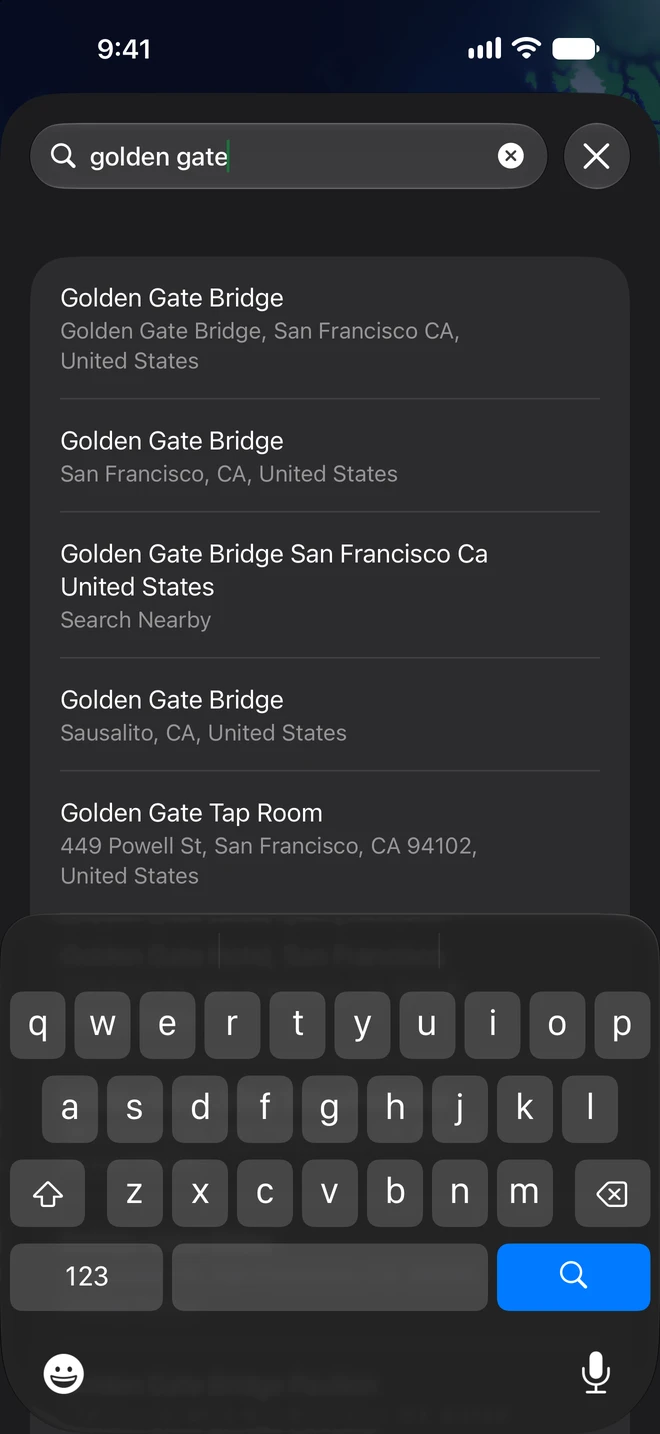
- Type in the field. Apple Maps’ suggestions appear as you type.
- Pick one, or press Return for the first. If what you typed is a position, Go to … comes first, marked Coordinates.
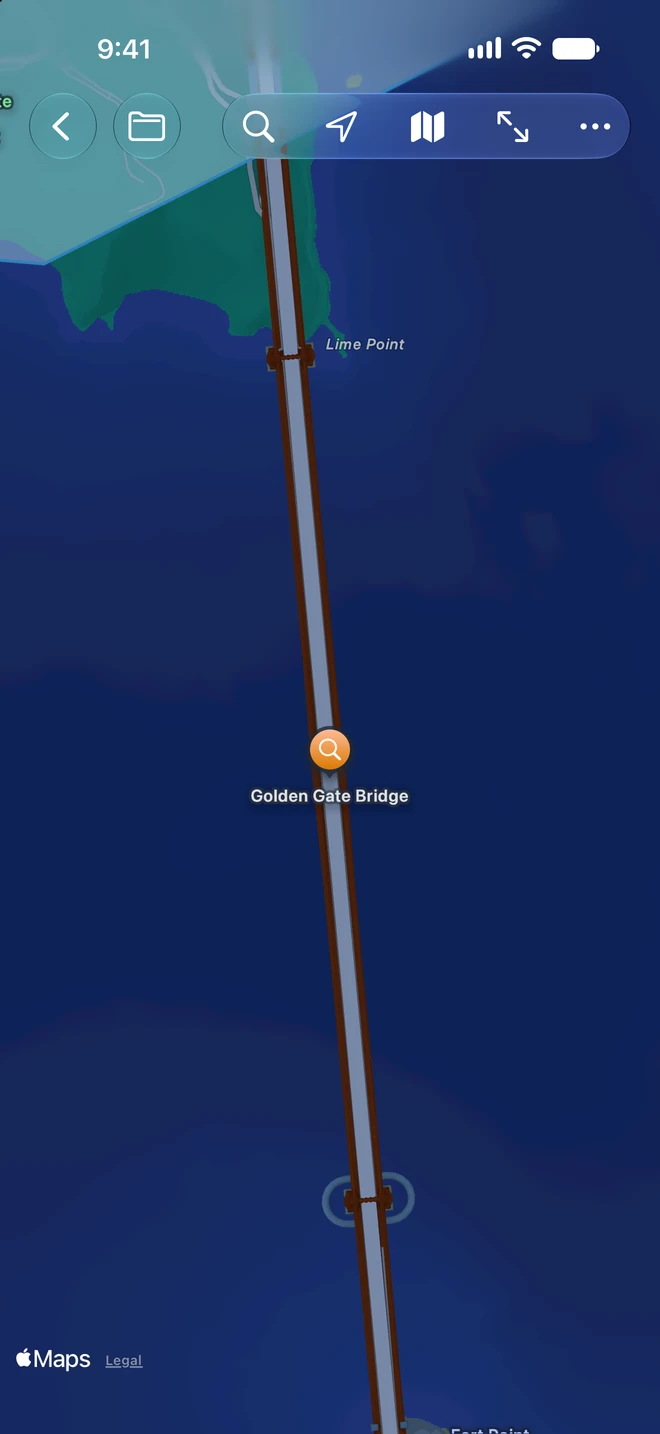
- The map goes there, about a kilometer across, and an orange pin with a magnifying glass marks the place.
The pin stays until your next search. Click (tap) it for its callout:
- + (Add Placemark Here) makes it a placemark in the file, named after the place, and turns on editing. It needs Pro.
- ✕ (Remove Pin) takes the pin away.
The pin belongs to the window, never to the file. Find a Place keeps your last search for the next time you open it.
Coordinates
Section titled “Coordinates”Type or paste a position in any of the formats KML Explore reads, latitude first:
| You type | Read as |
|---|---|
40.7536, -73.9838 or 40.7536 -73.9838 |
Decimal degrees |
40.78N, 73.96W or 73.96W, 40.78N |
Decimal degrees with hemisphere letters |
40 45.217 N, 73 59.026 W |
Degrees and decimal minutes |
40°46'57"N 73°57'56"W or N40 46 57 W73 57 56 |
Degrees, minutes and seconds |
18T 585785 4511904 |
UTM |
18T WL 85784 11903 or 18TWL8578411903 |
MGRS (a shorter reference goes to its square’s center) |
More on each format: Coordinates.
Search uses Apple Maps: what you type goes to Apple to find suggestions. The layer list’s own search finds what is in the file; see Search.