

My Location
Most KML arrives to be used where it points: a parcel to walk, a trail to find, a list of sites to visit. My Location puts you on the map with the file.
Click the location arrow in the toolbar. The blue dot appears and the map goes to it; on iPhone and iPad the map follows you until you move it, and on the Mac it centers on you once. The arrow fills in while My Location is on. Turn it off with Map ▸ Show My Location, in the toolbar’s Map button or, on the Mac, the Map menu. KML Explore remembers the choice for the next time.
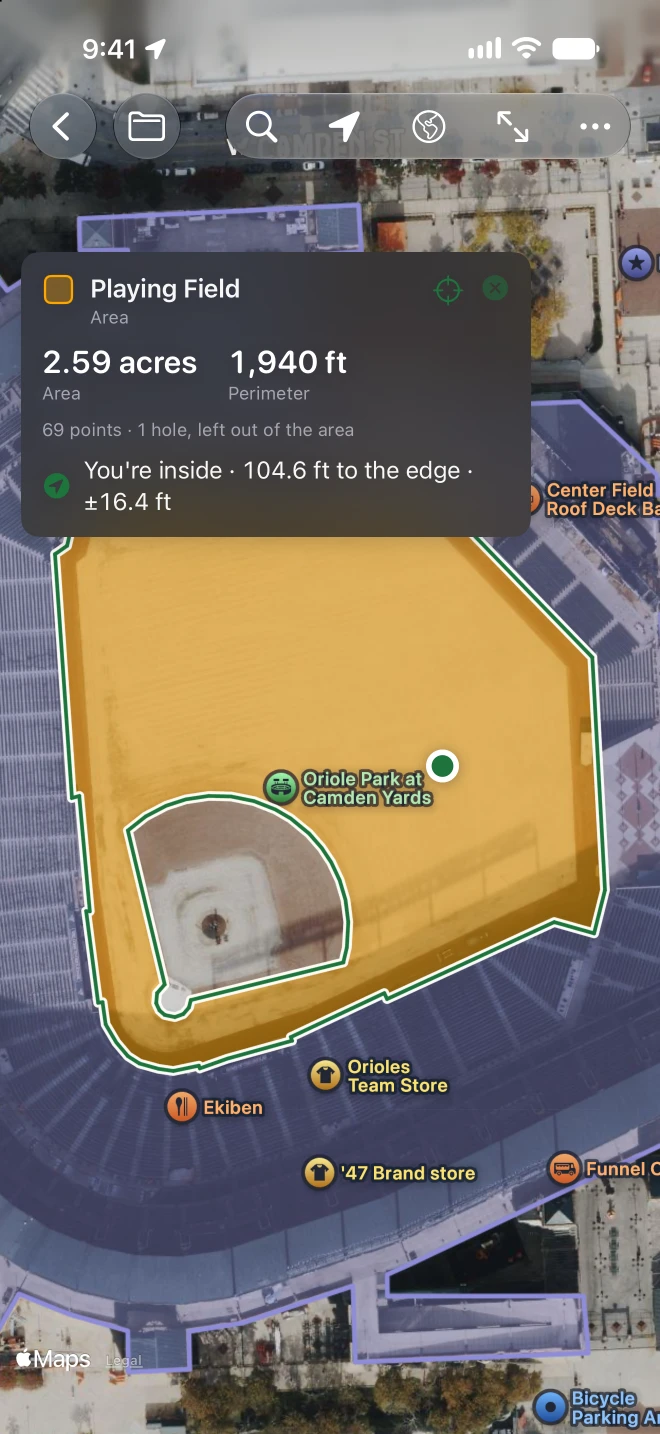
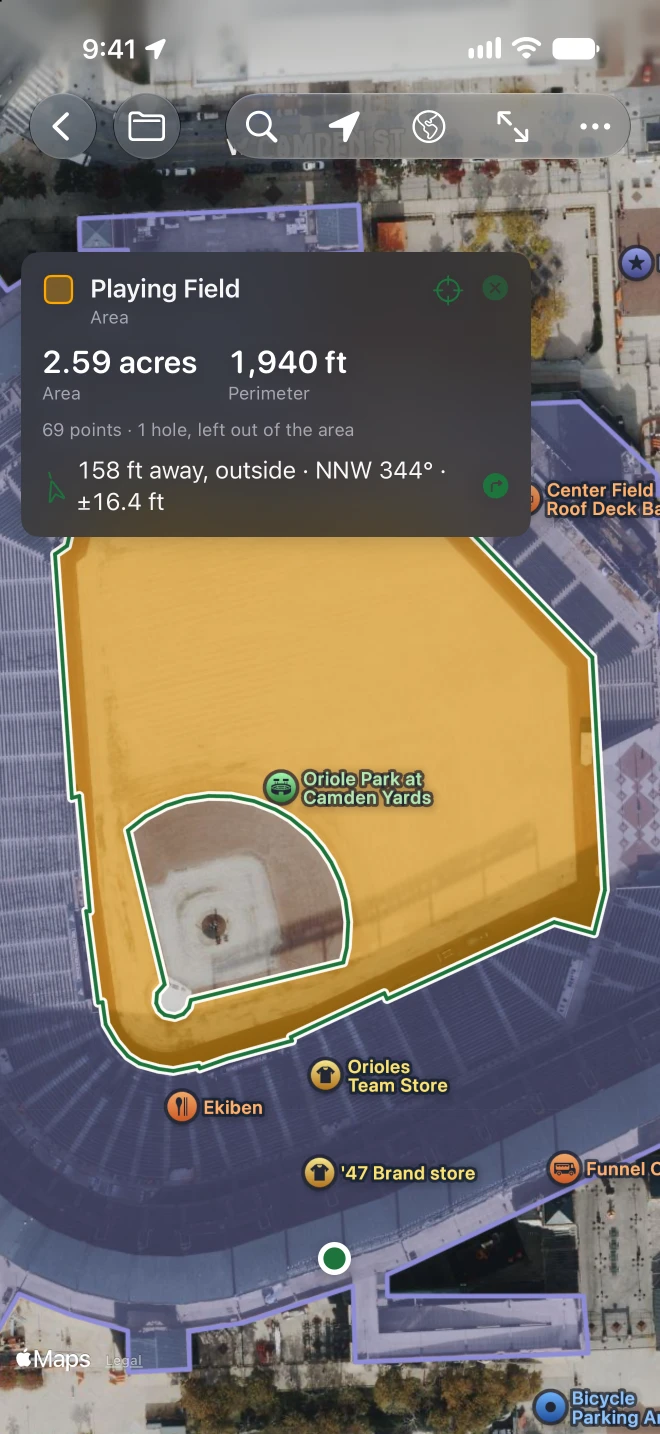
How far, which way
Section titled “How far, which way”With My Location on, the card of a selected placemark adds a line:
- A place or a path: how far it is to its nearest point, the direction as a compass point and in degrees
(
1.2 mi away · NE 41°), and an arrow pointing that way. - An area: You’re inside · 96 ft to the edge when you are in it, or how far away it is and which way when you are outside. Inside a hole counts as outside.
- A circle: measured from its center and radius.
- After each, ± the accuracy of your position, as the device reports it.
The Directions button (the turn arrow) opens Apple Maps with directions to that nearest point. It isn’t shown while you are inside an area.
Distances follow your length unit.
The permission
Section titled “The permission”KML Explore asks to use your location the first time you turn My Location on in a window, never when it opens. If you said no before, the arrow shows Location Is Off for KML Explore and where to turn it on: on the Mac, System Settings ▸ Privacy & Security ▸ Location Services; on iPhone and iPad, Settings ▸ Privacy & Security ▸ Location Services ▸ KML Explore.
Your position is used only while a map shows the dot, only on the device. It is never sent anywhere and never written into a file. Directions hand Apple Maps the place you are going to.