

On iPhone and iPad
KML Explore runs on iPhone and iPad with iOS and iPadOS 18 and later. One file is open at a time; File ▸ Home goes back to the start screen.
iPhone
Section titled “iPhone”- The map comes first. The layer list is one step back: the back button at the top left of the map.
- The toolbar: File at the top left; then Find a Place, My Location, the Map menu, Fit All, Edit and Inspector.
- The card sits at the top of the map. The inspector is a sheet: it opens when you select something, and the Inspector button brings it back.
- While editing, the edit bar is at the top center of the map with Undo and Redo, and the card, the repair banner and the web question step aside so the whole map is yours to draw on. The inspector waits for its button. The Points table is a sheet that comes down to a row or two while a point is picked.
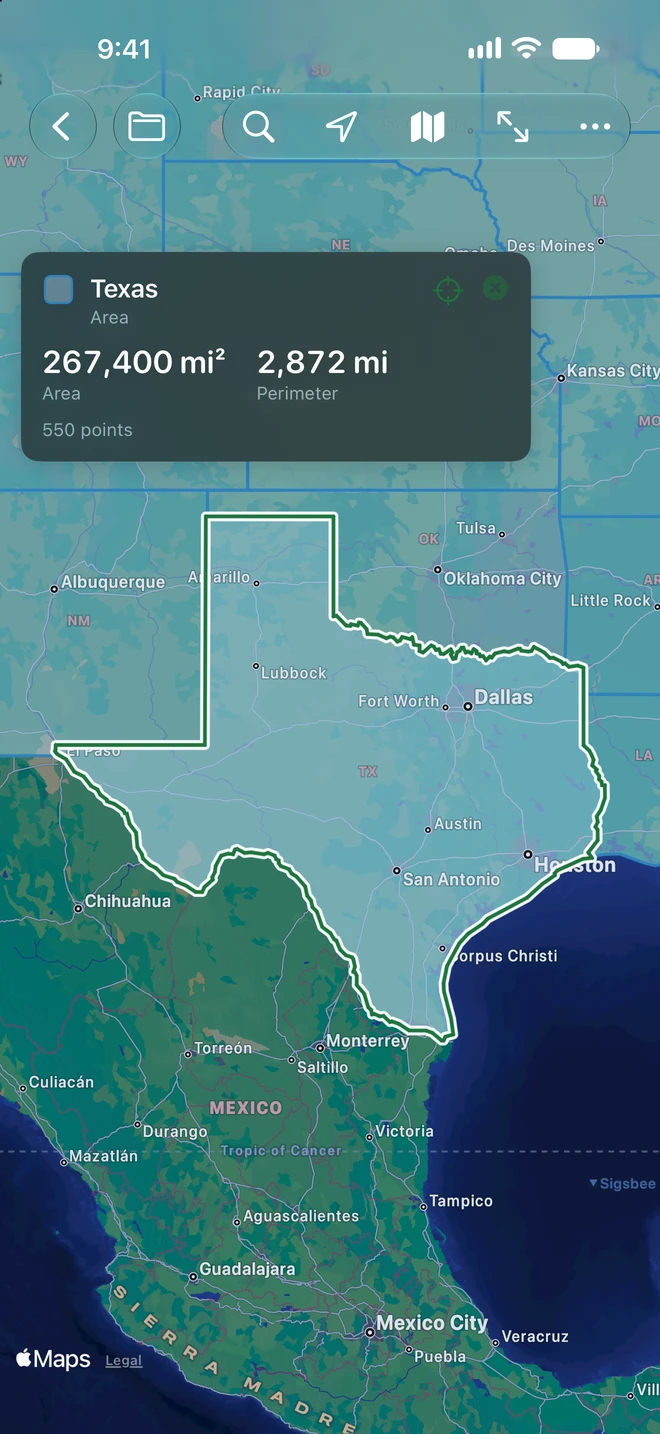
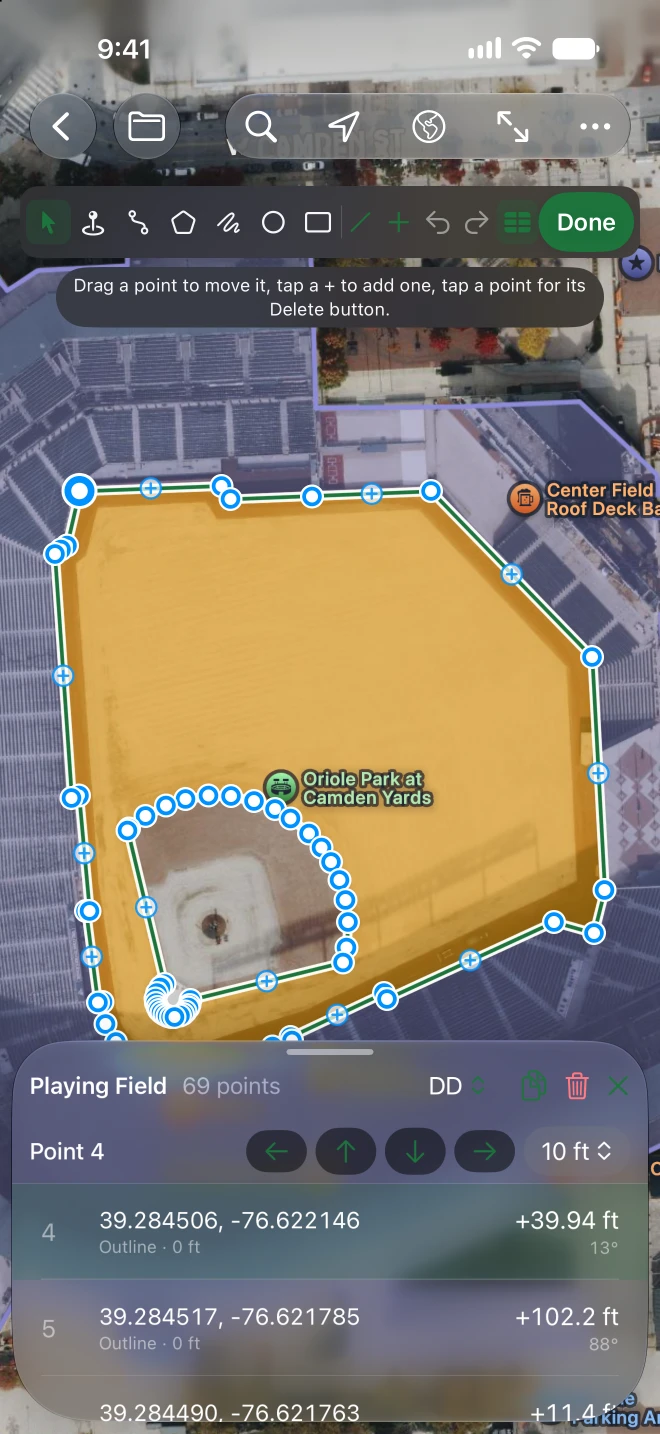
The layer list, the map and the inspector side by side, as on the Mac, and the Points table under the map. When the map between the layer list and the inspector would get too narrow (an iPad in portrait), the panel you opened earlier gives way. With a keyboard, ⌥⌘E turns editing on and off, ⌥⌘P shows the Points table, and ⌘↩ is Done.
iPhone Duo
Section titled “iPhone Duo”Closed, the toolbar’s buttons, the start screen’s gear and Find a Place’s magnifying glass sit in the side strip, and the start screen’s samples run under it to the edge. Open, the app uses the whole display, as on an iPad.
Where the Mac’s menus are
Section titled “Where the Mac’s menus are”| On the Mac | On iPhone and iPad |
|---|---|
| File ▸ New, Open…, Export… | File ▸ New Map, Open…, Export… |
| File ▸ Save, Save… | Saving is automatic; File ▸ Save… for a new map or a sample |
| — | File ▸ Share… |
| Window ▸ Welcome to KML Explore | File ▸ Home |
| KML Explore ▸ Settings… | The start screen’s gear, File ▸ Settings… or Map ▸ Settings… |
| Help ▸ KML Explore Help | Settings ▸ Help ▸ KML Explore Guide |
| The Map menu (Map Style, Names on the Map, Show My Location, Fit All, Inspector, the file’s layers, web images) | The toolbar’s Map button, Fit All and Inspector |
| Edit ▸ Find a Place… | The magnifying glass |
| Edit ▸ Undo, Redo | The arrows in the edit bar |
| Edit ▸ Delete Selection | Delete in the inspector or the layer list’s menu; a point’s callout |
| Draw ▸ Edit | Edit in the toolbar |
| Draw ▸ the tools, New Folder, Lines | The edit bar (tools, Lines, +) |
| Draw ▸ Show Points Table | The edit bar’s Points button, or Edit Points… |
| Draw ▸ Simplify…, Reverse Direction, Make an Area, Add a Hole | The inspector’s Shape section while editing (Add a Hole also in the edit bar’s +) |
| Draw ▸ End Path or Area | The edit bar’s ✓ |
| ⌥ + arrow keys | The nudge bar’s arrows |
Touch and hold where the Mac right-clicks: rows in the layer list and the Points table, Recent Files.