

Record a track
On iPhone and iPad, GPX Explore records a track from scratch: a walk, a run, a hike or a ride, with no route to follow. One tap starts it, and when you end it the GPX file is saved by itself, named with the date and the time. Recording is free. Opening the file afterwards shows its climbs, splits and profile like any other; fixing it needs GPX Explore Pro, as for any file.
-
Tap Record a Track on the start screen, or choose Record a Track in the Files menu (the folder button at the top left of the map).
-
The first time, if iCloud Drive is on for GPX Explore, it asks Keep Recordings in iCloud Drive?: Use iCloud Drive, or Keep on iPhone (Keep on iPad). See Where the file goes.
-
The first time, iOS also asks to use your location (choose Allow While Using App) and whether GPX Explore may send notifications, which it uses only for the reminder.
Recording starts at once, in the activity you used last (Walk the first time). There is no form, no name to type and no Save: the banner Finding your location… shows until the GPS has a good fix, and the track starts there.
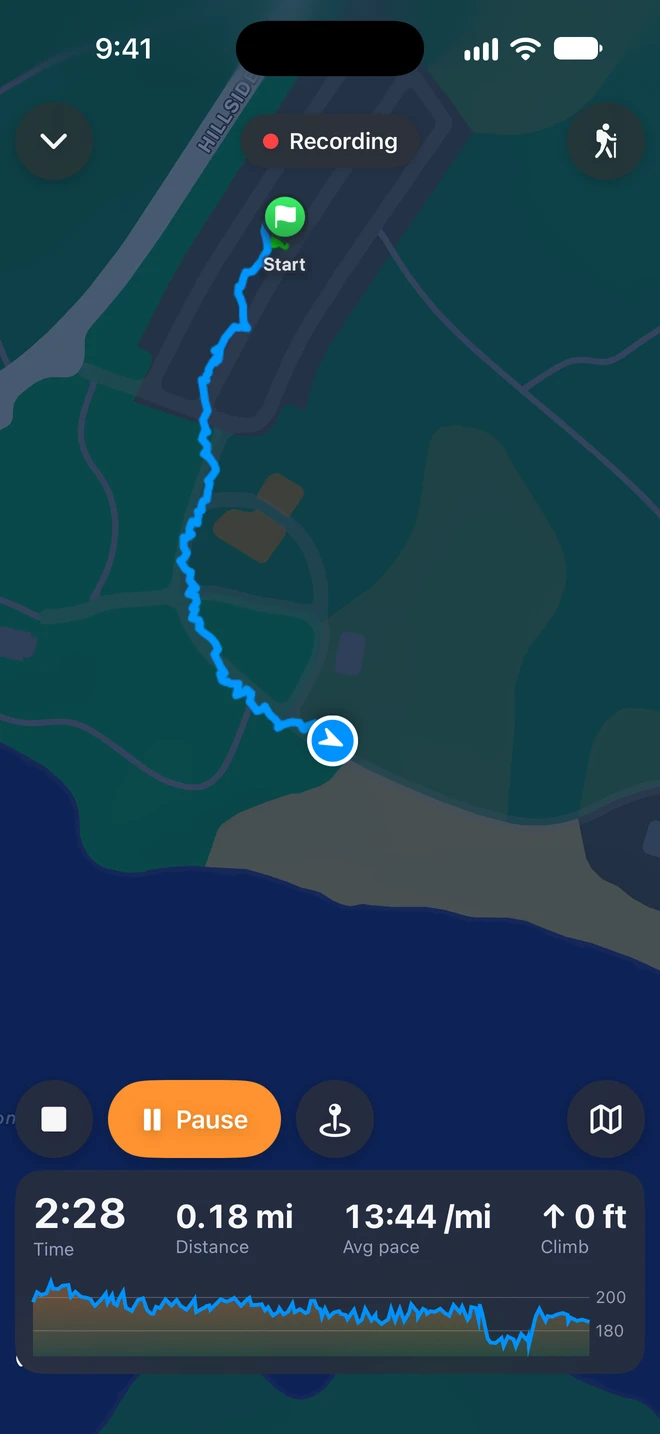
The recording screen
Section titled “The recording screen”- At the top: the chevron (Minimize), Recording with a red dot or Paused, and the activity’s button. Tap it to switch between Ride, Run, Walk and Hike at any time; the file is named for the activity you end with.
- The map follows you, north up, with the track so far in the grade colors of the map, the start, and your waypoints. Drag it to look around; Recenter brings it back. Overview shows the whole track.
- The panel: Time (it stops while paused), Distance, Speed on a ride or Avg pace on foot, Climb (a dash until the iPhone has a height it can trust, see A clean track), and the profile so far. The distance and the climb are counted the way the route card counts the saved file, so they do not jump when you end.
- The buttons: End (the square), Pause and Resume, Add a Waypoint (the pin), and Overview or Recenter.
A banner says when something needs your attention:
| Banner | What to do |
|---|---|
| Finding your location… | Nothing is recorded yet. Outdoors, with a view of the sky, it takes a few seconds. |
| Location is off for GPX Explore, so nothing is being recorded. | Tap Settings in the banner and allow Location while using the app. |
| Precise Location is off, so the track will be rough. | Tap Settings and turn on Precise Location. |
| Your location is not available right now. | The iPhone has no position at the moment; the recording goes on when it has one. |
| Paused while you stand still. It goes on when you move. | Nothing: Pause When I Stop is on. |
| Still recording: it carried on after GPX Explore was closed. | Nothing: see Nothing is lost. The × closes the banner. |
Pause and waypoints
Section titled “Pause and waypoints”- Pause stops the clock and the track; Resume goes on. Each stretch between pauses is a segment of its own in the file, so the map draws no straight line across what happened in between.
- Add a Waypoint marks where you are now, on the track and in the file. Type a name, or leave the suggested Waypoint 1, Waypoint 2 and so on, and tap Add.
Use the app while you record
Section titled “Use the app while you record”The chevron at the top left puts the recording screen away, and the rest of the app is yours: open a file, look at a map, change a setting. A bar across the top, “● Recording · 42:10 · 1.52 mi”, shows the recording is still going; tap it to come back. Record a Track in the Files menu brings it back too.
Tap End, then End Walk (End Ride, End Run, End Hike); Keep Walking goes back. The file is saved at once, and the summary shows:
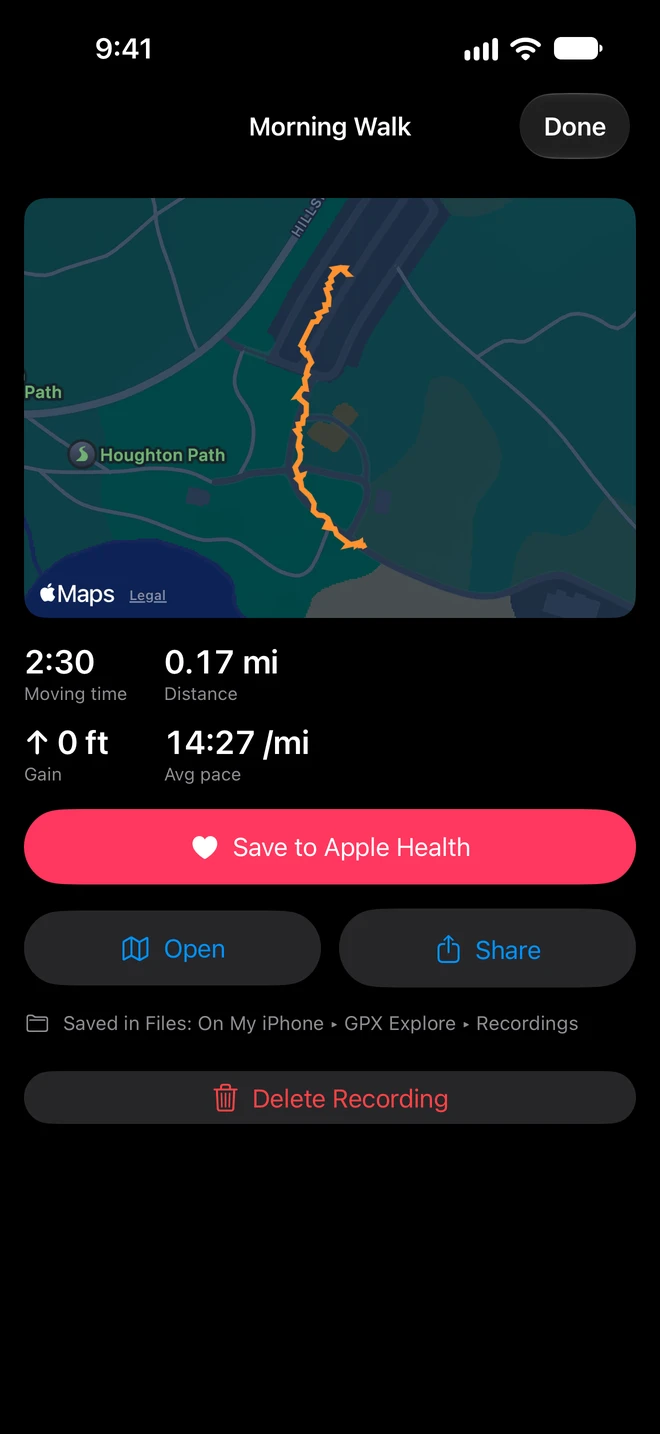
- The track on a map, with Moving time, Distance, Gain and Avg pace (Avg speed on a ride).
- Save to Apple Health adds it as a workout of its activity, with its route on the map in Fitness and Health. The first time, iOS asks for permission. A recording is saved once; the button then says Saved to Apple Health.
- Open shows the file on the map, with its splits, climbs and chart. Share sends it.
- Where it was saved: Saved in Files: On My iPhone ▸ GPX Explore ▸ Recordings, or iCloud Drive.
- Delete Recording, after a confirmation, removes the file. A copy saved to Apple Health stays there.
- Done closes the summary. The file is also first in Recent Files on the start screen.
If you end before GPX Explore had found your location, the screen says Nothing was recorded and there is no file.
The file
Section titled “The file”The file is named like “2026-10-10 07-42 Morning Walk.gpx”: the date, the time you started, and Morning, Afternoon, Evening or Night with the activity. It is plain GPX 1.1, which any app that reads GPX opens:
- One track with that name, its type set to walking, running, hiking or cycling, as Strava, Komoot and Garmin Connect read it.
- A segment for each stretch between pauses, every point with its time, height and speed.
- Your waypoints, with their names.
- A description line: “Distance 4.21 km, Moving time 52m, Elevation gain 31 m. Recorded by GPX Explore.”
Where the file goes
Section titled “Where the file goes”Recordings go in Recordings in GPX Explore’s folder: On My iPhone ▸ GPX Explore ▸ Recordings in the Files app (On My iPad on an iPad), or iCloud Drive ▸ GPX Explore ▸ Recordings if you keep GPX Explore’s files in iCloud Drive, where your Mac, iPhone and iPad all see them. Change it in Settings ▸ Files; a recording already saved stays where it is.
Nothing is lost
Section titled “Nothing is lost”GPX Explore writes the recording down as it goes. It keeps recording with the screen locked or another app in front, and the blue location indicator shows while it does.
If iOS closes GPX Explore during a recording, it opens it again in the background with your next location, and the recording carries on. If you close GPX Explore yourself, the recording carries on when you open it again. Either way the recording screen says Still recording: it carried on after GPX Explore was closed. The time it was closed is a break between two segments of the track, not a straight line across the map.
If the file cannot be written (a full iPhone), you see Your track was not saved: Try Again, or Later, and GPX Explore saves it the next time it opens.
On the Lock Screen
Section titled “On the Lock Screen”On iOS 18 and later, the recording is on the Lock Screen and in the Dynamic Island, and in an Apple Watch’s Smart Stack: the activity and its name, the time running, the distance, the pace or speed, and the climb, with a red dot while recording and Paused when it is. A long stop does not dim it: it stays bright for up to two hours standing still. It goes away the moment you end. To turn it off, switch off Live Activities in Settings ▸ Apps ▸ GPX Explore.
A reminder when you stop moving
Section titled “A reminder when you stop moving”If you have not moved for 30 minutes, GPX Explore sends a notification: Still recording? “You haven’t moved in 30 minutes. Stop and save the recording, or keep it going.” Touch and hold it for Stop and Save, which ends the recording and saves the file, or Keep Recording, which waits another 30 minutes. While paused, the notification says Recording paused after the same time. Set the time, or Never, in Settings.
Settings
Section titled “Settings”Settings ▸ Recording a Track (the gear on the start screen or in a file’s toolbar):
| Setting | What it does |
|---|---|
| Activity | What Record a Track starts with: Ride, Run, Walk or Hike. Changing the activity while recording changes it here too. |
| Pause When I Stop | Off by default. On, the recording pauses by itself after about ten seconds standing still (on a ride, slower than about 4 km/h, 2.7 mph), and goes on as soon as you move. |
| Remind Me When I Stop Moving | Never, After 15 Minutes, After 30 Minutes (the default) or After an Hour. |
| Keep Screen On | Off by default. On, the screen stays lit while the recording screen shows. |
A clean track
Section titled “A clean track”GPS fixes are not all good, so GPX Explore keeps only the ones it can trust. It waits for a fix within about 20 m before the first point (or 30 seconds, in a city canyon); it leaves out fixes that are more than a minute old or worse than 50 m, and one further from the last than the activity could have gone in the time. It also holds each fix for a second: one that jumps tens of meters to the side and comes straight back, while the phone measured you walking, is dropped. While the phone measures you standing still (slower than about 1 km/h, 0.7 mph), nothing new is added, so a red light, a phone call or a store does not draw a scribble; the first fix that moves again connects from where you stopped. A fix with no measured speed, which among tall buildings is often the iPhone placing itself from Wi-Fi, is added only once it is farther from the last point than its own accuracy. The heights are the iPhone’s GPS heights, used only when the iPhone puts them within 8 m: among tall buildings that can take minutes, and until then the climb shows a dash. The climb leaves out single height spikes. See Accuracy.