

Route Weather
Route Weather shows the weather you will actually drive through — matched to your projected arrival time at every mile and every mountain pass along your route, not the weather in each city right now.
It runs natively on iPhone, iPad, Mac and iPhone Duo, with private iCloud sync for bookmarked trips and no subscription, no account and no ads.
Your first trip in a minute
Section titled “Your first trip in a minute”-
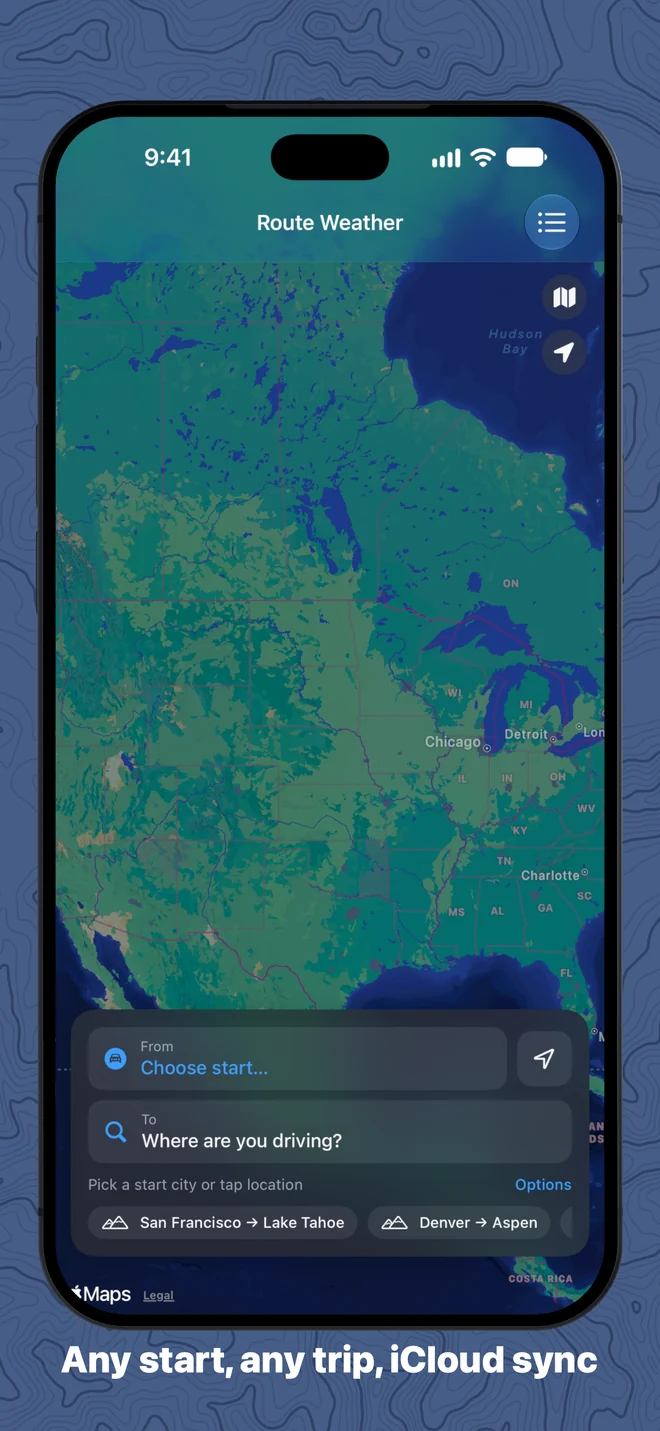
Choose your start and destination. On launch, tap From to search for a starting city (or tap the location button to use your current location), then tap To to choose your destination. You can also tap one of the six built-in Sample Mountain Drives (San Francisco → Lake Tahoe, Denver → Aspen, Seattle → Leavenworth, Munich → Innsbruck, Tokyo → Nagano, Los Angeles → San Francisco) to explore offline immediately.
-
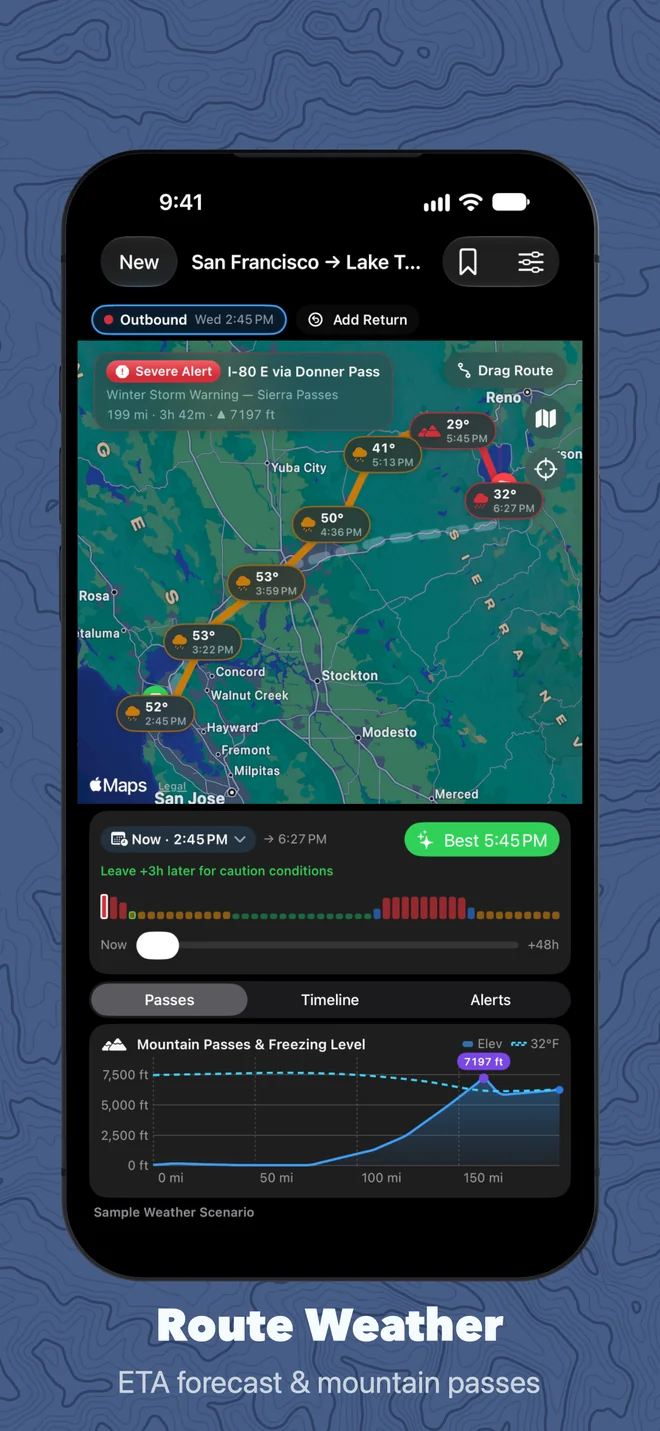
Check the color-coded highway. The route line is painted by the forecast hazard at each segment’s ETA: green for clear, amber for caution (wind/fog/frost), blue for rain or moderate conditions, violet for snow or freezing risk, and crimson for active severe alerts.
-
Scrub your departure time. Drag the departure slider below the map across the next 48 hours to 7 days. Every checkpoint re-evaluates instantly from cached hourly data with zero extra API calls. Tap the Best suggestion chip to jump straight to the clearest window.
-
Read the mountain passes. Inspect the Mountain Passes & Freezing Level chart below the scrubber. Drag or hover across the 30-meter elevation profile to sync a cursor on the map and compare pass elevations against the dashed 0 °C / 32 °F freezing level.
-
Compare alternates or add a return. Pick alternate highways in Compare Routes (or tap Drag Route on the map to pull the line onto another road), tap Add Return / Add Leg to build a multi-leg itinerary, and tap Bookmark to sync it across your devices via private iCloud.
What it asks for
Section titled “What it asks for”| Permission | When | Why |
|---|---|---|
| Location, while using the app | Only when you tap the location button or Use Current Location | Sets your current town as the starting point. Never requested at launch and never used in the background. |
Nothing else. See Privacy & Data Sources.